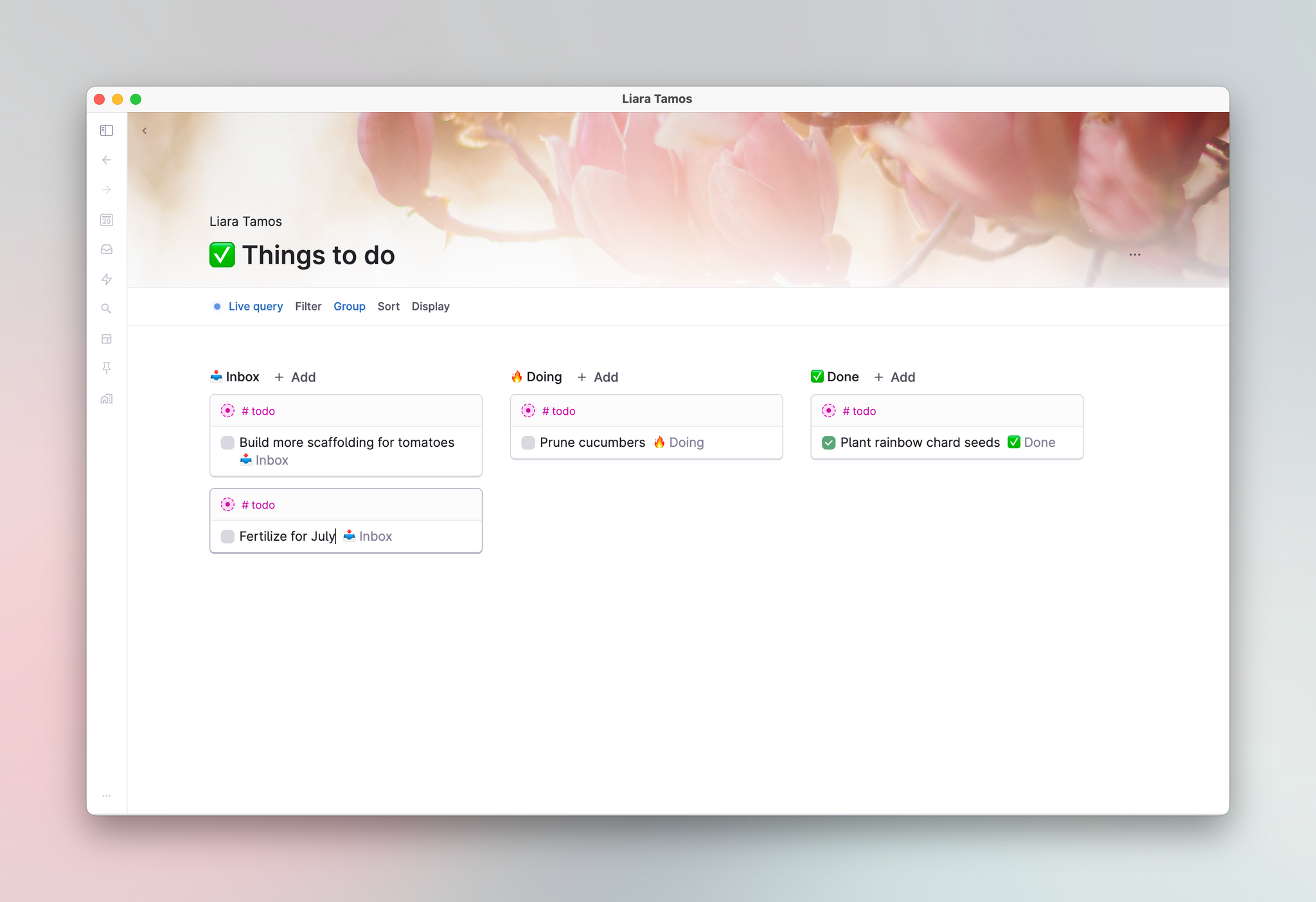
Checkboxes and progress bars
Overview
Any node in Tana can be turned into a checkbox.
Press Ctrl/Cmd+Enter to toggle the checkbox on, check it or hide it.
If you add a checkbox below another node, the node above will automatically get a progress bar indicator.
The progress bar shows the number of checkboxes below the node that are done/not done.
Progress bars work with the outliner hierarchy, meaning that any progress bars below a progress bar will be counted into the top bar.
Progress bars will include results with checkboxes from search nodes
Checkboxes
Keeping track of tasks in the form of checkboxes are a fundamental part of a node. It is baked into the metadata of every node through the Done and Done time system fields. There are some very simple and powerful things you can do with checkboxes in Tana to track your tasks.
Add a checkbox to a node
- Turn any plain node into a checkbox: Cycle through each checkbox state by hitting Cmd/Ctrl+Enter.
- If you press Enter on a plain checkbox node to make another node, this new node will be automatically be a checkbox.
- Checkboxes have three "done states": no checkbox, not done, and done.
- You can find all checkbox nodes that is a descendant of a node by running the command
Find todos within →. This is handy when you've been creating tasks on the fly and want to gather them all. - Special search terms exist for finding nodes with checkboxes:
TODO- finds all nodes with checkboxes, no matter their done stateNOT DONE- finds all nodes that are uncheckedDONE- finds all nodes that are checkedDONE LAST <X> DAYS- finds all nodes that were done the past X days. Write it out like this:DONE LAST 7 DAYS- For more, see Search nodes
- Supertags have a setting to turn on checkbox by default: for more on that, see Supertags
- Supertags can have their done state mapped to the values of a field: for more on that, see Supertags
Progress bar
Tana has a dynamic progress bar that aggregates checkboxes from nodes nested below the top node. This allows you to build out project plans with sub-areas and sub-tasks, and see progress at a glance.
Showing and hiding the progress bar
Automatically shown: When you add a checkbox below another node, the parent node automatically gets a progress bar indicator.
Show/hide the progress bar manually: You can right-click any node and select "Show/hide progress bar" or do Ctrl/Cmd+K > Toggle progress bar.
Shown in sidebar: If you pin a node with a progress bar, a progress bar will show in the sidebar, allowing you to see progress at a glance.
How the progress bar works
Progress bars in Tana work with the outliner hierarchy, meaning any progress bars below a progress bar will be counted into the top bar.
An item with a progress bar can itself have a checkbox. That checkbox will count only as a single item in the progress above it.
The count for nodes will include items that are filtered out (if filters are applied anywhere in the hierarchy).
Search Node Compatibility: The progress bar can be enabled on search nodes, counting the results if these are checkboxes.
Color indicates recency of completion
The green line in the progress bar communicates the recency of task completion. Dark green indicates tasks completed 7 days or older, while light green shows tasks completed today. There are four age-buckets in total: today, 1-3 days old, 3-7 days old, and 7 days or older.
How to Use the Progress Bar
- Add Checkboxes: Simply add checkboxes (press
Ctrl/Cmd+Enteron a node) below a node to see the progress bar appear automatically on the top node. - Enable the Progress Bar on any node: Right-click and select "Show progress bar, or use the command "Toggle Progress Bar" (
Ctrl/Cmd+K) to turn it on or off. - See recent progress: Hover over the progress bar to understand the recency scale and see how much progress has been made recently.
- Pin in sidebar: drag the node into the sidebar, or use the command
Pin to sidebarto see the progress bar in the sidebar.
Sharing
Checkboxes and progress bars in Tana will also work in a published Tana nodes, using Tana View in Publish. This allows you to build effective project plans, client portals that keeps everyone up to date.
NB: Nodes must be re-published for updates to checkboxes to appear in the published page.