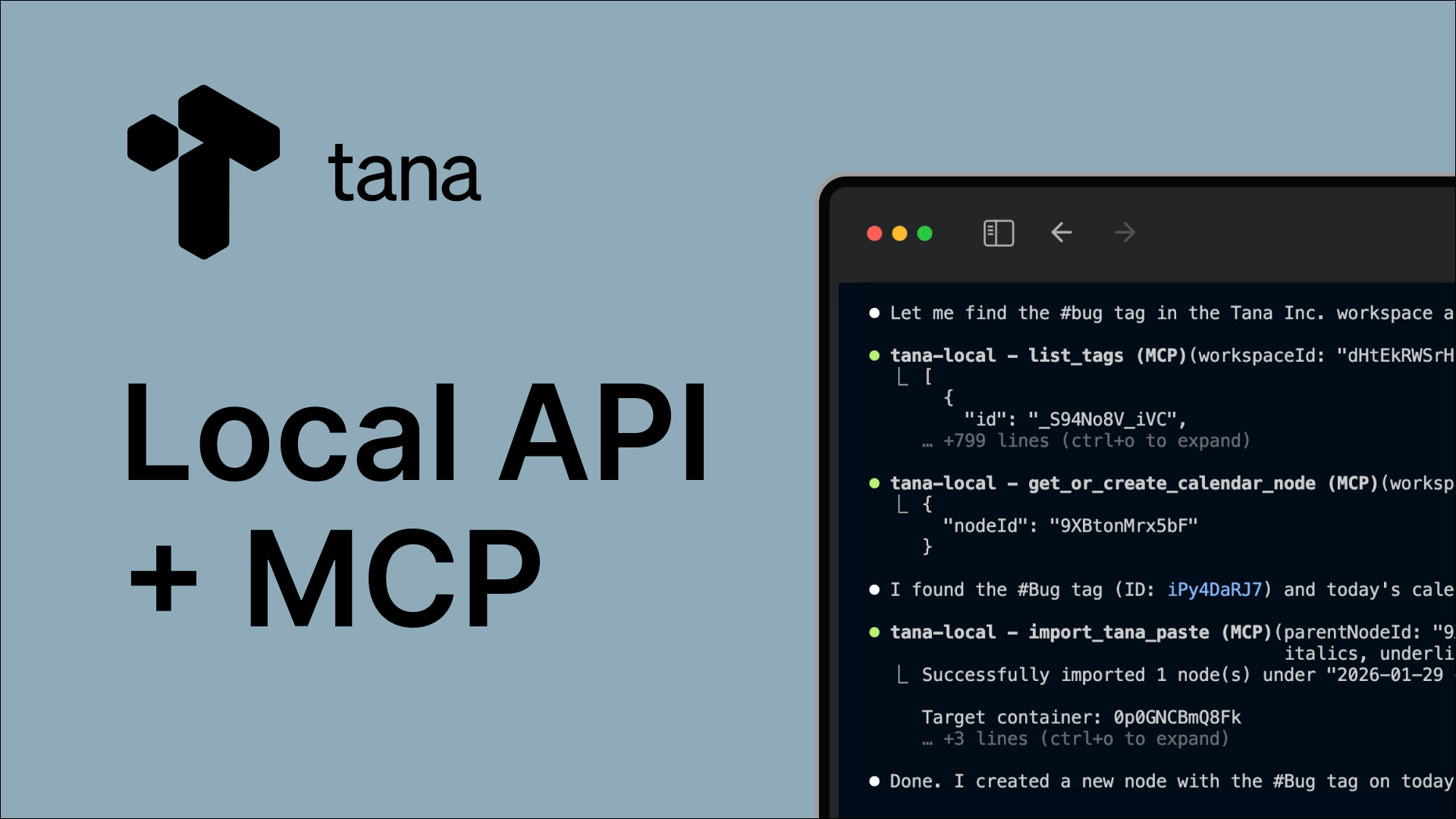
Local API and MCP
The Tana Local API provides direct access to your Tana data from the desktop app. It exposes an MCP (Model Context Protocol) endpoint that AI tools can connect to.
Requirements
- Tana desktop app (latest version)
- An MCP-compatible client (Claude Code, Gemini CLI, Codex CLI, Cursor, VS Code, etc)
Connection details
| Endpoint | URL |
|---|---|
| MCP | http://localhost:8262/mcp |
| Health check | http://localhost:8262/health (no auth required) |
| API documentation | http://localhost:8262/docs (no auth required) |
| OpenAPI spec | http://localhost:8262/openapi.json (no auth required) |
Setup by client
All CLI tools use the same connection details:
- Transport: HTTP
- URL:
http://localhost:8262/mcp
Claude Code
Auto-configure (recommended)
1. In Tana, go to OS menu → Options → Local API settings
2. Enable the Claude Code option
This auto-configures by automatically setting up the ‘tana-local’ MCP in ~/.claude/.config.json while Tana runs and removes the configuration on close.
Manual setup
claude mcp add --transport http tana-local http://localhost:8262/mcp
Add -s user to make it available across all projects, or -s project for the current project only.
This creates the following configuration:
Scope options (-s):
-s local— only you in current project, not shared (default)-s project— shared with everyone in project via.mcp.json-s user— available to you across all projects
Config file locations:
- Project scope:
.mcp.jsonin project root - User scope:
~/.claude.json
For authentication, run /mcp in Claude Code, select the tana server, and complete the OAuth flow. A modal appears in Tana Desktop for approval, then a browser window confirms authentication status.
Codex CLI
codex mcp add tana-local --url http://localhost:8262/mcp
This creates the following configuration:
The command writes to user scope (~/.codex/config.toml) by default and initiates authentication immediately. A modal appears in Tana Desktop for approval, followed by browser confirmation.
For project scope, manually create .codex/config.toml in the project root.
Run codex mcp login tana-local to authenticate if not already completed.
Gemini CLI
gemini mcp add -t http -s user tana-local http://localhost:8262/mcp
Scope options (-s):
-s project— current project only (.gemini/settings.json, default)-s user— available across all projects (~/.gemini/settings.json)
This creates the following configuration:
Config file locations:
- User scope:
~/.gemini/settings.json - Project scope:
.gemini/settings.jsonin project root
To authenticate, start a Gemini CLI session and run /mcp auth. Select the tana-local server, then approve the permissions prompt in Tana Desktop. A browser window confirms authentication status.
Claude Desktop
Claude Desktop doesn't support HTTP transport directly and requires mcp-remote as a bridge.
Navigate to Settings → Developer, and Edit Config. Open to edit the claude_desktop_config.json file and add this to the MCP server config:
Config file location:
- macOS: ~/Library/Application Support/Claude/claude_desktop_config.json
- Windows: %APPDATA%\Claude\claude_desktop_config.json
Restart Claude Desktop after saving. You should see the “tana” Local MCP server as running when set up correctly.
Available tools
Read
- list_workspaces — List available workspaces
- search_nodes — Search using structured queries
- read_node — Read node content as markdown
- get_children — Get paginated children of a node
- list_tags — List tags in a workspace
- get_tag_schema — Get field definitions for a tag
Mutation
- import_tana_paste — Import hierarchical content
- tag — Add/remove tags from nodes
- set_field_option — Set dropdown field values
- set_field_content — Set text/number/date field values
- create_tag — Create new tags
- add_field_to_tag — Add fields to tags
- set_tag_checkbox — Configure checkbox behavior
- check_node / uncheck_node — Mark nodes done/not done
- trash_node — Move node to trash
- get_or_create_calendar_node — Get/create calendar nodes
- edit_node — Edit a node's name and/or description using search-and-replace
Troubleshooting
No “Local API settings” in options - Check that you have enabled the “Local API” feature flag in Tana Labs.
Connection refused - Tana desktop not running or Local API not enabled in Tana Labs.
Authentication fails - Remove and re-add the MCP server, then try authenticating again.
Tools not appearing - Restart your client after adding the configuration.