Importing your Notion workspace into Tana: how to move your knowledge into a more flexible, connected system

Switching from Notion to Tana is now simple with the new Notion import feature. You can export selected Notion pages or databases as Markdown or CSV, upload the zipped file, and Tana will recreate your content in a new workspace. This guide walks you through the process and explains the key differences between Notion and Tana so you can get the most out of your imported material.
Why people move from Notion to Tana
Notion is excellent for structured documents and databases, but many use cases eventually outgrow the rigidity of its setup. When your work spans multiple projects, clients, tasks and meetings, maintaining templates and database connections becomes time-consuming. Often you end up adopting separate tools for project or task management, leading to disruption and manual work when switching between tools. It’s easy to lose context and hard to keep information connected over time.
Tana offers a different approach. Instead of rigid databases, everything becomes part of a flexible knowledge graph. Instead of having to organize your notes in pages, and having to navigate to a certain place to add something, in Tana you can simply write on your Daily notes page or in any note, and add a Supertag to make the content searchable.
Some of the core features in Tana that Notion doesn't offer:
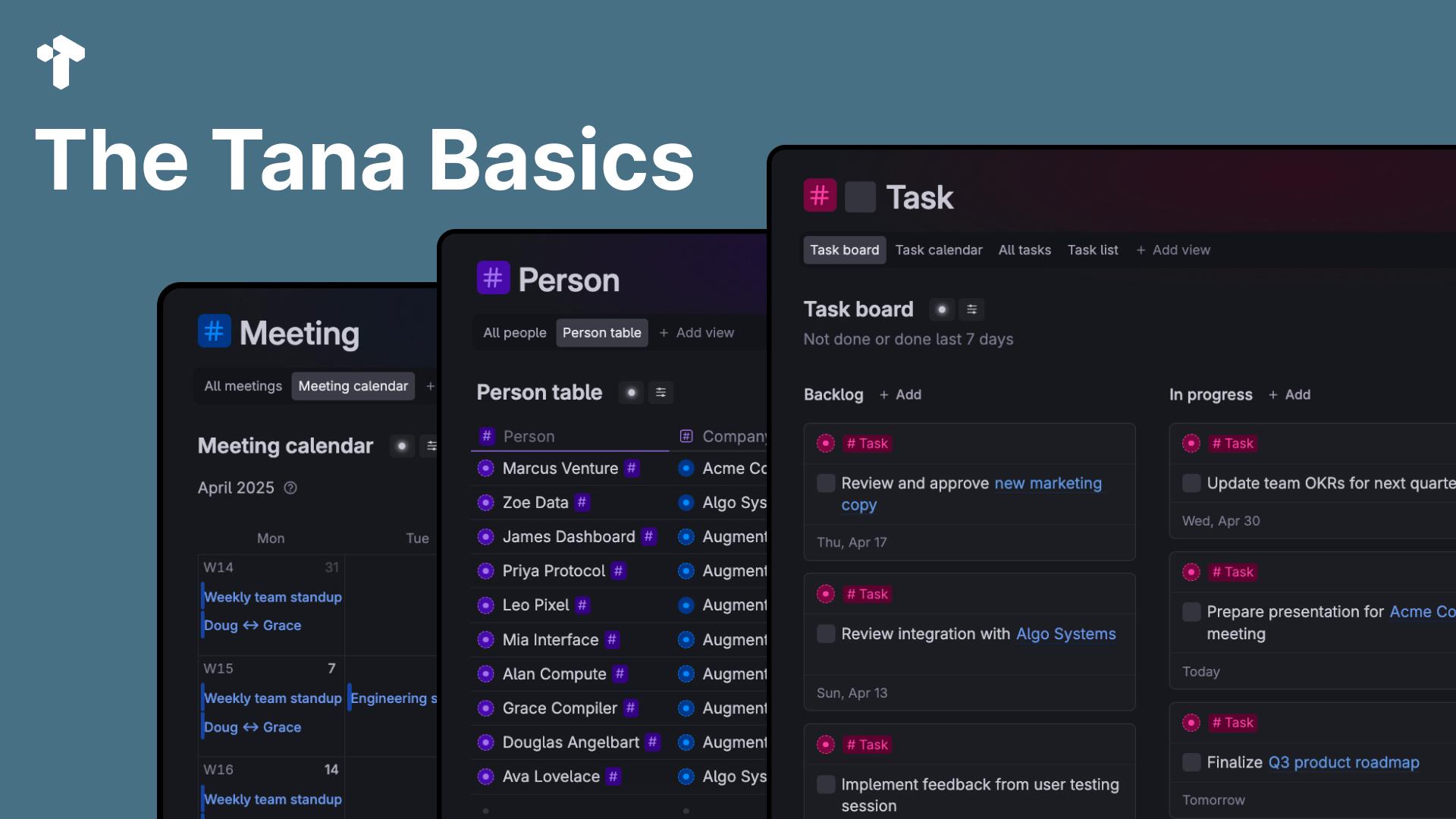
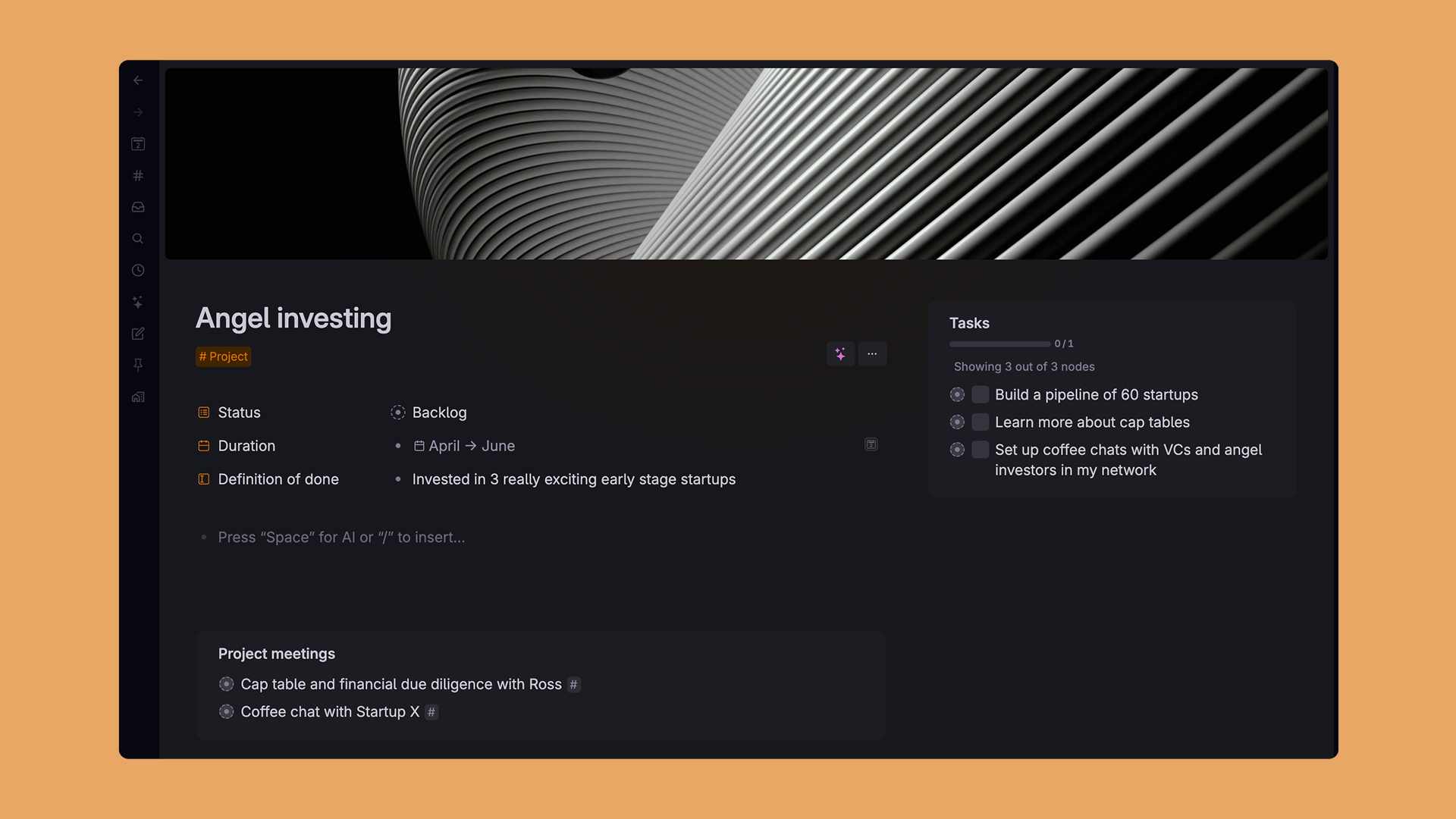
Supertags add structure when you need it, and lets you classify a note as a task, meeting, person or any other category you want to track.
Live searches are widgets that let you pull in a list of e.g. tagged notes, and apply filters, sorting, grouping and view it in different ways (as a table, calendar, cards etc.)
References are mirrored/linked notes that make it easy to connect tasks, meetings, people and projects, to avoid duplicating information by simply doing @ mention to pull in an existing note. Doing this build out connections between your content, so it becomes a knowledge graph that you can navigate to find related content.
Powerful AI features like AI chat and command nodes allows you to customize workflows with advanced prompts. Include your notes as context for AI simply by doing @ mention.
Importing from Notion into Tana lets you start that transition without losing your previous work, so you can use it for context in your work or for AI.
Key differences between Notion and Tana to understand before you migrate
Migrating content is one step. Adopting Tana’s way of thinking is where the real shift happens. Below are the most important conceptual differences, framed so your transition feels smooth rather than confusing.
Pages vs connected nodes
Notion organizes content into nested pages, and you have to place that page somewhere for it to be easy to find and navigate to.
Tana organizes everything as nodes in a knowledge graph, allowing items to appear in multiple contexts without duplicating data. This makes recall easier and keeps related material connected automatically. There are two ways you can store your notes in Tana:
- On Daily notes - every day, Tana gives you a fresh notepad to work on that day. Use it to make a plan with task you want to complete, write a journal, or simply draft the things you are working on. The Daily note page can be customized as a dashboard, to show you meetings, tasks or other relevant content. When you create a new note in Tana, it will default be stored on your Daily note page for Today.
- In a "Wiki-style" hierarchy - Tana supports building out a "wiki-like" structure where you place notes in a hierarchy. This is useful for e.g. company wikis, client portals, project pages or when you want to structure complex information in one place.
Where you store something in Tana doesn't matter as much, since you can find it again with supertags and live searches.
Capture first, organize later
Notion encourages you to design your schema early.
Tana encourages fast capture followed by light, gradual structuring. This is especially useful for users with busy meeting schedules who need to take notes quickly and refine later.
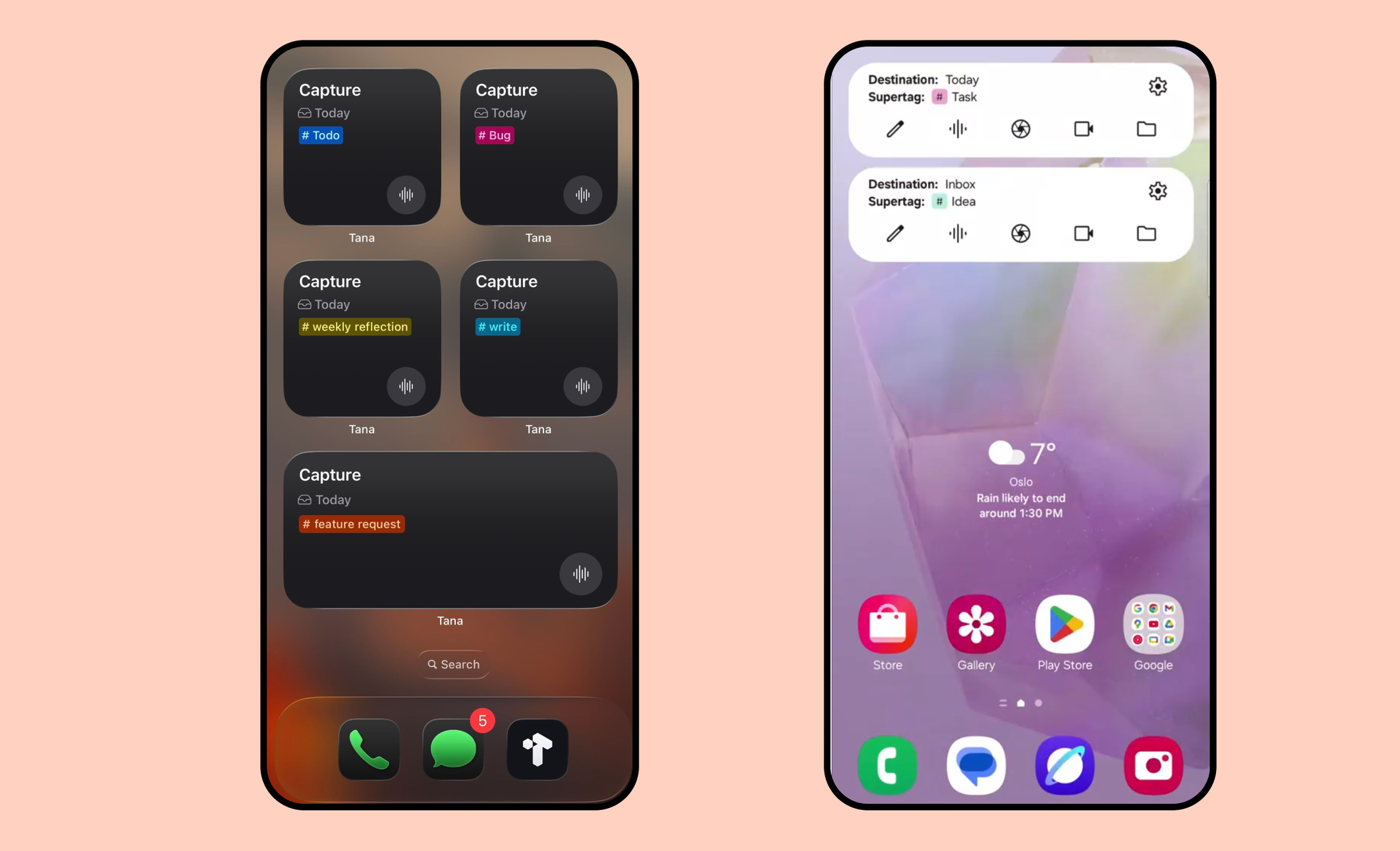
Tana's mobile apps also let you quickly capture ideas, links, notes or images with a dedicated tab that sends things directly to your daily note for today or tomorrow. If you want to process captured things manually, Tana also has a built-in Inbox.
Databases vs supertags and live search widgets
Notion databases are fixed containers with set properties and predefined views.
Tana uses supertags to define types (Meeting, Task, Person, Project) and fields to store structured attributes. You can then build Live searches anywhere you need them that pulls out e.g. tagged notes with filters, sort or grouping. You can create live search widgets anywhere in your notes, and they can appear seamlessly in between text content, images or videos.
Instead of maintaining multiple databases, the same set of nodes can appear in multiple views depending on context.
Properties vs fields
In Notion, database rows are structured by properties you define upfront.
In Tana, structure comes from fields, which appear when you apply a supertag to a node. You can also structure nodes without supertags using fields, for example in a table.
A key difference is that Tana doesn't require you to set up a database to view notes as a table, you can seamlessly switch back and forth between table view and other views.
Tana has two types of option fields; plain Options and Options from Supertag. Plain options lets you simply write the values you want. Tana doesn't restrict you to select between single select and multi-select like Notion does. Another difference is that Tana always allows you to write manual text in field values, even if it's an option field. So you can select an option, but also write a note below it with additional information. You can also set an options field to auto-collect values you write into a field as values, and they will be displayed as options automatically. Learn more about fields in Tana.
This means you can capture information quickly, then add structure later. It reduces friction during fast-paced work like meetings or project planning.
Voice-first
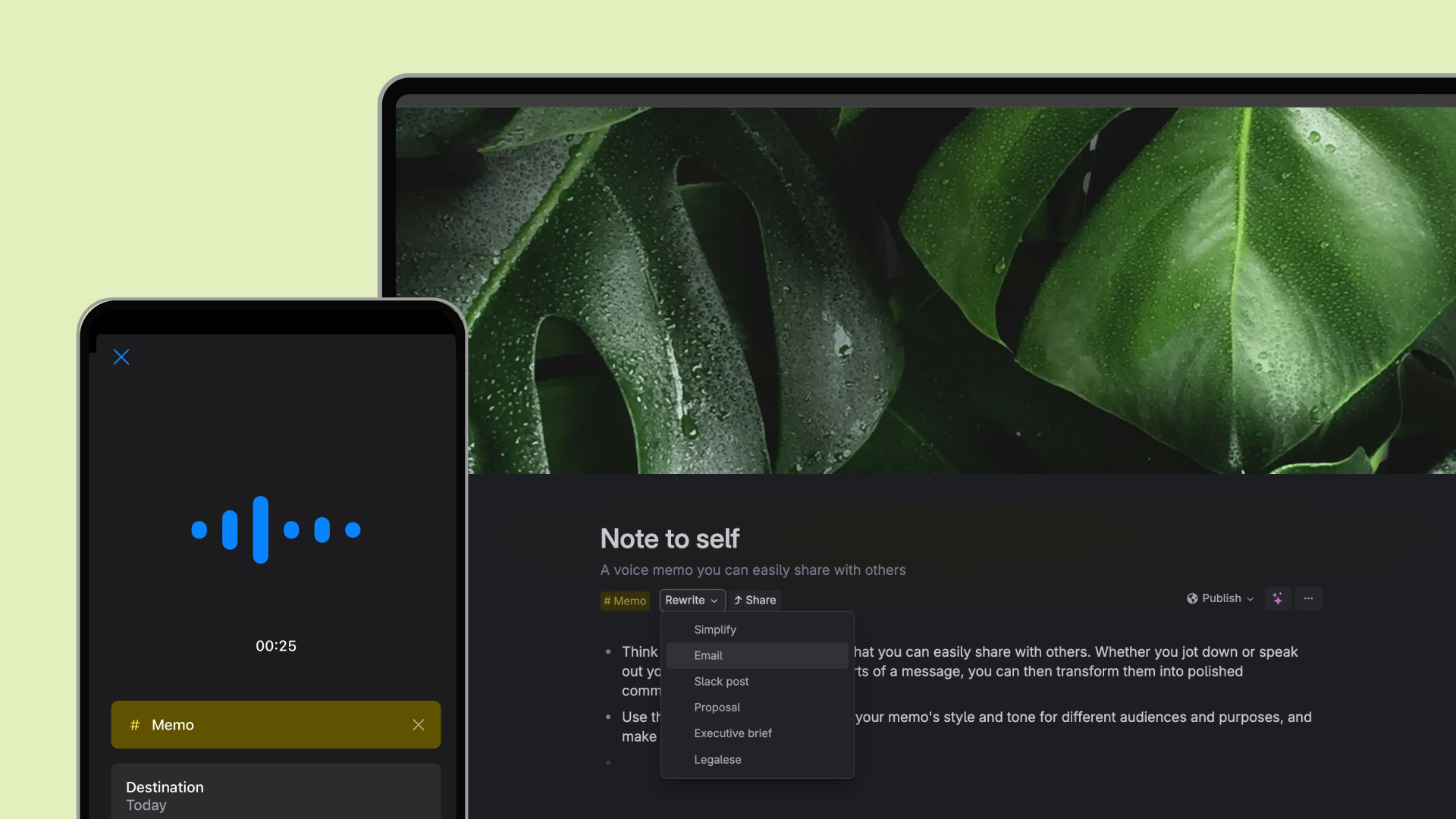
Tana has integrated live transcription on desktop and voice memo recording on mobile. Supertags let you turn rambling voice memos into tasks, articles, memos, emails and more.
The Tana mobile apps lets you set up home screen widgets for capturing voice memos with custom supertags. Check out templates for voice memos
How workspaces differ in Tana vs Notion
When you move from Notion, one of the most helpful mindset shifts is understanding how Tana handles workspaces.
You always have a personal workspace
Every Tana user starts with a personal workspace that is private and always available. It’s your home environment, regardless of how many shared or team workspaces you participate in.
You can pull in content from any workspace
Instead of jumping back and forth between workspaces, Tana lets your personal workspace pull in content from other workspaces using the Allow content from setting. This means:
- you can draft content in your personal workspace before moving it into a shared one
- you can reference shared nodes in your private notes
- you can build views that combine personal and shared information
- you stay in one uninterrupted surface rather than switching contexts
For managers working across clients, teams or projects, this dramatically reduces friction.
Command nodes and AI workflows: a capability you won’t find in Notion
One of the biggest shifts when moving to Tana is discovering that your workspace can run workflows designed by you, not just store information.
Command nodes
Command nodes let you build custom workflows inside your graph. Command nodes can be set up to show as buttons or menus on nodes with Supertags. They can help you do things like:
- generate images, summaries or reports
- create new tagged items
- set/change status with one click
- transform nodes
- set due dates
- move notes to a specific location
- run multi-step operations
These workflows operate directly on your content, not outside it.
AI command nodes
AI command nodes take this further. They let AI read a node, understand its surrounding context, and take action based on your instructions. Examples include:
- preparing a meeting brief from related documents and past decisions
- extracting tasks from transcripts, voice memos or raw notes
- generating follow-ups based on recent activity
- analyze meeting transcripts with specific instructions (e.g. user interview, investor meeting)
This is a fundamental difference from Notion’s automations or third-party integrations. In Tana, your knowledge graph is the workspace and the data source, giving AI the context to work intelligently
Check out AI-powered templates to see what's possible
Why this matters for your Notion import
Your imported Notion content goes into a new workspace, but you don’t have to “switch” into it to work with it. You can:
- surface its content inside your personal workspace
- reorganize imported material privately
- gradually move items into your main system
- work continuously without breaking flow
This is one of Tana’s core strengths: separating data boundaries from your personal working surface.
How to prepare your content in Notion
Tana supports Notion exports in Markdown (.md) and CSV, up to 1500 markdown files per import (or ca. 500 MB). For best results, we recommend exporting only the sections you plan to continue using rather than your entire workspace.
How to export correctly from Notion
- Open the page you want to export.
- Click the options menu in the top right corner.
- Select Export.
- Choose Markdown & CSV.
- Turn on Include subpages and Create folders for sub-pages.
- Download the zipped file.
These toggles are required for Tana to rebuild your hierarchy and preserve relationships between pages.
How to import a Notion export file into Tana
- In Tana, open the user menu in the top right corner.
- Select Import content, then choose Notion import.
- Review the import limitations in the dialog.
- Upload your zipped Notion export.
- Keep your computer awake until the process completes.
If you later want to move items into your personal or shared workspace, use Move with finder to place them where they belong.
Full tutorial for Notion import
What to expect after importing
Your imported content appears in a new Tana workspace, giving you a clean environment to explore and reorganize it without impacting your main system.
Tana recreates as much of your Notion structure as possible, but because the systems work differently, a few adjustments are normal:
- Page structures is replicated with hierarchical outliner structure, but you can re-organize as you want.
- Database relationships won’t be recreated automatically; replacing them with supertags and fields often simplifies things
- Custom Notion views like galleries or timelines will appear as outline lists; you can switch to boards, tables or other views manually
For many users, this cleanup step is where Tana starts to feel powerful, because structure becomes something you refine naturally, not something you maintain rigidly.
Start your migration
You can import your first Notion export in minutes. Once your material is in Tana, you’ll be able to explore faster workflows, richer connections and AI-powered systems that help your knowledge compound instead of scatter.