AI image generation with Gemini Nano Banana Pro in Tana

No more tab switching. No more copy-pasting. No more breaking your flow to create visuals. Just type, generate, and keep working where your notes already live.
Go from note-taking or meeting transcripts to sharing whiteboard sketches, infographics, cartoons or napkin drawings in minutes. Tana lets you experiment with finding your style for prompts, and build up your own prompt library for image generation.
Download the new templates for banner images, infographics and graphic design
A faster, more capable image model
Tana’s image generation just got a major upgrade. You can now generate sharper, more accurate, and better-fitting images directly inside your workspace using Google’s Gemini Nano Banana Pro model. The result is a smoother workflow for creating banner images, visual summaries, and illustrations that can summarizes and actually fit your documents.
When using command nodes, Tana now gives you more control over aspect ratio, resolution and style, so your visuals match the story you’re telling, without jumping out to a separate tool. This creates higher-quality images across creative, conceptual, and realistic use cases.
Generate images instantly where you need them
In Tana, you can generate AI images on the fly while working on your notes, without needing to switch to a different tool like Midjourney or Google Gemini. You can include much more
You can access image generation several places in Tana:
- Use Generate banner image at the top of any node
- Type / and select "Image/file", then select "Generate image"
- Write our your prompt as a normal note and then do Ctrl/Cmd+K → Generate image with AI
- You can also build your own custom command nodes for image generation
Generate banner images on any note
All banner images are now generated in 21:9 format, ensuring banner images line up cleanly with your notes, guides, and documentation. The image will be cropped on top/bottom to fill the width when you scale the panel up and down.
Right-click on the header of any node, or simply click the "Banner" button and then select "Generate image". This will open a modal where you can write your prompt and select a stryle.
Flexible style control
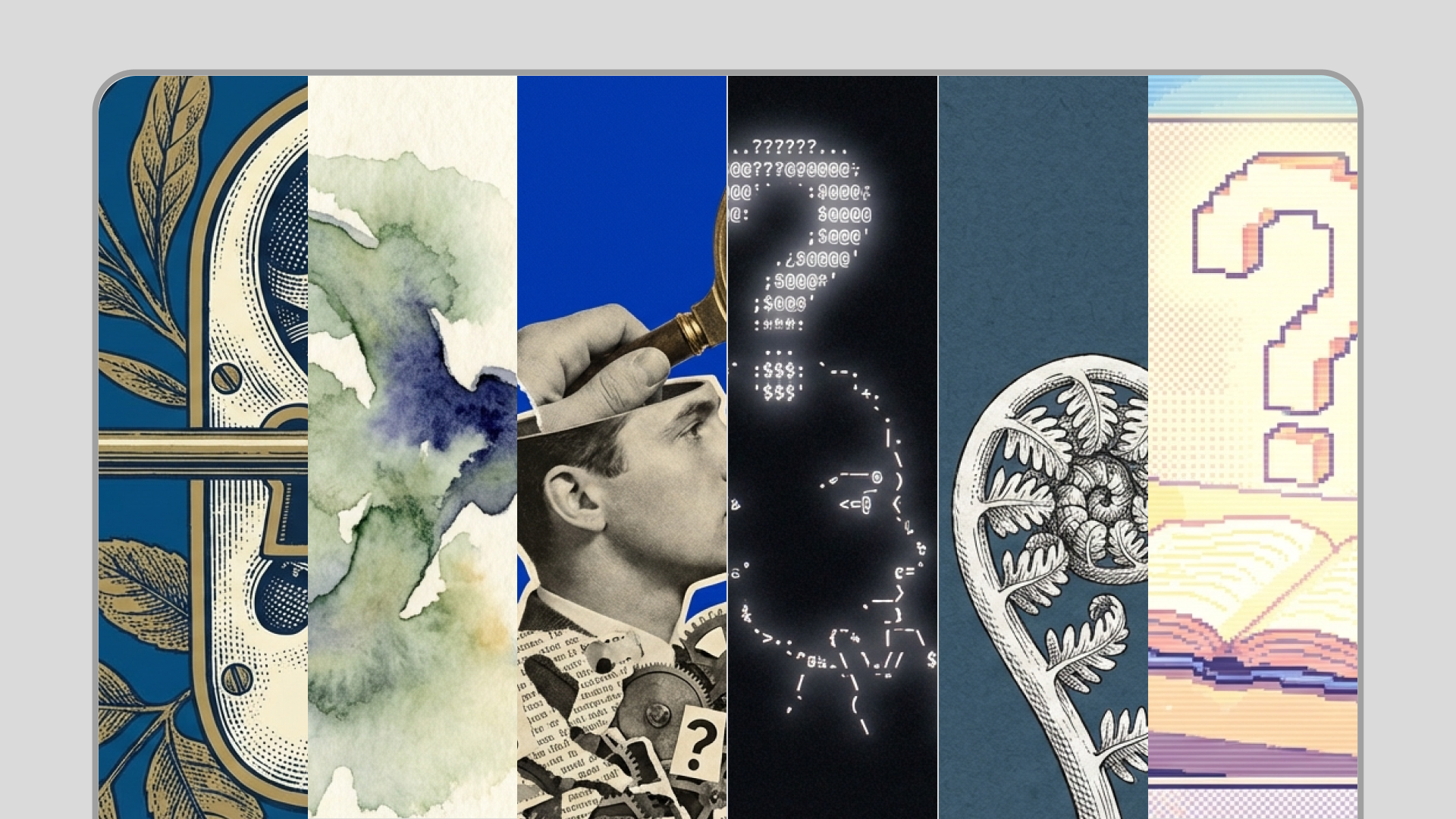
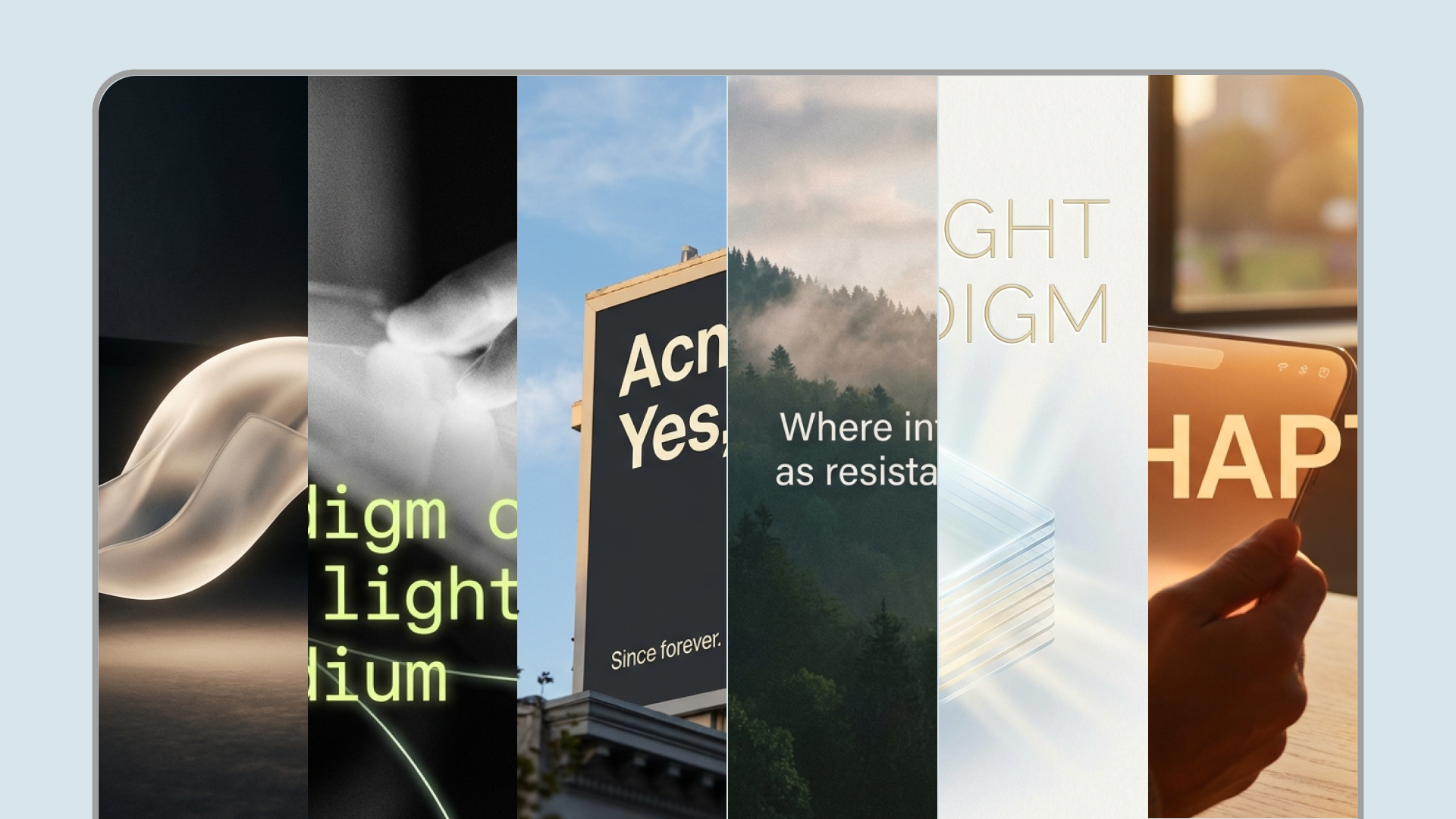
You can now include style direction directly in your prompt. Whether you want a photorealistic image, a soft illustration, line-art, or a cinematic still, Gemini 3 Pro responds reliably to stylistic cues.
Example styles:
- Watercolor illustration
- Minimalist line art
- Film still / cinematic composition
- Infographic-style diagram
- Vintage book engraving
Example prompt for the image above: "Generate an image in aquarel style, of a company christmas party, looking in from the outside where it snows."
Download these templates to try creating images ->
Turn your notes into infographics
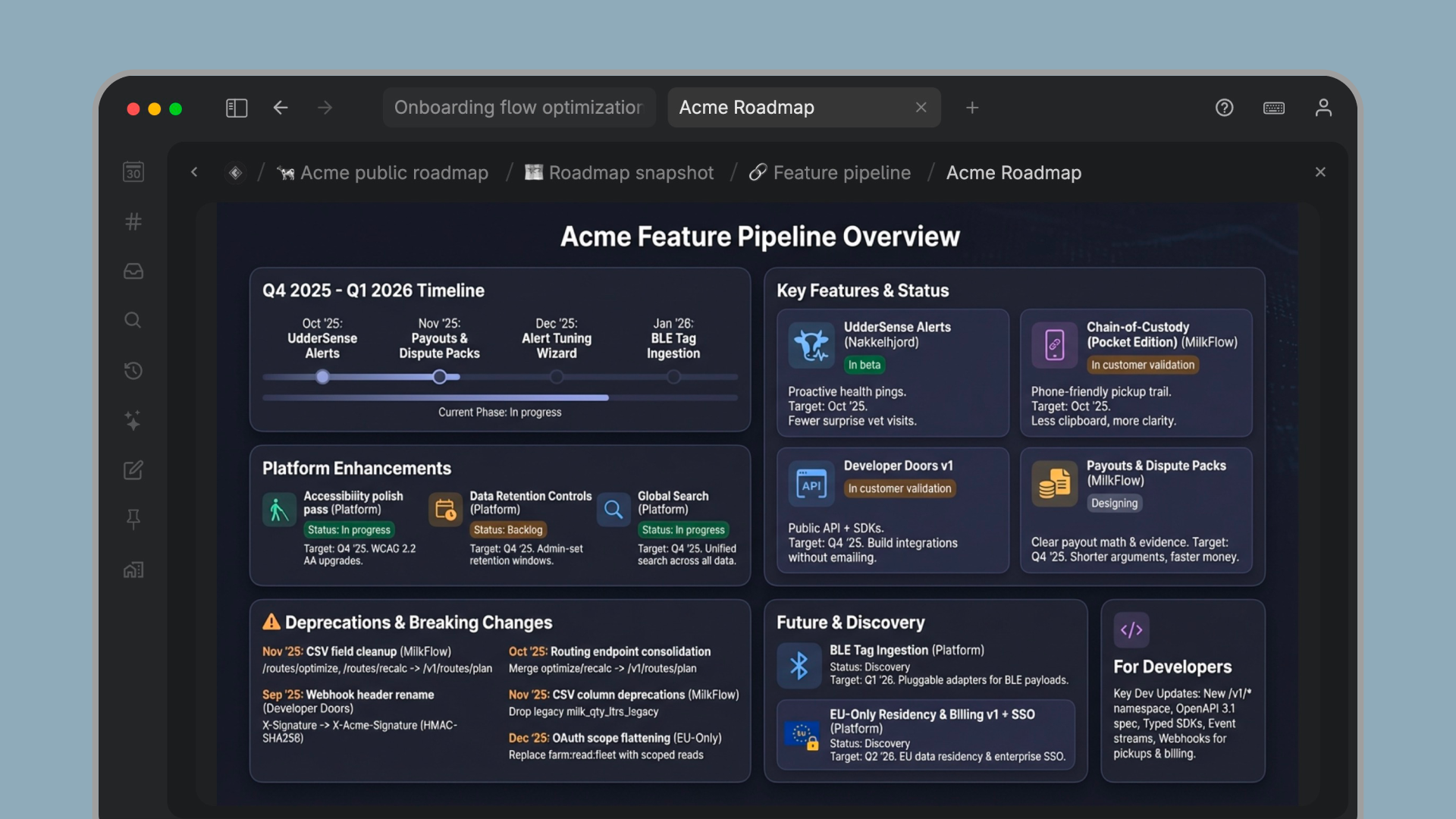
Gemini Nano Banana Pro excels at reading and including text in images. When plugged into a powerful note-taking app like Tana, this unlocks powerful use cases like visualizing your road map, summarizing a user interview or a brainstorm session, or a map of goals.
How a user interview could look:
Or a feature road map:
Record a team brainstorming session and get a easy-to-read whiteboard diagram:
Get started now by download these pre-made templates for infograpics ->
Generate consistent images with Tana's command nodes
If you are a consultant, marketer, content creator or creating images is part of your workflow, Tana lets you set up commands that give you the same style, size, resolution output every time, but makes it easy to edit the content that will feature in the image.
Tana lets you create powerful command nodes, that can be configured to perform structured actions and can also generate or reformat content using AI, with custom prompts. AI command nodes combine the power of automation with Tana’s built-in AI. Tana also offers advanced functionality to build AI commands that reference specific parts of your content as context for AI queries.
This makes it possible to create command nodes that generate images, using a specific prompt every time to give a consistent style. By running a command node on a specific node, AI will use the node's content as context to generate the image.
The built-in command Generate image(s) with AI now supports Gemini 3 Pro Nano-banana, and lets you define the aspect ratio and resolution you want.
Download these image generation packs of command nodes to get started ->
10 aspect ratios supported in command nodes
One of the biggest changes is support for precise aspect ratios. You now have full control over the format of the image you want generate. Tana now supports 10 aspect ratios:
1:1, 16:9, 9:16, 21:9, 3:2, 2:3, 4:3, 3:4, 5:4, 4:5
Simply include the desired ratio inside your prompt.
This means no more awkward crops or stretched images, what you ask for is what you get.
Higher resolution options
You now have three output quality levels for image generation command nodes:
- 1K/Standard
- 2K (default if nothing is specified)
- 4K for ultra-crisp detail
Higher resolution is helpful when creating:
- Banners for presentations or reports
- Visual explanations
- Illustrations for larger screens
- Images for physical printing
Build your own prompt library in Tana
Compared to using image generation services in Gemini or elsewhere, Tana lets you use your existing notes as input. You can also store and evolve the prompts you use over time, ending up with a comprehensive prompt library that is easy to re-use for consistent style and high-quality output.
- Write out your brand values or style guide and use that as a reference into command nodes for a consistent image style.
- Then pull this in as context for AI simply by typing @ and then searching for the node you want to include.
Pro-tip: We recently added support for the latest models GPT-5.1, Gemini 3 Pro and Claude Opus 4.5 in the built-in AI chat in Tana. Use these with AI chat (Opus is particularly good!) to draft prompts to put into image generation commands.
How to generate images in Tana
You can create images from scratch anywhere in your workspace.
Generate an image from a node:
- Write your prompt inside a node
Include any aspect ratio, style, or resolution in plain text.
Example:
Generate an image of a 1890s sailboat struggling in the northern sea in storm. - Open the command bar
Press Ctrl/Cmd+K → Generate image with AI. - Wait for the output
It may take one to two minutes for the image to appear directly below the node. - Use the image however you like
- Download it
- Move it to another place in your workspace (right-click > Move > Select location)
- Press Space to view it fullscreen
- Attach it as a banner image at the top of a node
This keeps your visual assets structured and accessible inside your knowledge graph, perfect for briefs, presentations, and project documentation.
Create your own command node
Before embarking on this, we recommend learning the basics of command nodes first.
Why this matters for your workflow
Working with image generation can be tedious and require repeated attempts to get the result you want. The prompt and instructions matter, and most image generation tools aren't designed to handle large amounts of information. Nor is their UI designed to help you store and iterate on prompts that work, evolving them into a prompt library that becomes your superpower. This is where Tana shines, by combing a powerful note-taking app with native image generation.
With Tana's outliner knowledge graph, your notes can be linked together and pulled in where they are needed, so your information stays updated and connected. The same note can be referenced as context in any AI chat or command node, saving the manual work on copy-pasting back and forth. Supertags let you build custom workflows where image generation buttons can be part of the template, allowing you to generate images with one click.
For managers or consultants juggling meetings, tasks, and projects, visuals help make information stick. This upgrade makes it easier to:
- Give notes a consistent visual identity
- Create polished documents for sharing with clients
- Produce quick visual explanations without leaving Tana
- Support AI-generated workflows with accompanying imagery
And because everything sits inside your connected workspace, you keep context intact, no more lost assets across folders and apps.
Start Creating Today
Gemini Nano Banana Pro is available now for all Tana users.
Sign up for free to try it and explore pre-built templates with image generation prompts:
Image generation templates
Questions & answers
What is the max. number of tokens for input to image generation?
The max number of tokens you can send as context/instructions to generate an image is 3200. You can see how many tokens are sent by typing Ctrl/Cmd+K > Open AI credit monitor.
Can I generate many images at once?
You can generate max. 10 images at once in Tana.
What does it cost to generate an image in Tana?
The average cost of generating an image in Tana will vary with the prompt and output generated, but for normal images it will usually around $0.15, or around 70-100 Tana AI credits.
Is there a max. limit for context for image generation in Tana?
Yes. If you include nodes with a lot of content or references with a lot of nodes below, you may go over the limit and it will not be possible to start the image generation (no credits will be used in this case).