



If you use both Tana and Tana Outliner, you can connect them so everything in your Outliner graph is available to Tana’s AI chat. Ask a question in Tana and it searches your Outliner nodes, follows the references around them, and writes what it finds into a Tana document or a meeting. It works the other way too: from a Tana chat you can create tagged nodes and todos exactly where they belong in your Outliner hierarchy.
The connection runs over Tana Outliner’s hosted MCP server, its Remote MCP. Unlike the local MCP server, which runs inside the Outliner desktop app on localhost, the hosted server is reachable over the internet. There is nothing to keep running and no token to manage, and Tana can reach your graph with the desktop app closed.
This guide covers the one-time setup, what the AI can do once connected, and the workflows worth building on top of it.
Connect Tana Outliner
Remote MCP is in beta and requires a paid Tana Outliner plan. The local MCP server stays free.
You only need to do this once. The connection is per-account: each teammate connects their own, and the AI reaches the Outliner graph with your access.
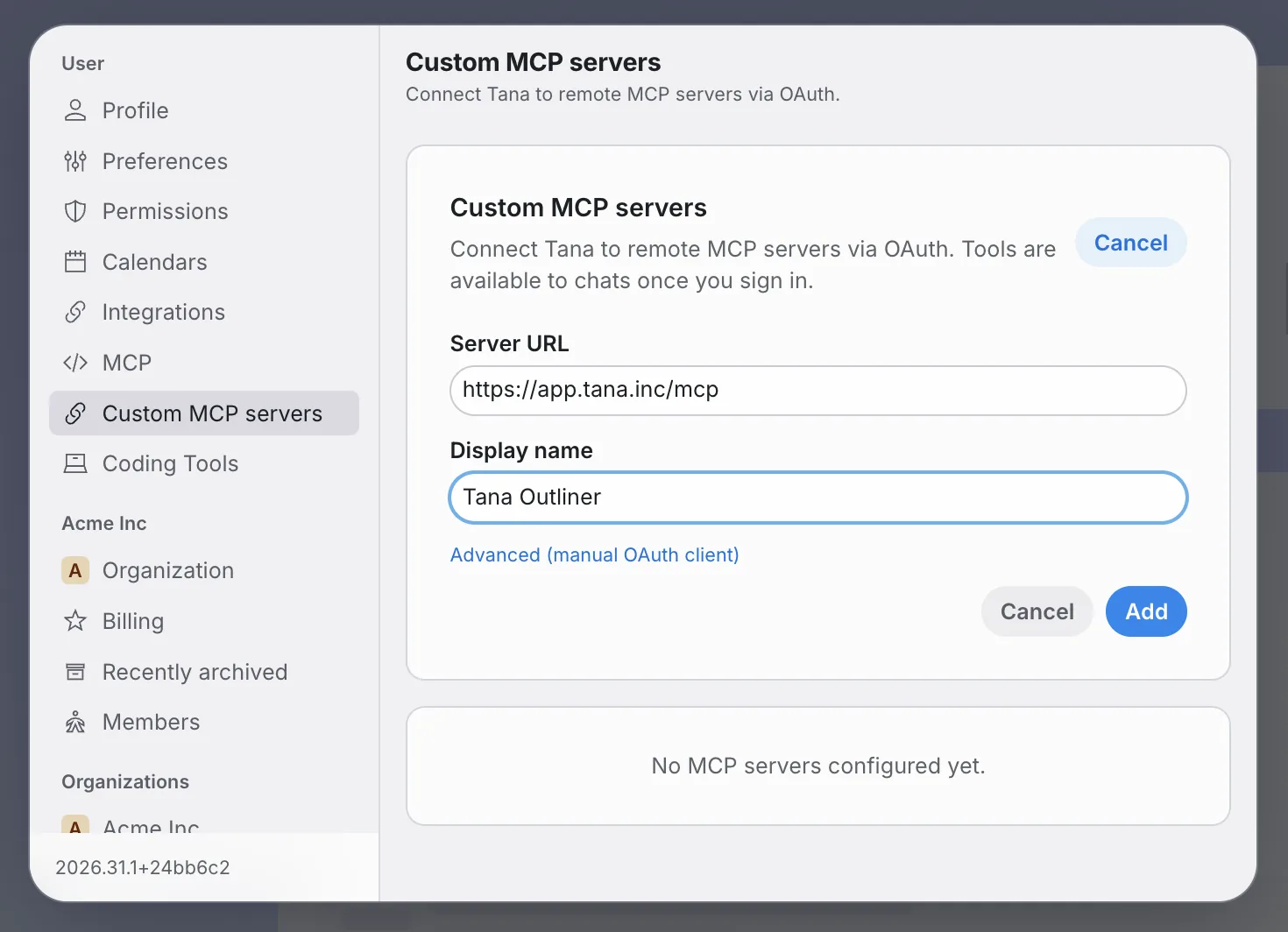
Open Settings with Cmd+,Ctrl+, or from the account menu in the sidebar, then open Custom MCP servers.
Click Add server and enter the Tana Outliner hosted URL:
https://app.tana.inc/mcp
Give it a display name you will recognize in chat, for example “Tana Outliner”, and add it.
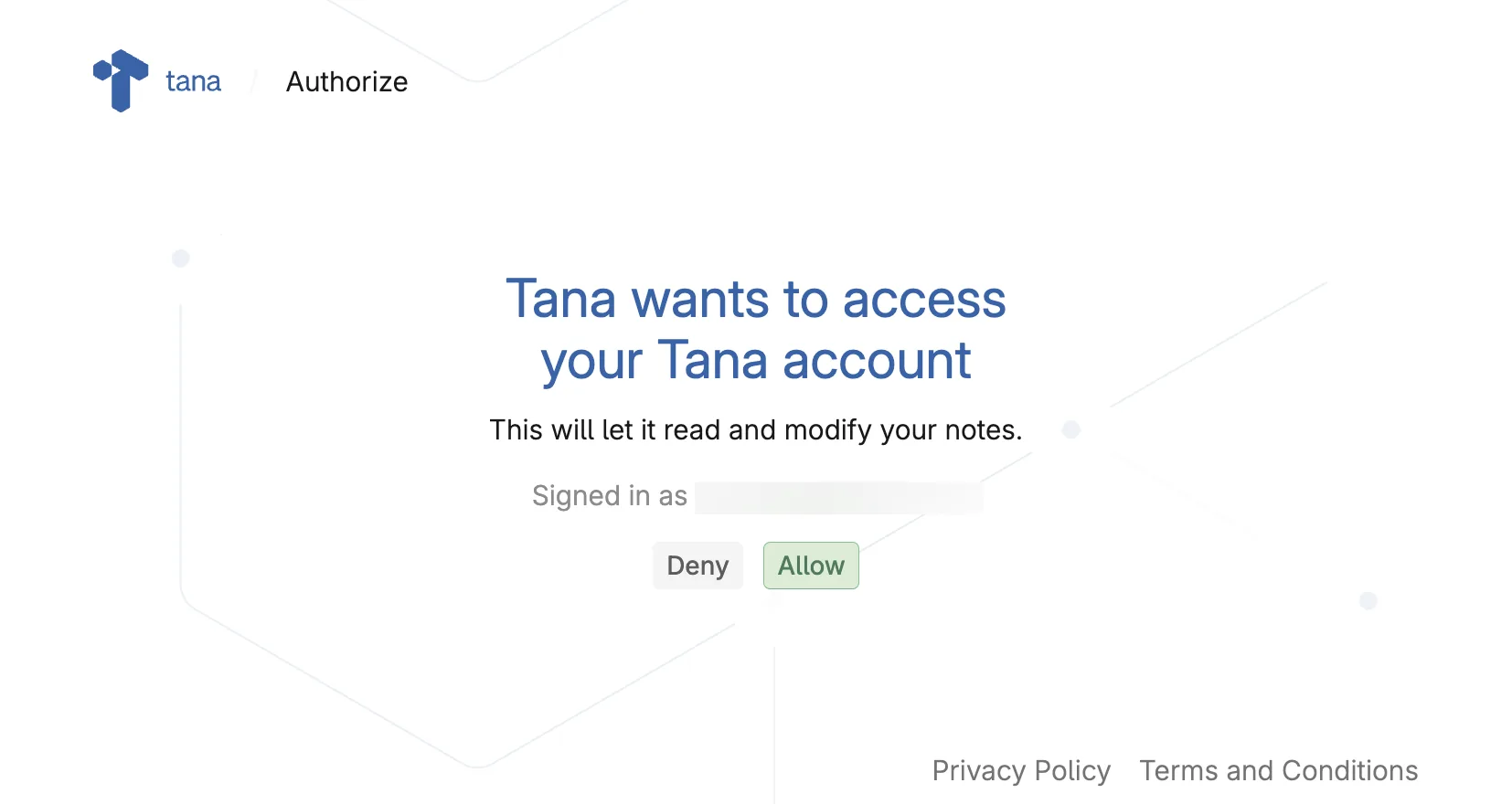
Tana Outliner asks you to allow the connection. Click Allow. On the desktop app the authorization opens in your default browser, so passkeys and password managers work.
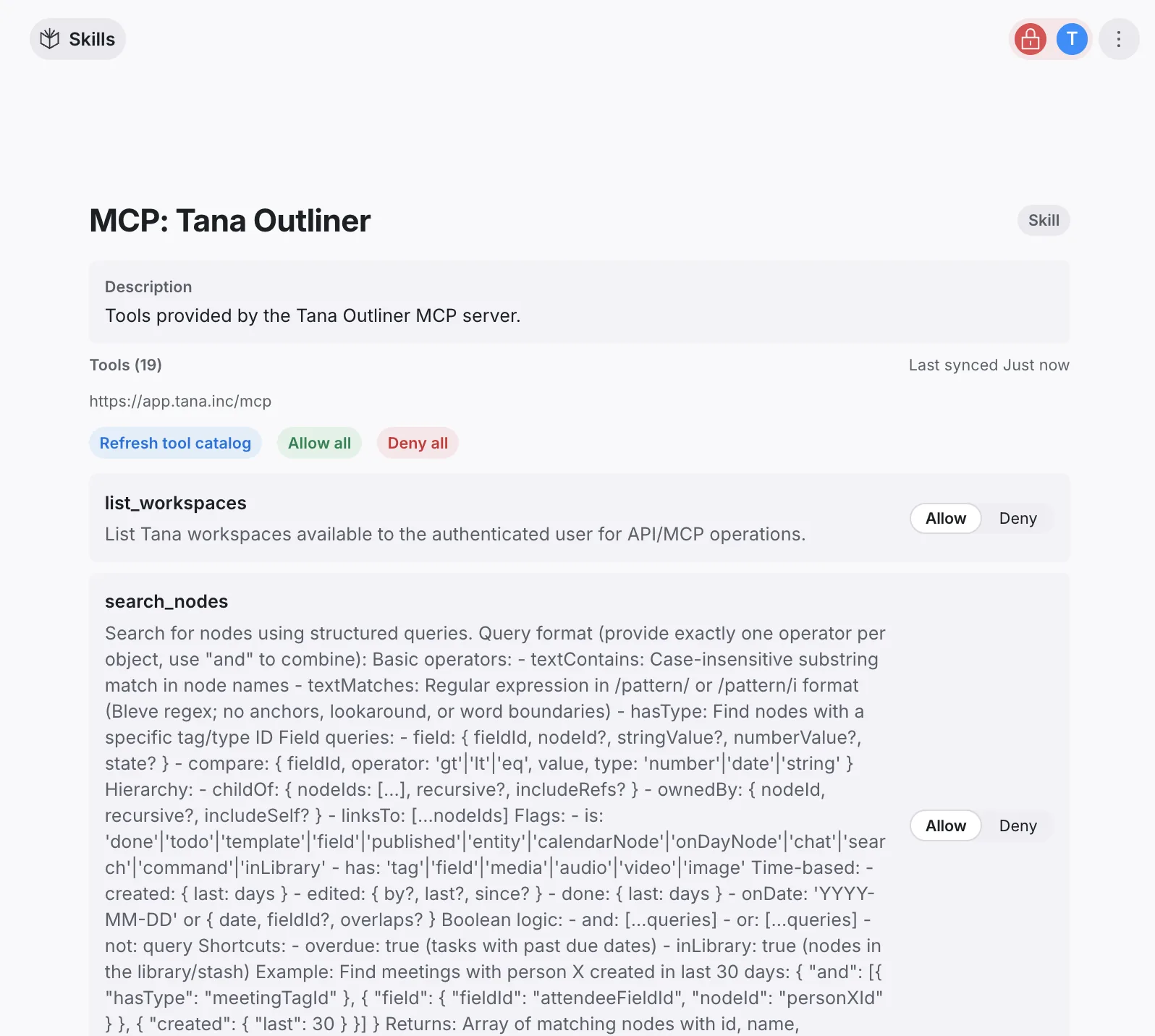
Connecting adds a linked skill for the server, named after the server with an “MCP:” prefix. Open the Connected menu on the server and choose Configure to see the tool catalog: search, read, and write tools from Outliner, with the server URL and when the list was last synced. You can allow or deny each tool individually, and Refresh tool catalog re-reads the list after Outliner ships new ones.
That is the whole setup. Tana’s AI now calls Outliner’s tools like any other tool: ask something that needs your Outliner graph and it reaches for them on its own. You can also point at the skill explicitly with / when you want to be sure which one it uses.
What the AI can do in Outliner
Once connected, ask Tana’s AI in chat to:
- Search your graph: find nodes by text, supertag, field value, or date, the same conditions you would build in a live search
- Read and navigate: read a node and its children, and walk the tree around it
- Work with supertags: read a supertag’s schema, apply tags, and set field values
- Create and edit nodes: add nodes anywhere in the hierarchy, including today’s day node, and check off todos
A good first prompt is simply asking what it can do. Start a chat and ask it to list the Tana Outliner tools it has. It reports back what it can reach in your graph, which is the quickest way to confirm the connection is live.
Each tool call shows in the chat as it runs, so you can watch it work: which skill it picked up, then the individual calls as it lists your workspaces, searches, and reads the nodes it finds.
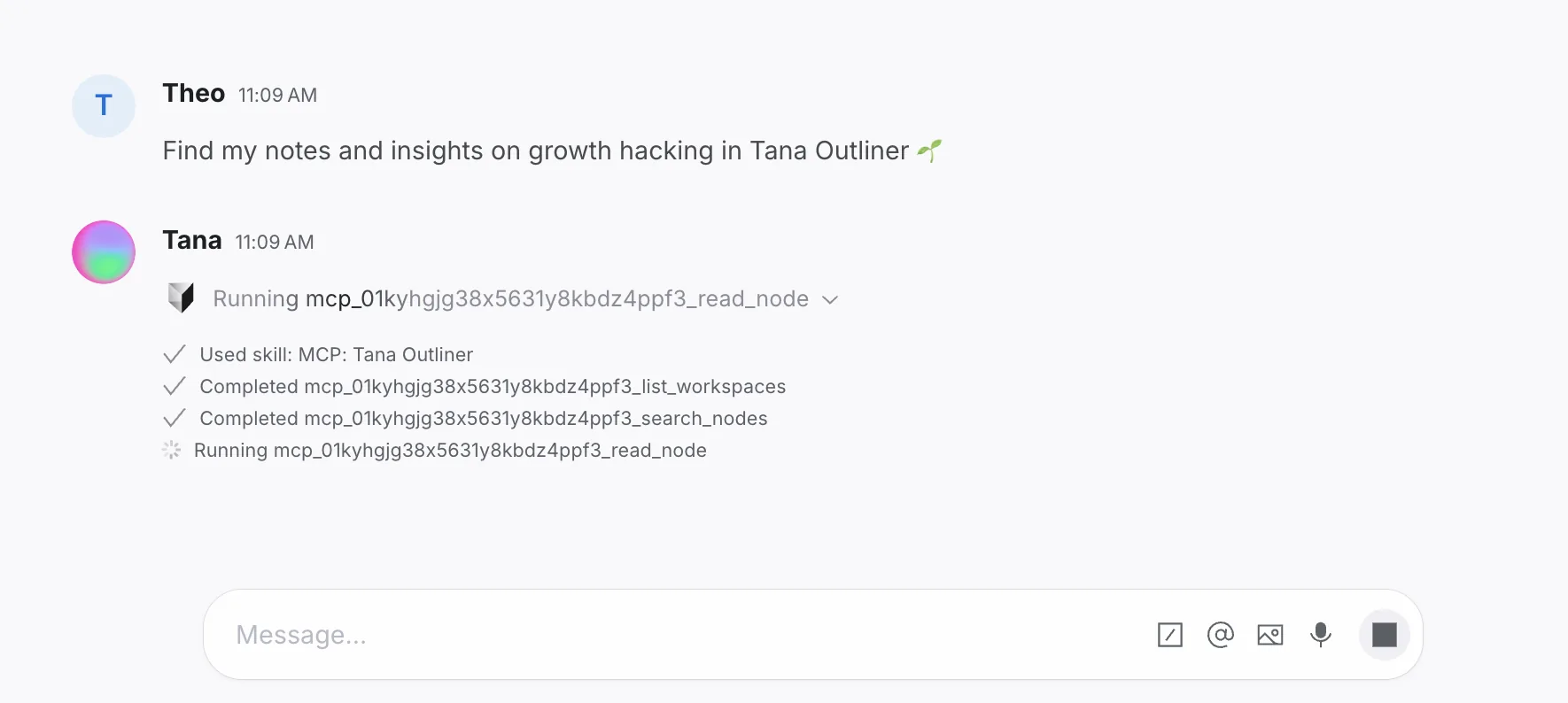
Ask in plain language. The AI picks the right Outliner tool from your prompt, and when a request needs several, it chains them.
Prepare a meeting from your Outliner notes
Years of thinking sit in your Outliner graph: daily notes, tagged people, project trees, reading notes. Tana is where the meeting happens. Connecting them means you stop retyping the first from memory into the second.
Ask before the call, in a normal Tana chat:
“Look in Tana Outliner for everything I have written about Nadia, in my daily notes and anywhere she is referenced, and write me a prep doc in Tana with the open threads from our last few conversations.”
The AI follows references rather than reading only the node you named, so it picks up the mentions scattered across day nodes, not just the #person node itself. What comes back is a brief you can pin to the meeting, not a list of links.
Look things up during the meeting
Tana records the meeting as it happens, and the meeting’s private chat can reach Outliner mid call. When something comes up that you know you wrote down two years ago, you can ask for it without leaving the call.
“What do my Tana Outliner notes say about the Hoffman pilot? Add a short summary to the meeting notes.”
See Prepare for meetings for the rest of that workflow.
Send the outcome back to Outliner
The connection runs both ways, which matters if Outliner is still where you run your days. After a meeting in Tana, put the results where you will actually see them:
“Add the action items from this meeting to today’s day node in Tana Outliner as todos, tagged
#task.”
“Create a node for the Hoffman pilot under my Projects node in Tana Outliner, tag it
#project, and set Status to Active.”
Name the destination and the supertag. The AI writes into the hierarchy you point it at, and it can set fields as it goes, so what lands is a proper tagged node rather than a loose bullet you have to file later.
Reuse a supertag as a Tana type
If you are moving a workflow across rather than a single note, start from the schema you already built. The AI can read a supertag’s fields in Outliner and build the matching type in Tana.
“Read the
#booksupertag schema in Tana Outliner and create a matching Book type in Tana with the same fields.”
That gets you a structure your Outliner content can land in, instead of a pile of untyped notes.
Save a working flow as a skill
Once a sequence works, tell Tana to turn it into a skill. It reads what you just did and writes a repeatable version, keeping the phrasing that worked. Run it by name from the slash menu afterwards.
“Turn what we just did into a skill called Prep from Outliner, so I can run it before any 1:1.”
Skills are also how you combine this with the rest of your stack. A skill can pull context from Outliner, check a related issue in Linear or GitHub, and file the result in Tana, all in one run.
Run agents while your machine is off
Because the server is hosted, anything that speaks MCP can reach your Outliner graph around the clock, not just Tana. The same URL works for Claude Desktop, Codex, and always-on cloud agents, with nothing running on your desktop. A small cloud agent reachable from your phone can query your graph while you are away from your computer, which is a real change for a graph that has always been heavy to load on mobile.
Tips
- Name the destination when you write. The AI does not guess where a node should land. Name the parent node, and the supertag if it should have one.
- Say Tana Outliner when you mean Tana Outliner. Naming it in the prompt is the surest way to send the AI to your Outliner graph rather than to your Tana content.
- Ask for node IDs on anything you may want to update later. With the ID in hand, the AI can go straight back to that exact node instead of searching for it again.
- Deny tools you do not want. The per-tool controls in the skill panel are the cleanest way to keep writes out of a graph you would rather keep read-only. A denied tool is never offered to the AI, and it stays denied across a catalog refresh.
Troubleshooting
Tana says it cannot reach Outliner. The authorization has likely expired or been revoked. In Settings, Custom MCP servers, open the Connected menu on the server and choose Reconnect to authorize again. Your per-tool Allow and Deny settings are kept.
The AI answers from Tana instead of Outliner. Say Tana Outliner in the prompt, or pick the Tana Outliner skill with /, so it knows which graph you mean.
The AI cannot find a node you know exists. Name the supertag or the workspace it lives in, for example “nodes tagged #project”, and it has something exact to search on.
Disconnect
In Settings, Custom MCP servers, open the Connected menu on the server and choose Disconnect. Its tools stop being available to the AI. Nothing already created in either tool changes.
Go deeper
For the full walkthrough, Mark’s Remote MCP systems lab runs through the setup and the workflows above in detail, including building the skills and pointing a cloud agent at your graph. See also Custom MCP servers for how Tana connects to any MCP server, and MCP for the reverse direction, external tools reaching into Tana.