



What an agent is
An agent is an AI assistant you configure for a specific job: prepping you for meetings, triaging bugs, drafting weekly updates, or anything else you would otherwise repeat in a fresh chat. Each agent has its own capabilities, prompt, settings, and optional schedules, and lives as a doc you can open like any other.
The default Tana assistant is one such agent, built in to every org. Custom agents stand alongside it.
Creating an agent
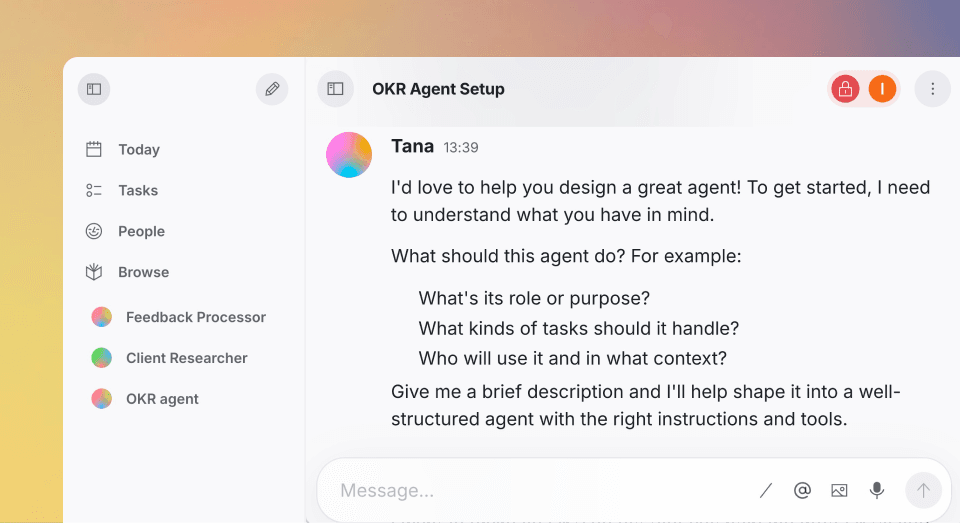
Click the pencil button at the top of the sidebar to start a new agent, then describe what you want. Agents created from here are global, available to the whole organization, and show up in the sidebar.
You can also ask the AI chat to create an agent: "I want an agent that preps me for every meeting by pulling context on the people I'm meeting with."
Tana builds the agent, including name, prompt, capabilities, and a starting set of context fields. Adjust it the same way you created it: keep talking to it, in chat or by voice. The agent edits its own configuration as you tell it what to change.
Custom agents live in spaces, so they pick up that space's context and members. Agents owned by a space appear as a leaf row under that space in the sidebar tree, revealed via the chevron just like a sub-space. Global agents (not scoped to a space) show in a Custom agents section in the sidebar. Agents in the sidebar are draggable, so you can re-parent an agent to another space or drop it into an editor as a link.
Customizing an agent
Open the agent and click Customize next to the title. The panel expands with sections for:
- Capabilities: What the agent can read, do, and connect to, including integrations like GitHub, Slack, Linear, Jira, and HubSpot.
- Prompt: The instructions the agent follows, written in a rich text editor with full formatting. An Improve your agent helper opens a chat that can read and rewrite the prompt with you. To include Tana docs, chats, or meetings as context, reference them in the prompt with
@mention search. - Schedules: Days and times for the agent to run automatically. See Schedules.
The agent doc also lists recent outputs and chats so you can see what the agent has been doing.
Agent capabilities
The Capabilities section of the Customize panel controls what the agent can do, organized into two groups of skills.
Capability skills bundle a coherent set of tools with the instructions for using them well:
- Reading capabilities: Searching, reading, and gathering context from Tana.
- Create capabilities: Creating new documents and items.
- Update capabilities: Editing existing documents, fields, and structure.
Toggle a capability on to grant the agent its underlying tools plus Tana's guidance for using them. As Tana refines a capability over time (adding tools, sharpening instructions), every agent that has it picks up the improvement automatically. New agents are seeded with the Reading capability so they are useful out of the box.
Integration skills appear as a dedicated section with one-click toggles for each connected service: GitHub, Slack, Linear, Jira, and HubSpot. Each row shows the live connection status. If an integration is not connected, the row shows a Not connected button that deep-links straight to its setting in Integrations.
For the rare case where you need a single tool that no capability or integration covers, an Advanced picker lets you enable individual tools directly. Capability skills are the preferred path because they bundle tools with their usage instructions and stay current as Tana improves them.
Agents that were configured before the switch to capabilities get an upgrade button on the agent doc that converts their old tool-bundle setup to the matching capabilities.
Default agent per space
Every space can set a default agent. Any new chat started from that space's home picks up the default agent unless you choose a different one explicitly.
To create an agent inside a space, navigate to the space and click the + button in the top right corner, then select Agent. You can also create the agent in chat and ask the AI to move it to the space.
Auto-resume after proposals
Agents can be configured to continue the conversation automatically once you have accepted or dismissed the last pending proposal, so multi-step flows do not stall waiting for a nudge.
Chatting with an agent
Open the agent and start typing in its chat panel. It uses the same composer as everywhere else in Tana (@mentions, skills with /, attachments, voice input). The agent uses its configured capabilities, prompt, and context fields on every message.
You can also reference an agent from any chat with @, the same way you reference a document, or pick which agent answers from the agent picker in the compose bar.
The agent is timezone-aware: when you ask about "today" or "yesterday", it uses your own calendar day, even if the chat spans midnight or a teammate is in a different time zone.
Voice mode
Agents can run in voice mode, letting you have a two-way live voice chat with them.
Voice happens in a meeting. Open or create one and start the agent from the voice control at the head of the meeting digest, or say the wake word in the call. The voice your organization uses is set once for everyone rather than per agent.
For what the voice agent can do, including following the meeting, running work in the background while you keep talking, and presenting a document on request, see Meetings, Voice agent.
Schedules
Put an agent on a schedule so it runs without you. In the Customize panel's Schedules section, pick days of the week and a time of day. Each schedule has a Timezone (a searchable picker that defaults to your own zone), so a daily brief set to 09:00 in Oslo always lands on the right Oslo calendar day, and the agent reasons about "today" in that zone. Each schedule can carry an optional Additional prompt that varies what the agent does on different runs; leave it blank and the run starts with a standard message. For example, a daily morning agent might pull a different focus area depending on the day.
You can schedule any agent you can open, including ones shared with you. Schedules are private: you see and manage only the ones you created.
The agent's activity panel shows enabled schedules with the routine in its configured zone and the zone labelled (for example, "Weekdays at 09:05 (Europe/London)"). The Next run and Last run labels stay in your own local zone.
System agents
Some agents are built in to Tana and managed centrally. They show a System agent badge instead of the Customize button and cannot be edited. The default Tana assistant is the canonical example.
Deleting an agent
Open an agent's doc and choose Delete from the overflow menu.
Reporting issues
If an agent produces an incorrect or unhelpful response, right-click the message and select Report bad chat. The full conversation, plus the agent's current configuration, is attached automatically for analysis.