Talk through your ideas with Tana: AI Voice Chat for iOS (Early Access)

Have you ever wished your notes could talk back? Tana is an all‑in‑one workspace built for thinking and collaborating with AI. It combines note‑taking, tasks, daily planning and AI into a connected knowledge graph so your ideas, projects and people stay linked.
The mobile app already lets you quickly capture thoughts as voice memos, text or photos. With the new voice chat for iOS, you can go one step further – have a two‑way conversation with AI and steer the discussion toward what you need.
What is Tana and how does it work?
Tana is a collaborative text editor that lets you take connected notes in a knowledge graph, rather than having to place them in pages or folders. It lets you build out structure as you need it to organize notes, rather than having to define a structure upfront. Simply start writing and then apply a Supertag to make the note searchable, add structured info with fields. You can add live search widgets that pull in tagged notes, and filter these to get an excerpt of notes accessible where you need them.
Supertags can turns a notes into a structured object, like a #Task, #Idea or #Project. You can configure Supertags to have fields for structure information, like "Due date", "Topic" or "Priority". You can then view the tagged notes in different Views like a table, board, calendar or outline.
In the mobile app you can capture notes or voice memos on the go and have them automatically structured using these supertags. Supertags also let you set AI instructions for how AI should process something that you tag, and settings for how it should auto-fill content in fields on the Supertag - for example a voice memo for #ideas should fill in a field for which area it's related to, and make a short summary in the title or description.
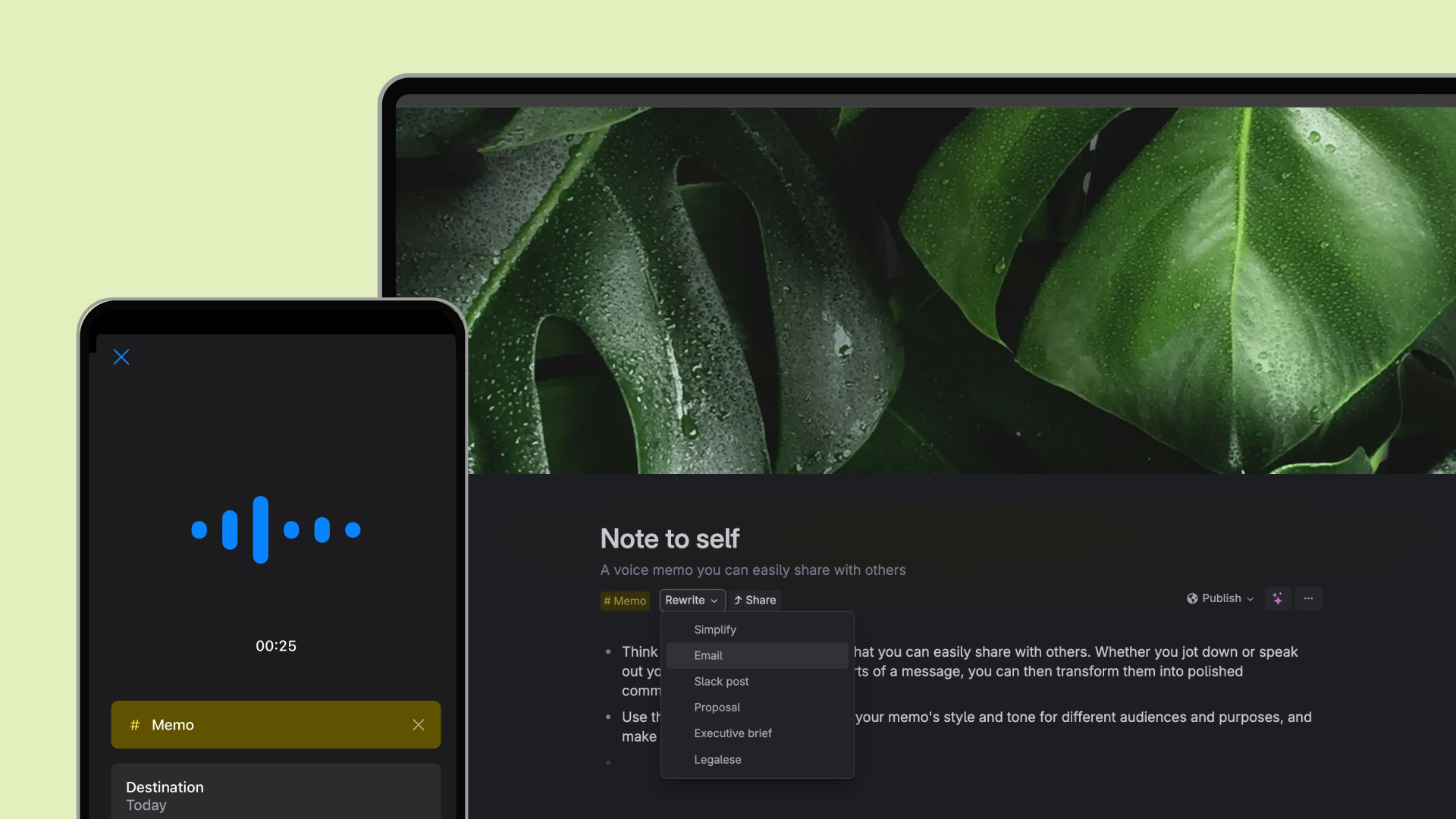
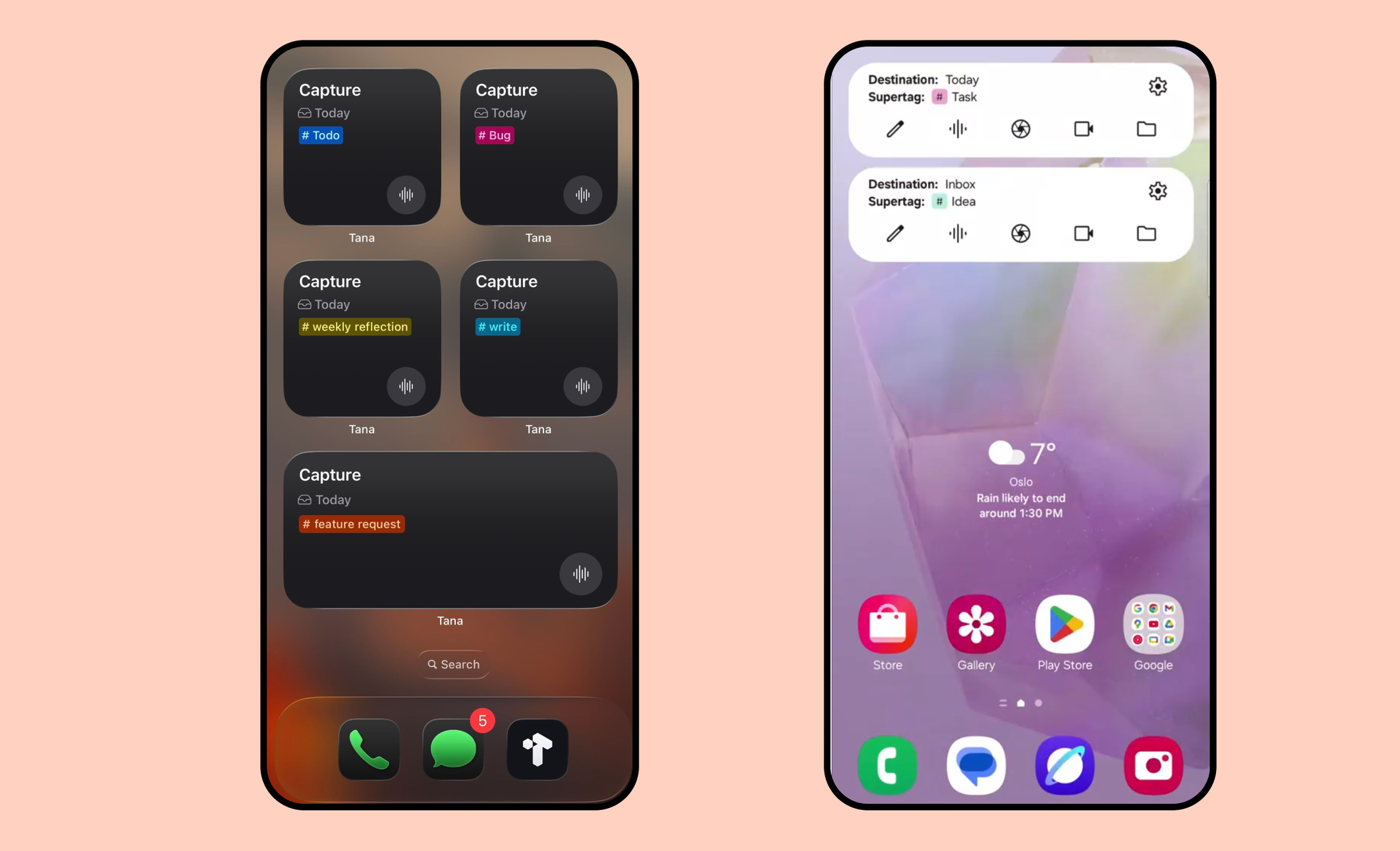
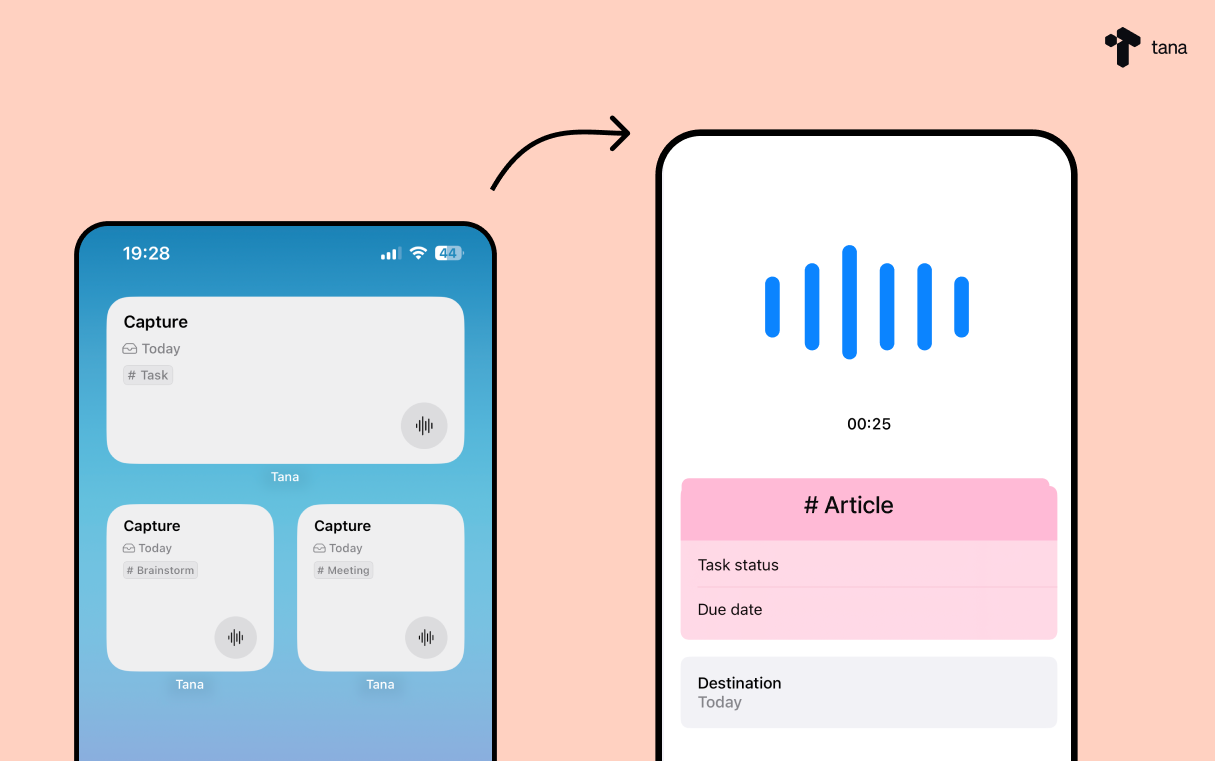
With the Tana mobile apps, you can even start your favourite workflows with one tap using home‑screen widgets configured with a custom supertag and destination. Voice memos are instantly transcribed, auto‑detect the spoken language and can auto‑fill fields based on what you said.
Meet voice chat: your personal AI conversation
Voice memos are great for capturing a stream of thought, but sometimes you need a coach, brainstorm partner or challenger. Voice chat enables real‑time, two‑way conversation with an AI assistant.
Instead of just transcribing your recording, the assistant listens and asks questions, challenges your thinking and shapes your ideas. The AI adapts based on voice instructions you add to a supertag, so your chat feels like talking to a supportive colleague, writing partner or quiet listener. Without voice instructions, the assistant behaves like a generic chat bot – so the magic lies in customizing your tags.
Customize voice chat with supertags
Each supertag in Tana can include AI instructions and post‑processing commands. For voice memos and voice chat you can add instructions that tell the AI what the content is about, how you want the output formatted and any specific guidance. For example:
- Give your
#WritingPartnertag instructions like: “Ask follow‑up questions to clarify my argument and suggest angles I haven’t considered.” - Create a
#MeetingDebrieftag that tells the assistant to summarise key action items as bullet points. - Use a
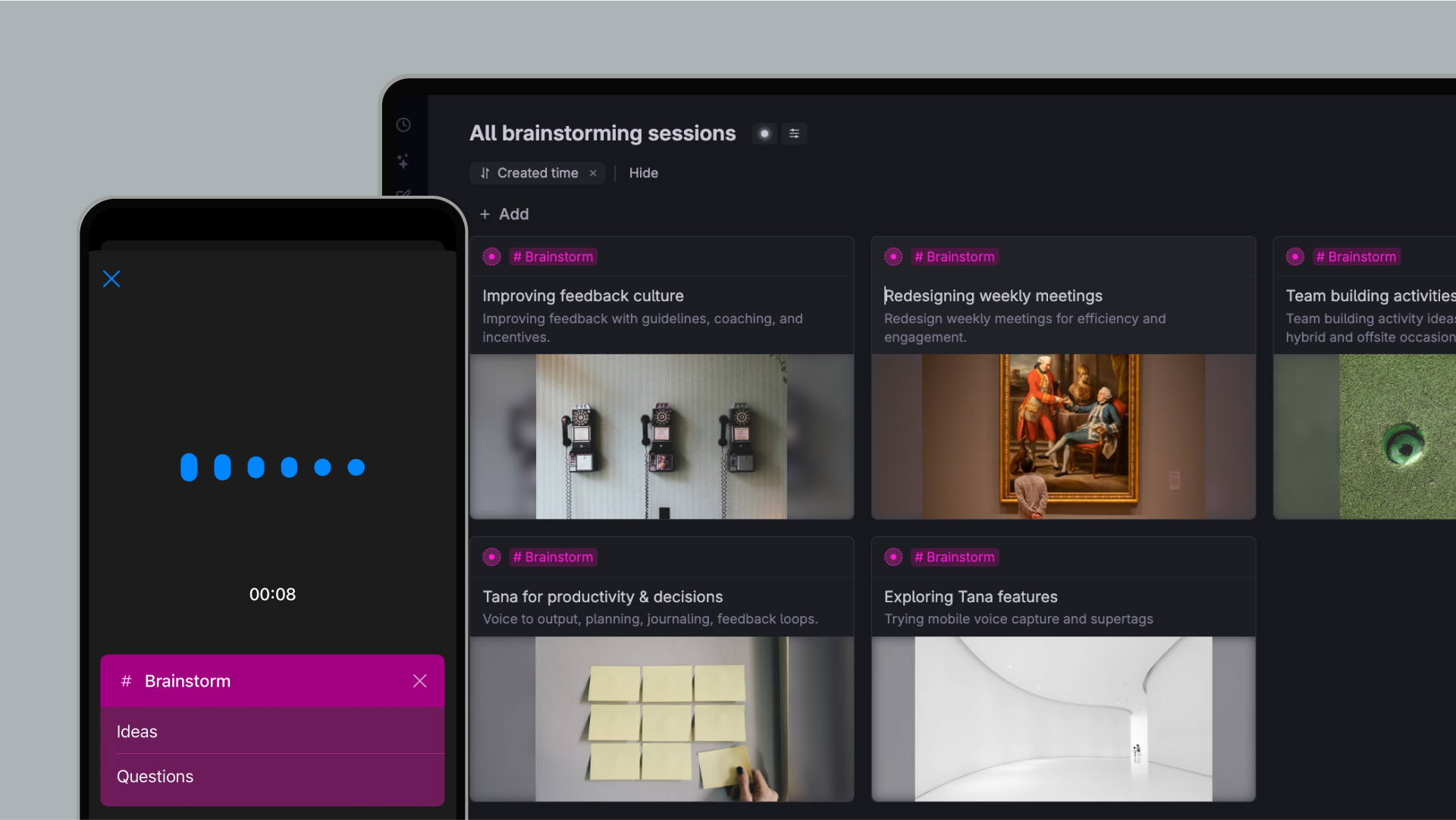
#Brainstormtag with instructions to generate three creative options and their pros/cons.
You can also enable custom autofill behaviour, specifying how the AI should fill the title, description or body of a note or extract multiple items from a single recordingtana.inc. This makes voice chat not only conversational but actionable: the output is structured so you can link it to projects, people or follow‑up tasks.
One‑tap capture with home‑screen widgets
Voice chat becomes even more powerful when combined with Tana’s configurable home screen widgets. See how to set up widgets.
- The widgets let you capture notes, photos or voice memos directly from your home screen without opening the app.
- You can set up multiple widgets for different supertags or destinations – for example a widget for
#taskto record action items,#ideafor creative sparks, and#memofor voice notes. - You can add both voice chat and voice memo in a widget, and will then have two buttons.
- Long‑press the widget to edit its supertag, destination and input type. Selecting “voice chat” as the input type gives you a one‑click button to start talking with your customised AI coach.
Getting started with voice chat (Early Access)
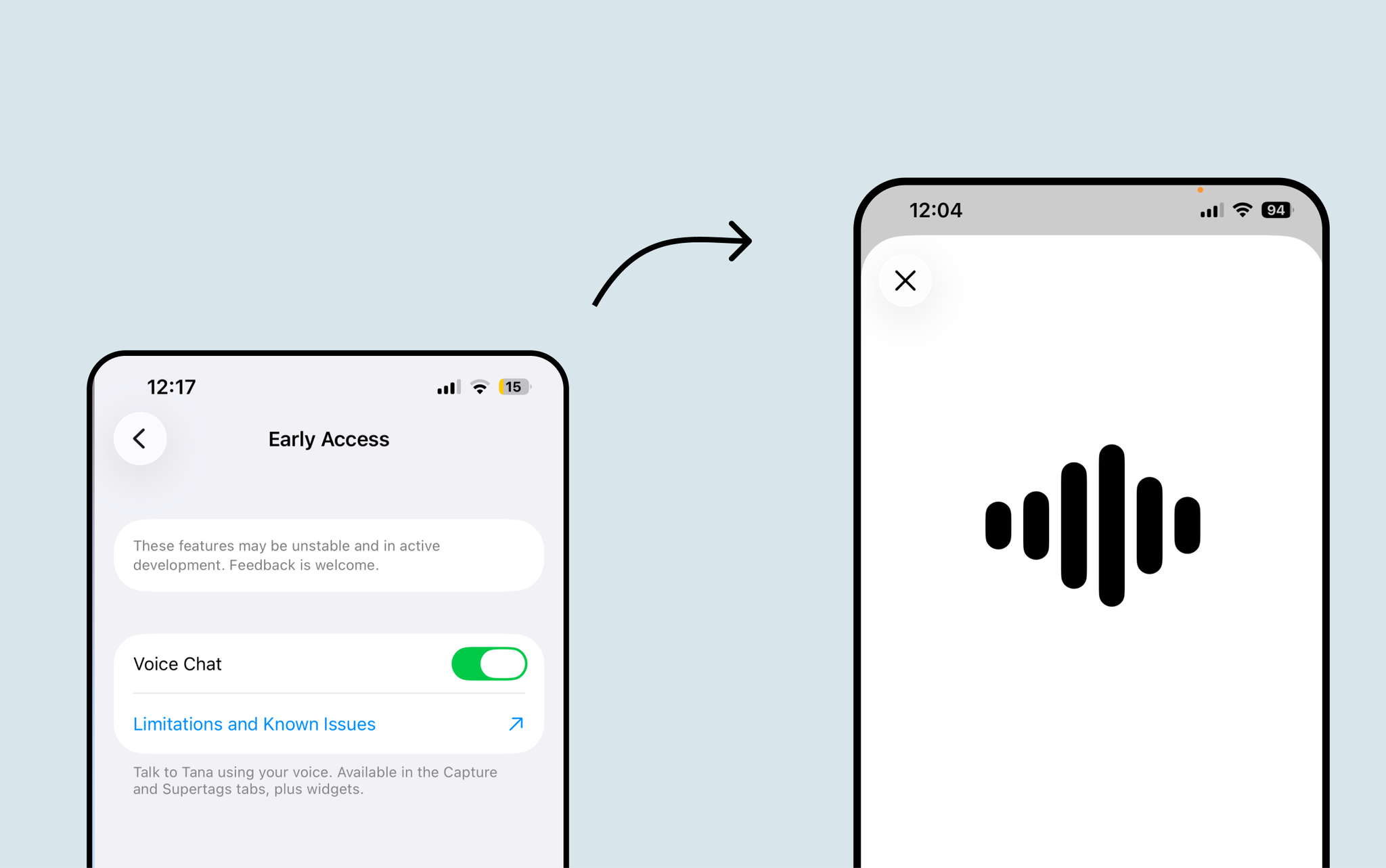
Voice chat is launching in Early Access on iOS, so you’ll need to enable it in the mobile app settings.
Here’s a step‑by‑step guide to get started:
- Download one of the voice-enabled templates
- Enable voice chat in the iOS app: Go to the Manage tab, then select Early Access and enable it.
- Add a widget: long‑press your home screen, choose Add Widget, pick Tana and select your customised supertag. For iOS, deep system integration means you can also start Tana capture from Siri, Shortcuts or Control Centre.
- Tap to talk: tap your voice chat widget or open the Capture tab and choose Voice. As you speak, the assistant listens and responds according to your supertag instructions.
Voice chat with supertags
A supertag can have a description and fields for structuring data. Voice chat will know how a supertag is set up, and can ask you about or refer to fields for filling them in.
Tailor your supertags for voice chat
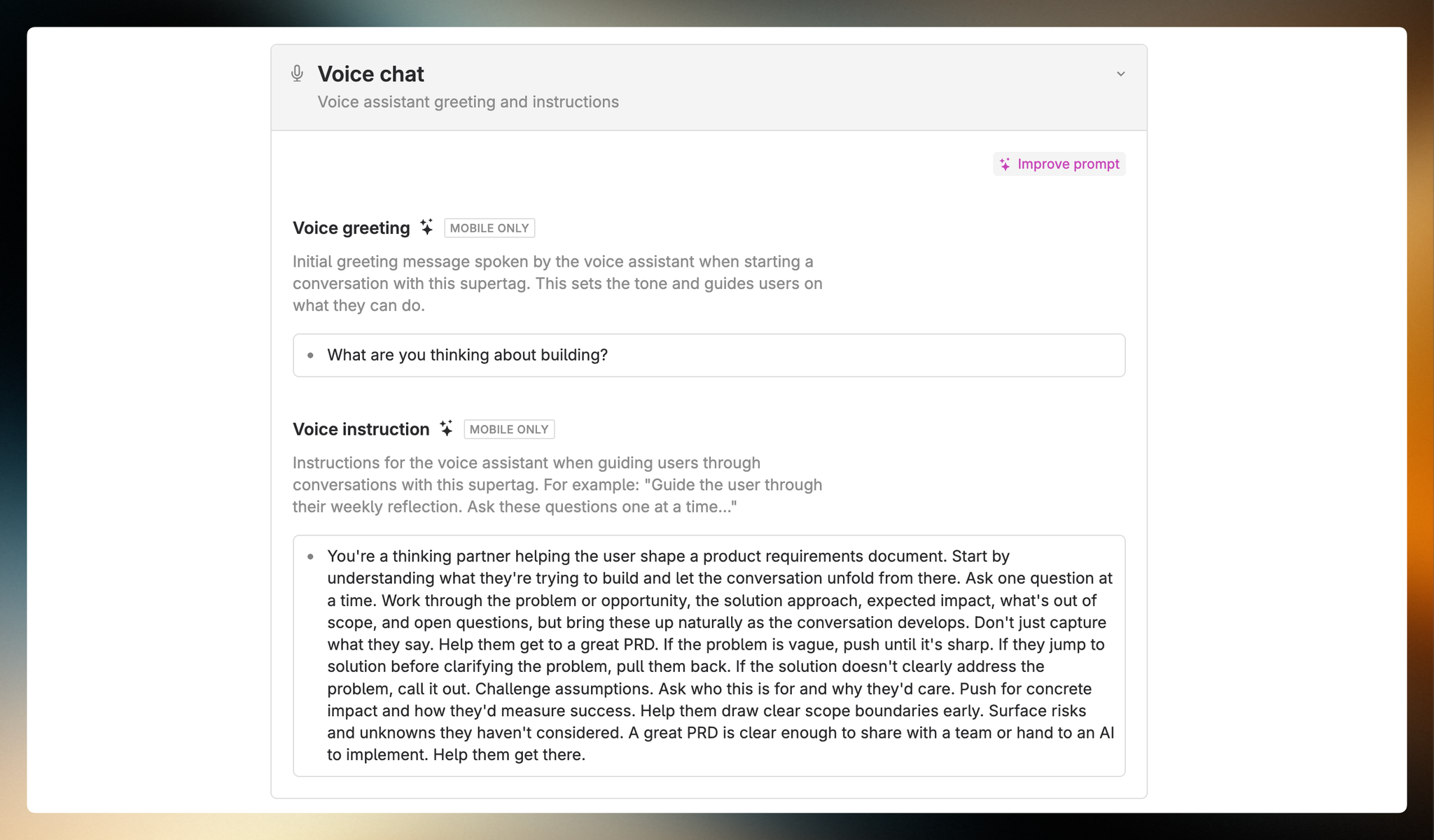
- Read this tutorial for how to set up your own supertags for voice chat
- Create or choose a supertag that will power your conversation.
- Go to the supertag’s configuration on desktop and add voice instructions under AI and Commands.
- Set any custom autofill or post‑process commands you want.
Download one of the voice-enabled templates for inspiration
Why voice chat? A few use cases
- Writing partner: talk through an outline and have the assistant ask clarifying questions, suggest angles and produce a structured outline.
- Meeting debrief: summarise a client call by chatting it through; the assistant extracts tasks and notes, ready in your daily note.
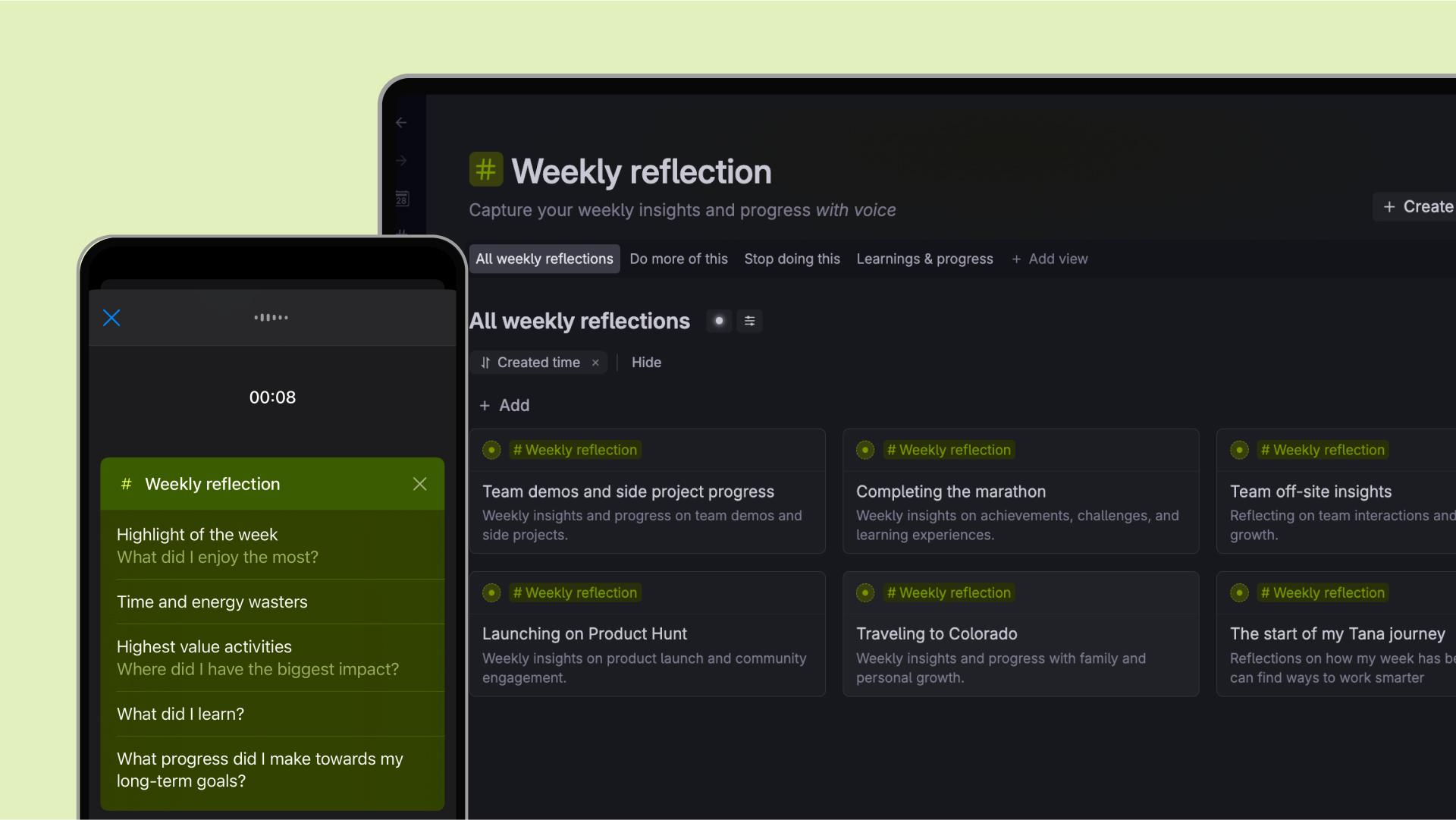
- Daily reflection: at the end of the day, have a conversation about what went well and what needs work; the assistant captures your insights as structured notes.
These are just examples. Because the AI follows the instructions on your supertag, you can design custom voice agents for any workflow – product design, coaching, project planning or creative brainstorming.
FAQ & known limitations
- Where is it available? Voice chat is in early access for iOS. Android support will follow; until then you can use voice memos and other capture modes on Android.
- Do I need to configure anything? Yes. Voice chat only works as expected if your supertag has voice instructions. Without them the chat behaves like a generic AI conversation. Check out these voice chat-enabled templates for inspiration or to try it.
- Which languages are supported? Voice chat currently only supports English.
- Are there known issues? Voice chat does not yet have access to any of your existing data in Tana, nor is it able to read your supertags if you haven't configured them for voice chat. Here is the full list of known issues and limitations.
Ready to talk to your ideas? Sign up for Tana or update your app and start designing voice agents that work the way you think. Your notes deserve a conversation.