Set up mobile voice chat for a supertag
What we'll do: Enable voice chat on iOS and configure voice greetings and instructions for a supertag.
1. Enable Voice chat (iOS)
- Open the Tana app on iOS
- Go to Manage tab → Early Access
- Enable Voice chat
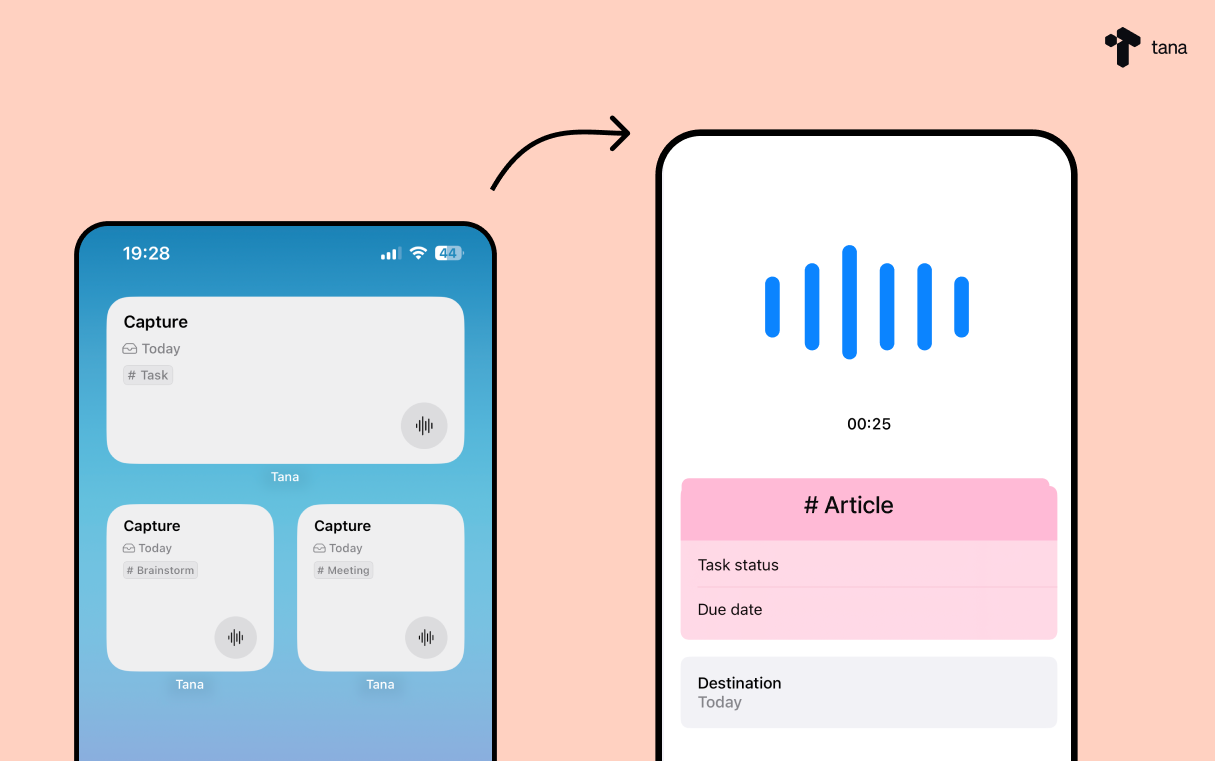
You can now start voice chats from the Capture tab, or directly with a specific supertag from the Supertags tab.
2. Configure voice chat for a supertag (Desktop)
Voice chat works without any configuration, but you can customize how the AI behaves for specific supertags. Configuration is done on desktop, then syncs to mobile.
- Open the supertag configuration. Right-click -> Configure supertag.
- Go to the Voice chat section
- Set a Voice greeting. The first thing the AI says when the conversation starts. Keep it short and natural. Match the tone to the use case.
- Set Voice instructions – how the AI should behave during the conversation. Consider the role it should play: quick capturer, thinking partner, guide, or creative collaborator. Write as one paragraph. Ask one question at a time. Cover relevant fields conversationally, not like a checklist.
Tip: Use the ✨ Improve prompt button to get help from AI to write and enhance your voice instruction prompt.
3. Optional: Configure custom autofill behavior
When the voice chat ends, the AI automatically fills in the node based on the conversation. Without custom instructions, it will do its best based on context. You can customize this behavior:
Custom autofill behavior for the supertag
Toggle Custom autofill behavior in the Supertag configuration under the Commands and AI section.
- Autofill title instructions – how to generate a title for the node.
- Autofill description instructions – how to generate a short description.
- Autofill content instructions – how to summarize the conversation into the node's content. Consider the supertag's purpose and what output would be most useful.
AI instructions for autofilling fields
- Autofill field instructions – for each field, open the field configuration and set custom instructions for how to populate it from the conversation.
4. Test it
- Open the Supertags tab on iOS
- Start a voice chat with your supertag
- The AI will use your greeting and follow your instructions
- When you send the voice chat, the node is created on Today and is processed using the autofill AI instructions
Tips for great voice instructions
- Quick capture (Task, Idea): Keep it fast and frictionless. Don't over-ask.
- Guided reflection (Weekly reflection, Daily prep): Warm tone, one question at a time, cover each field naturally.
- Thinking partner (PRD, Decision): Challenge assumptions, push for clarity, contribute ideas.
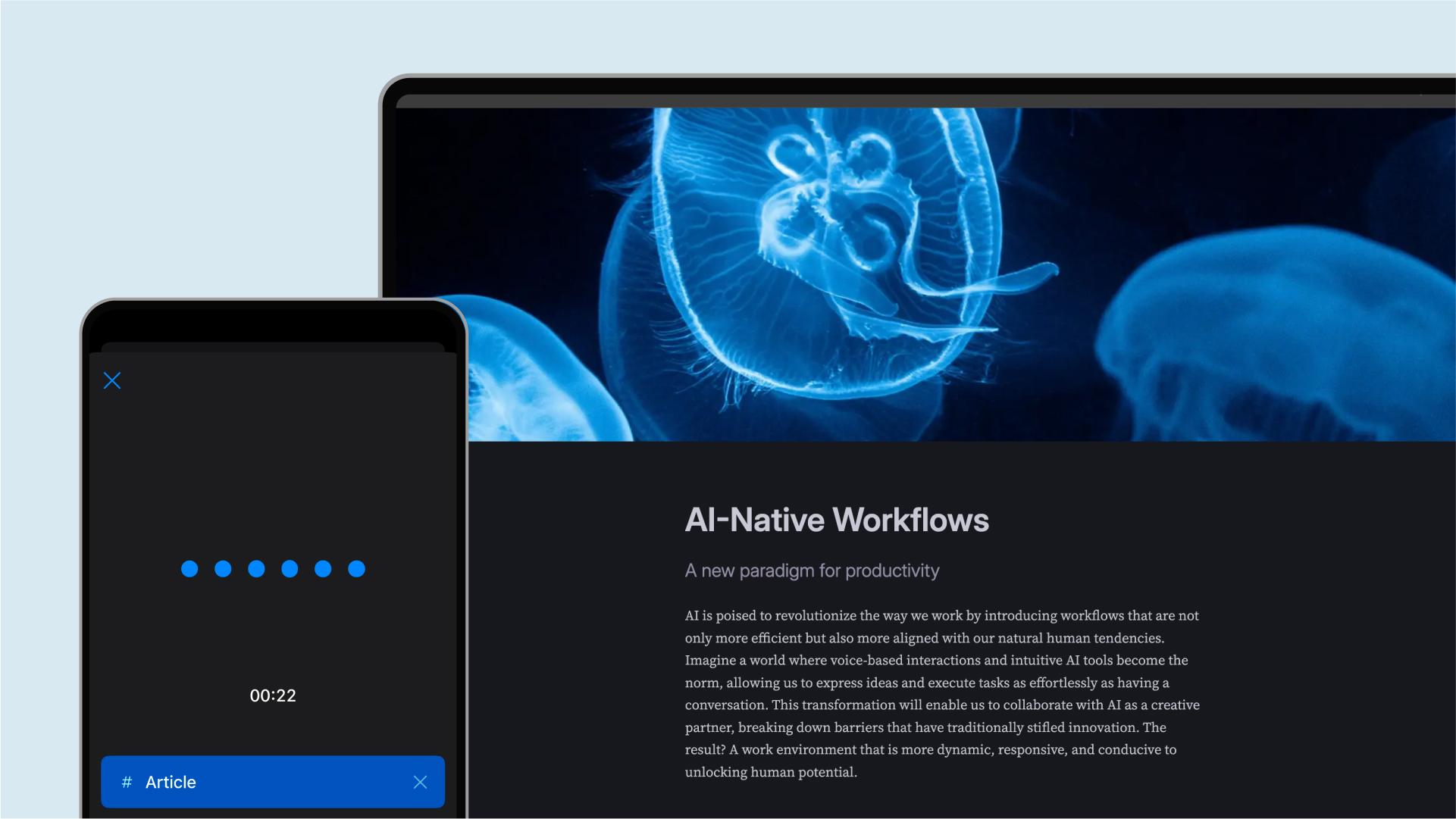
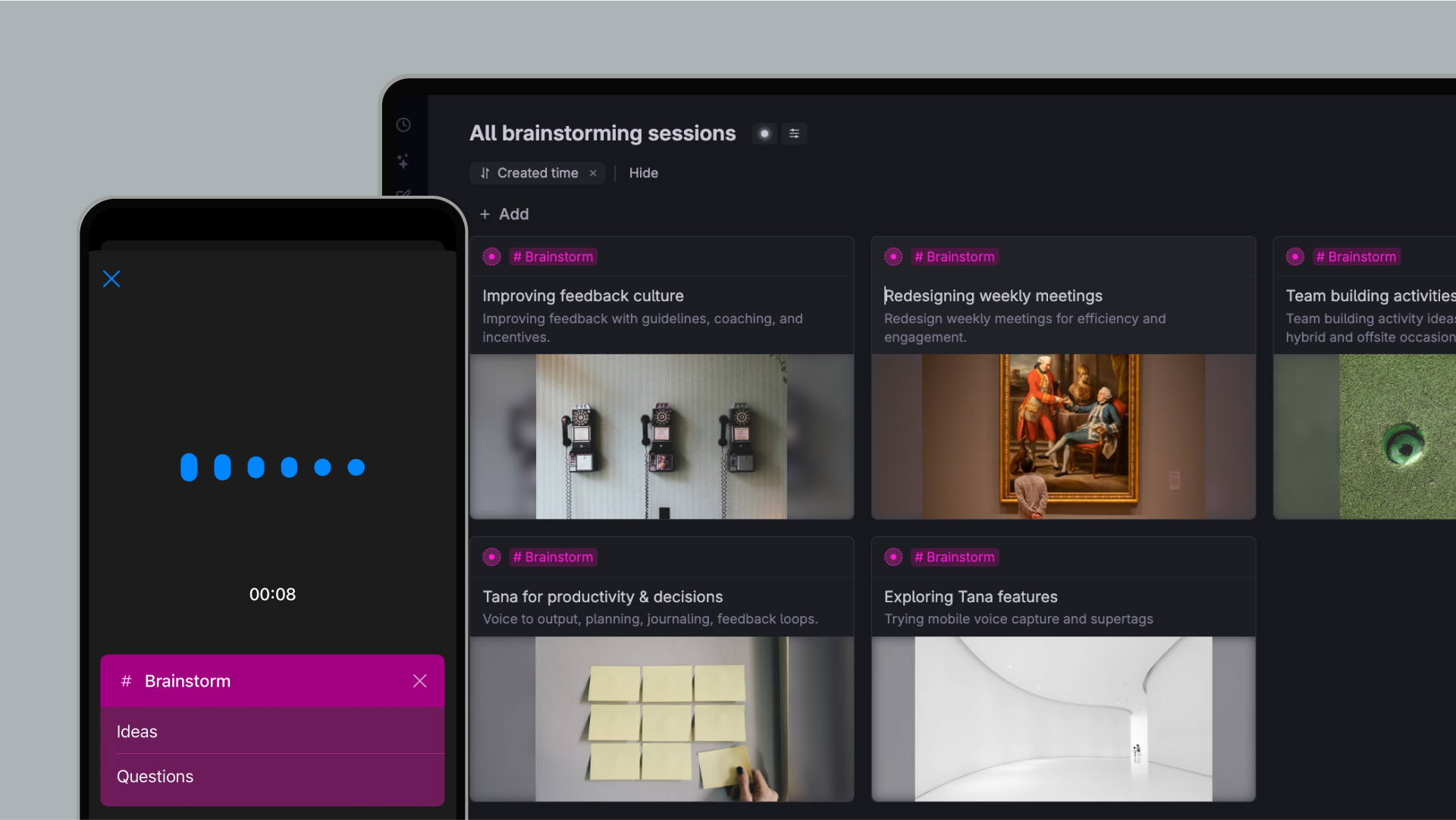
- Creative collaborator (Article, Brainstorm): Follow their lead, adapt to their energy, offer input when helpful.
For inspiration, check out the voice-enabled templates in the starter content and template store.