In-person and hybrid meetings, and Lovable and Ari in your meetings
Meet around one laptop with each voice transcribed, say who a speaker is, bring Lovable and Ari into your meetings, and start any kind of meeting from one menu.
Capture in-person and hybrid meetings
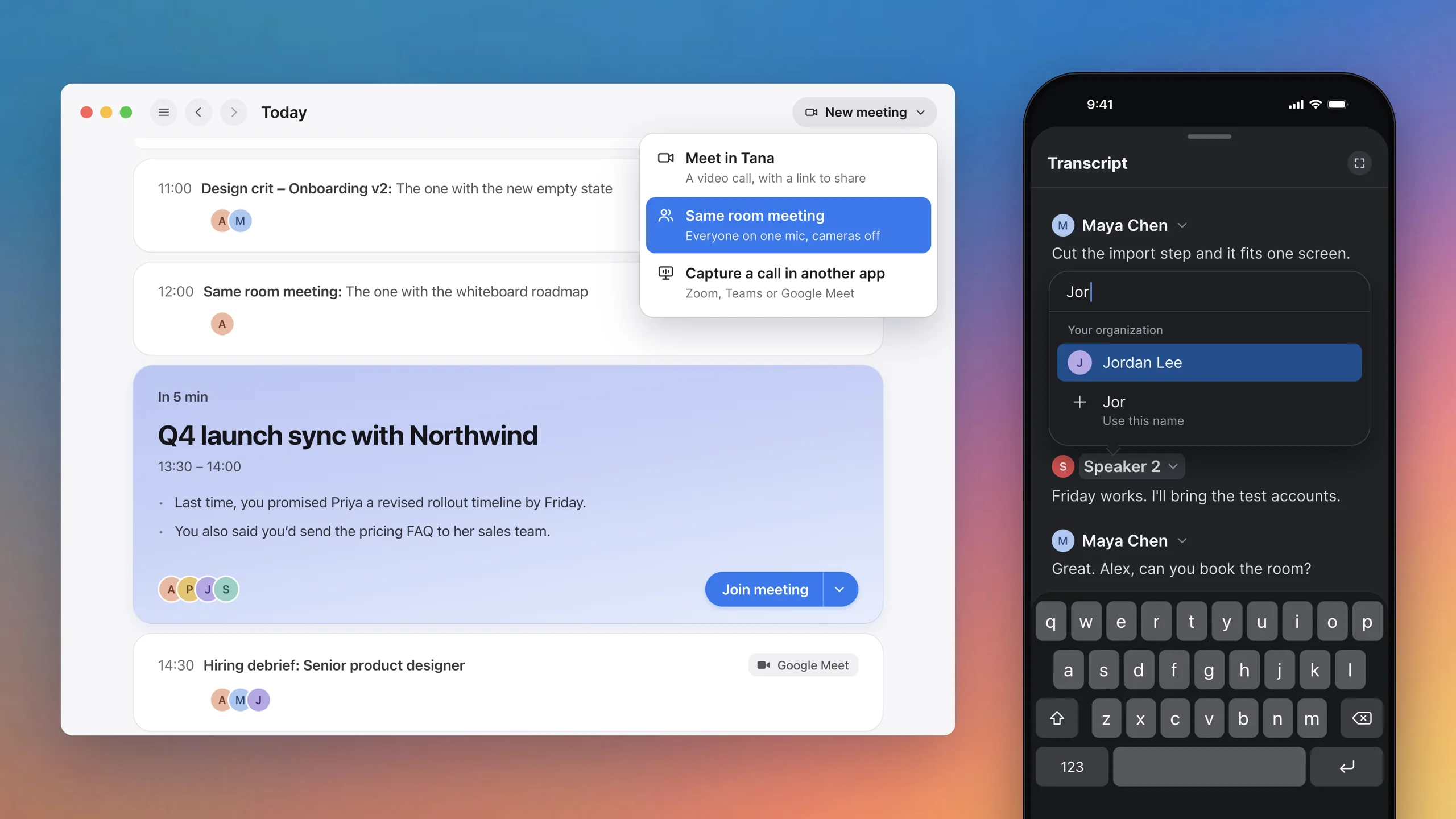
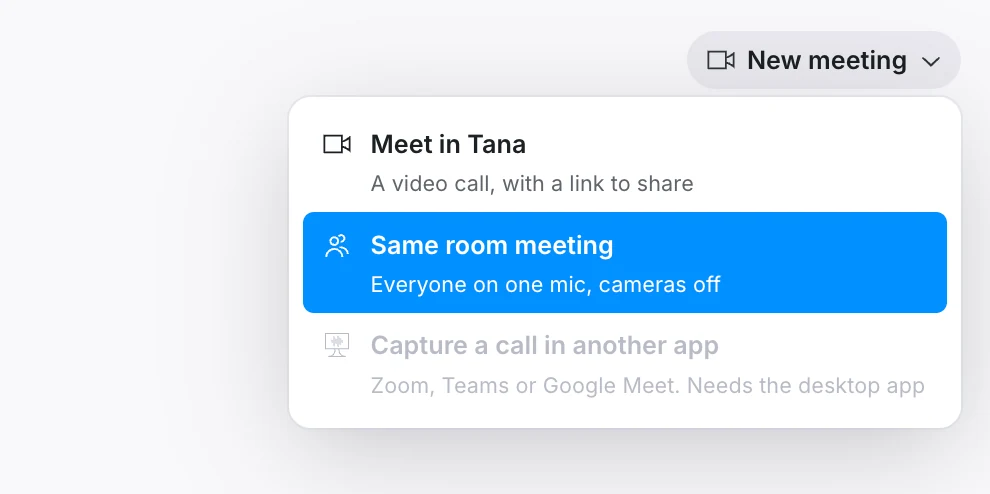
For people meeting around one laptop, pick “Same room meeting” from New meeting on Home, or “Join as same room meeting” from the menu beside Join meeting on a scheduled Tana meeting. The meeting starts with the camera off, and the transcript gives each voice at that microphone its own speaker instead of putting every line under your name. When someone joins remotely, you’re offered to turn the camera on. Same room meetings work in the iPhone app too, where you can also start one from the Lock Screen, Control Center, Siri or the app icon.
Split the voices on one mic in any meeting
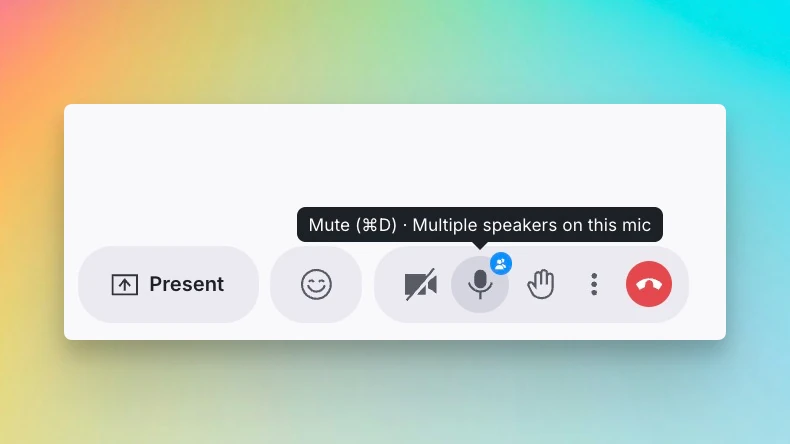
When several people share one microphone in a Tana meeting, open the meeting’s ⋮ menu and turn on Multiple speakers on this mic under Microphone. The transcript then gives each voice its own speaker, and a small blue mark on the mic button shows the split is on. People who join from their own device keep their own name. On iPhone, the switch is Multiple speakers in the meeting’s More menu.
Say who each speaker in the transcript is
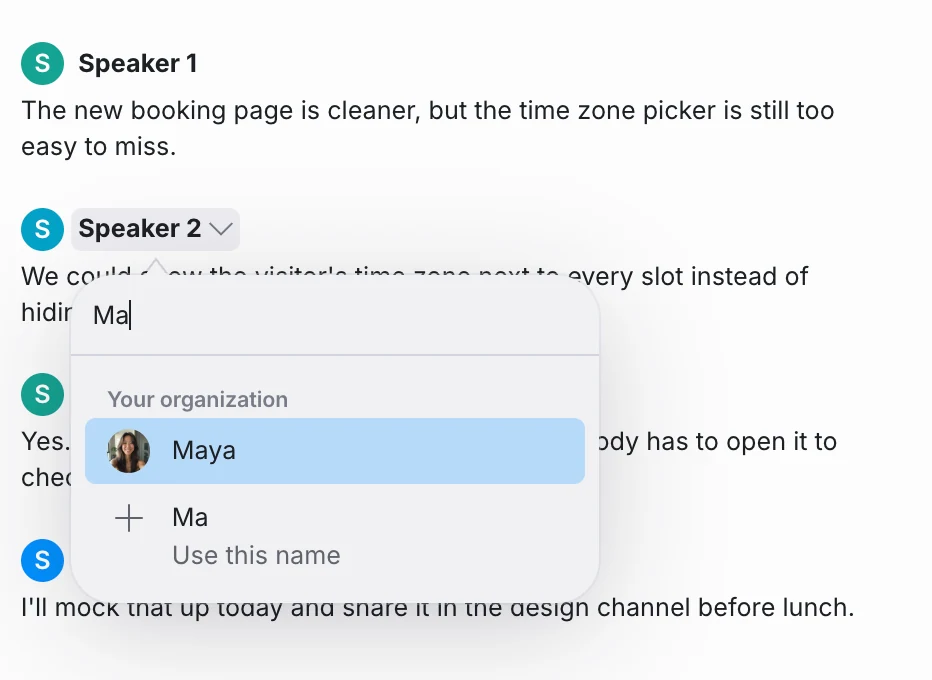
When the transcript shows a voice as Speaker 1 or Speaker 2, press the name and pick who it is: someone in the meeting, someone in your organization, or a name you type. All of that voice’s lines move to them, and its later lines follow. Picked the wrong person? Change it the same way, or go back to the original name.
Lovable and Ari in your meetings
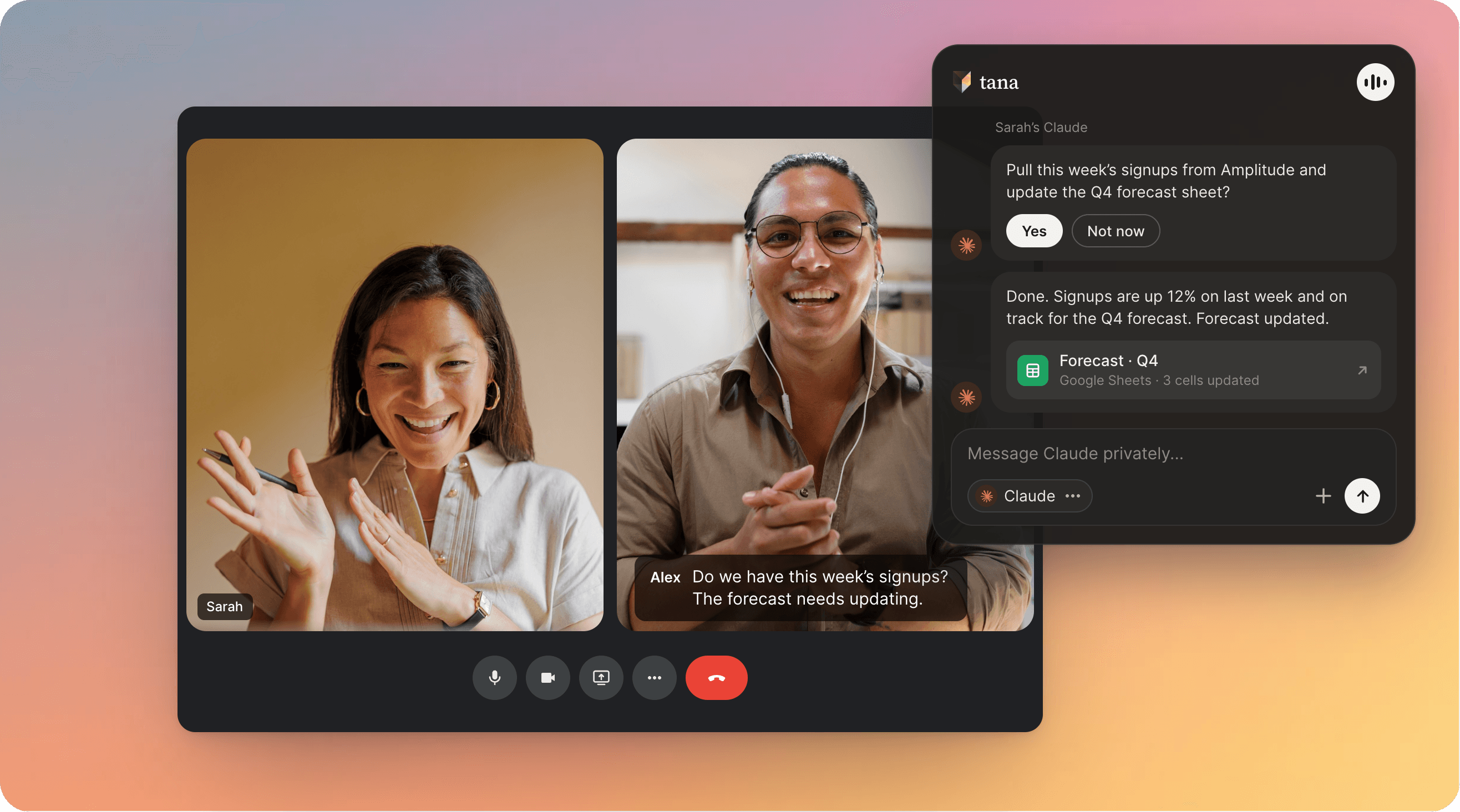
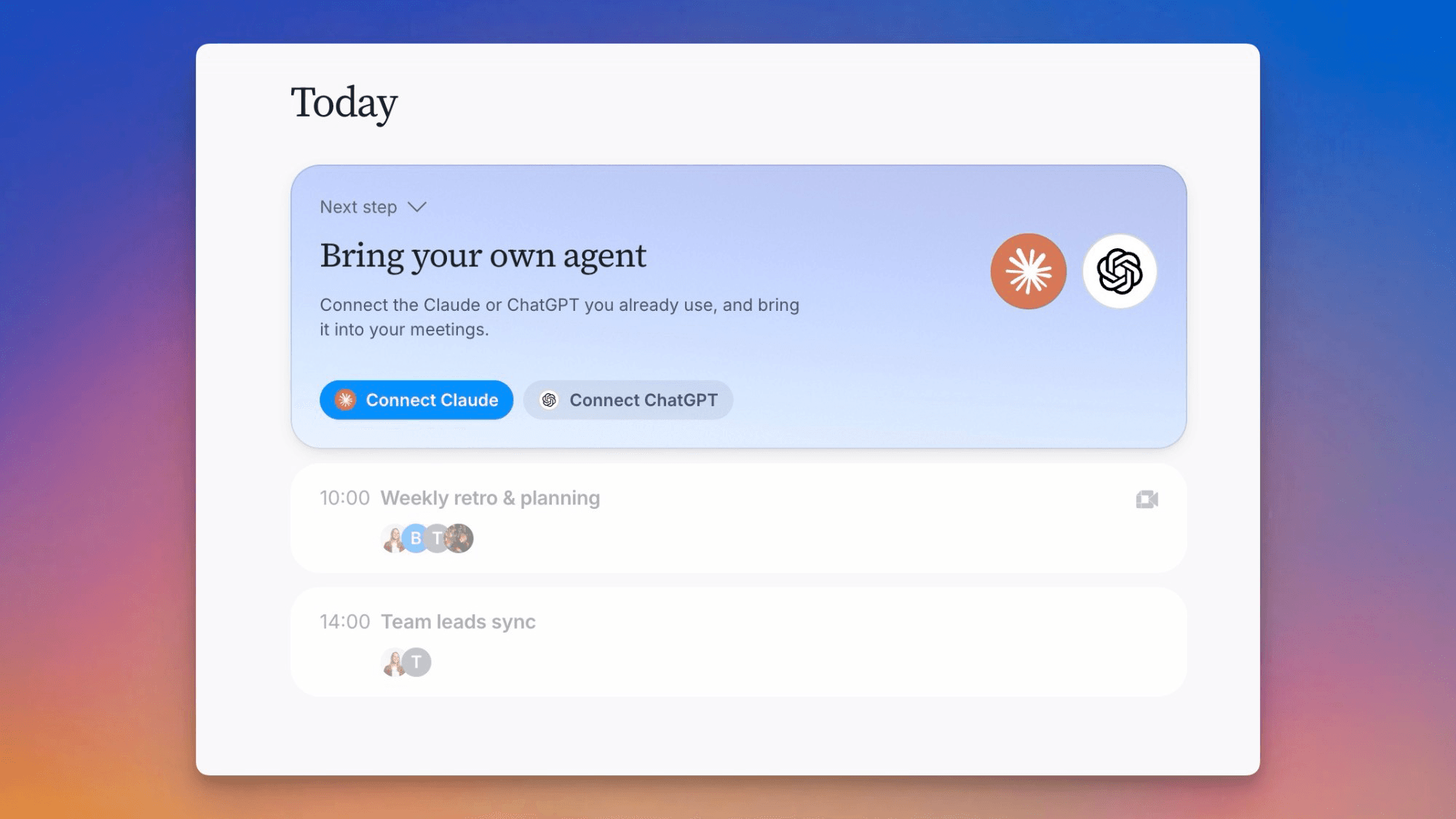
Connect Lovable or Ari, cfo.ai’s finance agent, in Settings, External agents, and work with them in Tana from the browser or the desktop app. @mention one in a chat of your own, or in a meeting, to ask it something. In a meeting the answer arrives in your private chat, and you choose whether to share it with everyone.
 Lovable in your meetings
 Ari in your meetings
Improvements
19- Choose which agent answers, wherever you askIn a meeting, Voice command lists your own agents beside Tana, so you can ask Claude by clicking as well as by saying “Hey Claude”. The chat bar at the foot of a document has the same agent picker as Home, so you can ask another agent about the document you’re in. Agents, Meetings, Docs
- The transcript reads the same everywhereThe Transcript tab, the quick view and the full transcript share one layout: each turn under the speaker’s name, long turns broken into paragraphs, and finished topics folded to a row you can open. Click a paragraph, or a speaker’s name for the whole turn, to copy or delete it. Meetings
- Screenshots in meeting summariesWhen a screen was shared in a meeting, the summary can show up to three screenshots from it, each under the topic in Topics Discussed where what was on screen came up. Meetings
- View images and screen captures full sizeOpening an image shows it full size, where you can download it, copy it, or open its page. In a meeting you can present it to everyone from there. Screen captures from a meeting open the same way, and you can step through them with the arrows. Docs, Meetings
Show all 19 improvements
- Write together in a presented documentWhen you present a document, anyone in the meeting who can edit it can turn on Edit and write alongside you while still following along, keeping their place when they switch Edit on or off. Lead picks who everyone follows, and the person leading can hand over to someone else. Meetings, Docs
- Your microphone follows your computer’s defaultIn a meeting’s menu, System default follows whatever your computer uses, so when your computer switches to a headset mid-meeting, the meeting does too. The device you pick shows its check mark right away, and device names no longer carry a USB code. Meetings
- Admins choose which of members’ own agents are allowedOn the Enterprise plan, admins can allow members’ own agents in the organization’s External agents settings: all of them, including ones Tana adds later, or only the ones they tick. Agents
- See how an accepted action wentIn Work’s Waiting on you, an action you accepted shows how it is going: “Running…”, “Sent”, “Partly done” or “Failed”. Rows are ordered by their newest draft. Home, Tasks
- Your own agent shows the draft before askingWhen your own Claude or ChatGPT asks whether to send something, the draft shows above its question, so you can read it before you answer. Agents
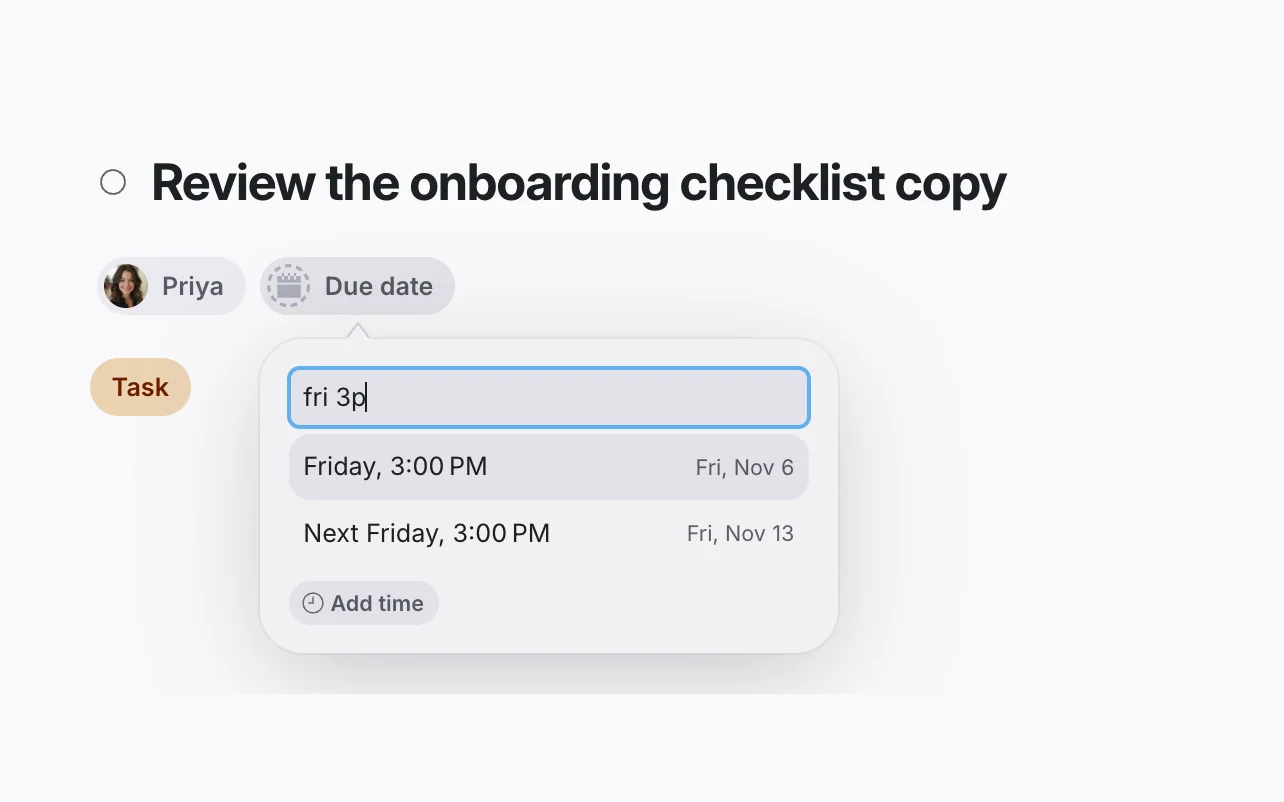
- Mentions find people and agents as you typeAfter @, matching people, agents and types show right away while documents fill in below, and names that start with what you typed come first. AI chat, Docs
- Go back and forward in a document popoverFollowing a link or a mention inside a document popover opens it in the same popover, and Back and Forward take you between the documents you opened there. Docs
- Checklist progress in the table of contentsIn a document’s table of contents, a section with checkboxes shows a progress bar and a count. Turn it off with Show checklist progress in Settings, Preferences. Docs
- Put off a desktop update until laterWhen an update is ready in the desktop app, Later hides the reminder for 4 hours or until the end of the day. Apps
- Invite suggestions start with the people you meetWhen you invite people to a meeting, the suggestions put first the people you meet with and share documents and chats with, so a weekly one-on-one counts for more than an all-hands. The People page and the team row in Send to use the same order. Meetings
- See who updated a pinned documentWhen someone applies a change to a pinned document from their private chat, the meeting chat shows who updated it, above the document’s card. Find and pin opens on your recent documents, so the one you just worked on is a click away. Meetings, Docs
Fixes
12- Inviting people from a read-only calendarWhen Tana can only read your calendar, adding people to a meeting now says so and offers Enable edits, instead of showing them as invited when no invite was sent. Meetings, Calendar
- Google Meet opens with the right accountIf you’re signed in to several Google accounts, joining a Google Meet from Tana uses the account whose calendar has the meeting. Meetings, Calendar
- Your private meeting chat answers in your languageYour private chat in a meeting answers in the language you write in, even when the meeting’s language is different. Meetings, AI chat
- “Hey Claude” requests start at the wake phraseWhen you say “Hey Claude” or “Hey Tana” mid-sentence, your request now starts after the wake phrase instead of including what you said just before it. Meetings, Agents
- Private notes open on iPhoneOpening Private notes in a meeting on iPhone no longer freezes the app. Meetings, Apps
- Comparing a proposal with the originalWith Compare with Original on, a proposal shows only what it changes, not lines added to the document since or every line of a field it added one line to. Proposals and actions
Show all 12 fixes
- Accepted proposals open their documentPressing a proposal you already accepted in a chat opens the document it changed, instead of the review again. Proposals and actions
- Approved changes show up in the open documentApproving a proposal updates the document you have open, or the one being presented, right away, instead of keeping the old text until you reopen it. Proposals and actions, Docs
- Capturing a conversation with no meeting app openPressing Capture in the desktop app with no meeting app running now transcribes from your microphone, so an in-person conversation gets a transcript. It keeps going until you press End. Meetings, Apps
- No capture offer for your own Tana meeting in a browserWhen you join a Tana meeting in your browser, the desktop app no longer offers to capture it as a separate meeting. Meetings, Apps
- Switching organizations no longer asks you to sign inIf switching to another organization fails for a moment, you stay where you are with a message to try again, instead of being sent to the sign-in page. Interface
- The Linux app starts on UbuntuThe Linux app starts on a standard Ubuntu install without any extra packages. Apps

Turn meetings into the most productive part of your day.
Explore further
All updates