




Briefs that research, tasks with due dates
Meeting briefs look up the people you meet for the first time, tasks get due dates, and you can react to and reply to messages.
Web research in meeting briefs
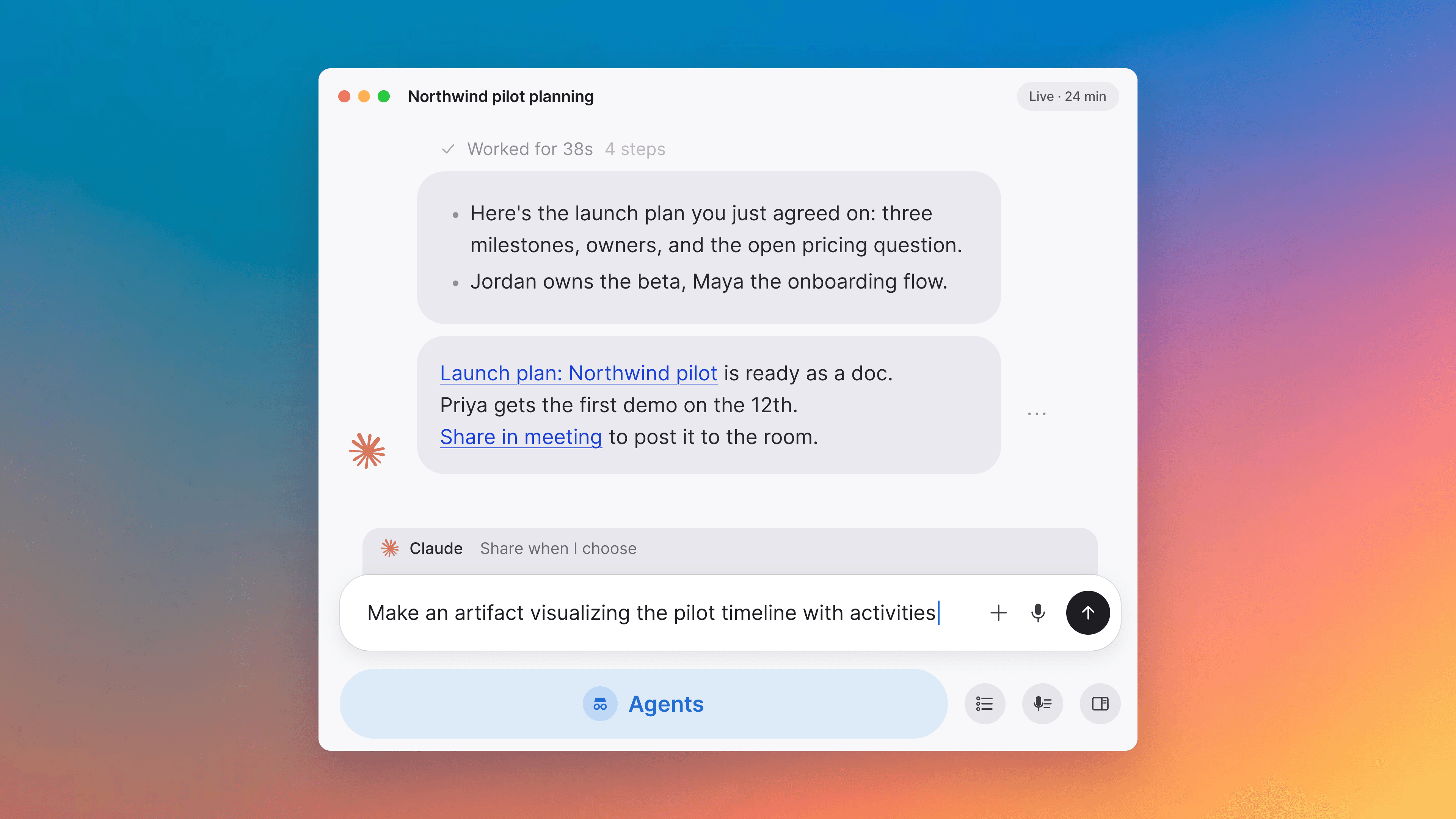
Before your first meeting with someone outside your company, the meeting brief says who they are and what their company does, with links to where it found that.
Due dates on tasks
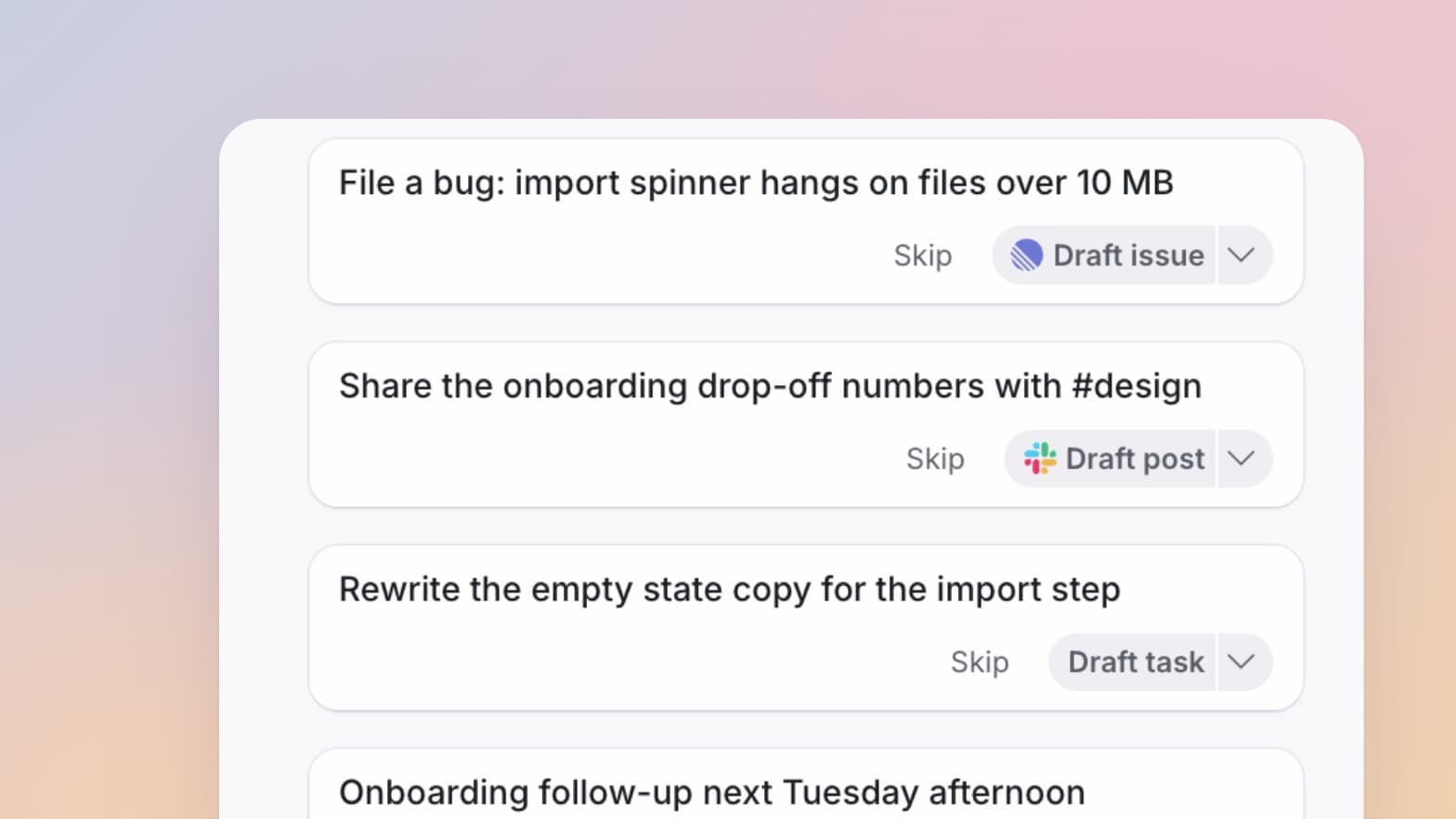
Tasks and workflow items can have a due date. Type it the way you'd say it, like "fri 3p" or "in 2 weeks". Overdue items turn red, due items show on your Calendar, and search can filter and group by due date. A due date with a time is the same moment for everyone, shown in each person's own time zone.
React to messages and reply to them
Add an emoji reaction to a message, or reply so your message quotes it. It works in chats and in the meeting chat. Hover over a message or right-click it to start. Tana reacts too, and in a busy chat its answer quotes the message it's answering.
Improvements
23- Get the summary before the meeting endsIn the last minutes of a meeting, Tana asks if you want the summary. Say yes and it's written while the meeting keeps going, then posted in the meeting chat for everyone. You can present it to the room. After the meeting you can also ask for it right away instead of waiting. Meetings
- Email the summary to people from other companiesWhen you email a summary, Tana also offers the attendees from other companies who use Tana. Meetings
- Present images and web pages in a meetingBesides documents, you can present an image or a web page to everyone in a meeting. In the desktop app, the page opens in a browser window everyone sees. Dropping a document onto the meeting presents it too. Meetings
- Move a meeting to a space when it endsWhen a meeting ends, Tana asks the organizer which space it belongs in and whether everyone in that space should see it. One click moves it. Meetings, Spaces and sharing
- Rejoin a meeting that's still goingIf you leave while others are still talking, Tana shows who's still there, with a button to rejoin. Meetings
Show all 23 improvements
- Big meetings keep the speaker in viewWhen not everyone fits on screen, Tana keeps the person speaking and the first raised hand visible. Meetings
- Copy the link and set the language while capturingWhile Tana captures a meeting in another app, you can copy the meeting's link and change its language from the capture menu. If you open that meeting in Tana, a button takes you back to the meeting app. Meetings
- Tana notices meetings in more appsThe desktop app spots meetings in more apps, like Gather, and offers to capture them. Meetings
- A heads-up when Tana can't see your screenOn a Mac, if Tana doesn't have permission to see the screen, it keeps capturing and tells you, with a button to turn the permission on. Meetings
- Try again when transcription stopsIf Tana stops transcribing what you say, the meeting tells you and offers "Try again". Meetings
- See who made a doc and where it came upChoose "About" in an item's menu to see who created it, who edited it, and which chats and meetings changed it. Links in the same menu lists everything that points to it, including the meetings where it was discussed. Docs
- Ask for changes to a proposalIf something the AI proposes is close but not right, type what to change at the bottom of the proposal. The AI revises it in place. Proposals and actions
- See what an agent is working onWhile an agent works, you see what it's doing and can open each step. When it answers, the steps collapse and show how long it took. Agents, AI chat
- Agent schedules that follow your time zoneA scheduled agent can run in a fixed time zone or follow yours when you travel. Agents
- Reorder a type's fieldsDrag a type's fields into the order you want, or ask the AI to reorder them. Types
- Checklist progressA heading with checkboxes under it shows how many are done, and so does the document. You can turn this off in Settings, Preferences. Docs
- More diagram typesMermaid diagrams can be Gantt charts, pie charts, mind maps, timelines, git graphs and quadrant charts, and they draw faster. Docs
- Choose where Tana links openPick whether Tana links open in the desktop app or the browser, or ask every time. It's under "Open Tana links in" in Settings, Preferences. Apps
- Your AI assistant can read and post in Tana chatsThrough Tana's MCP server, an assistant you've connected, like Claude Code or Claude Desktop, can read the chats you can open and post in them for you. Its messages are labeled as coming from your assistant. MCP, AI chat
Fixes
8- Your name on other people's linesWhen Tana captures a meeting in another app, it no longer puts your name on other people's lines in the transcript. Meetings
- Meeting briefs use only your meetingsA brief draws on earlier meetings you were in, not colleagues' meetings you weren't part of. Meetings
- Answers about your next and recent meetingsAsk Tana about your next meeting or your last few discussions and it finds the right ones. It no longer counts the meeting you're in as the next one. Meetings
- Moving a meeting to another appIf a Tana meeting doesn't work out early on, you can still move to another meeting app and have Tana capture it there. Meetings
- The capture window can't get lostThe small window Tana shows while capturing a meeting can't be closed by accident, and it comes back if it disappears. Meetings
- Guests see pictures in the meeting chatGuests can see the pictures and files members attach in the chat everyone shares. Meetings
Show all 8 fixes
- Tasks with the same name as a finished oneYou can create a task with the same name as one you've already completed. Tasks
- Links with parentheses or underscoresLinks with parentheses or underscores in them, like many Wikipedia addresses, show up complete and clickable when you paste them into a chat. AI chat