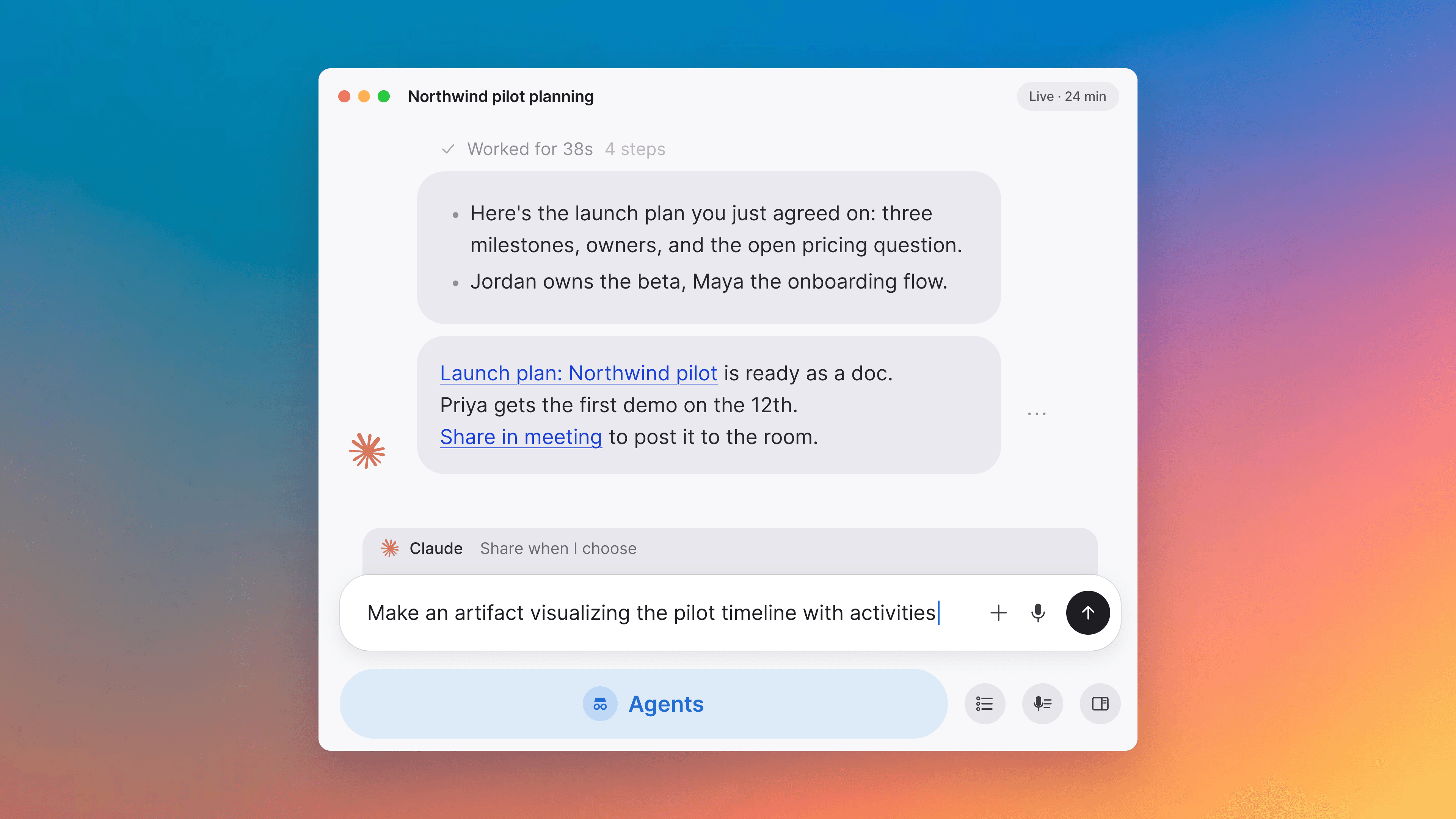
A pre-meeting hub
Each upcoming meeting opens on one page with what you need before it, you can present a document or canvas in a meeting, and you can pin anything to the sidebar.
One card for every meeting, before the call
Open any upcoming meeting and its left column is a single event card that holds everything you need before the call: a Join Meeting or Capture Meeting button and an Open in calendar link at the top; the full attendee list grouped by RSVP status (Going, Maybe, Not going, Awaiting reply), with anyone already in the call promoted to an In call group at the top; inline rename and reschedule for organizers; the provider's meeting URL in a copyable field alongside Move to Tana for organizers of a synced Google Meet, Teams, or Zoom event; and Invite and Copy guest link pinned at the foot of the roster. Clicking the meeting title during or after the call reopens the same card, so you can edit inline from any phase.
Present a document or canvas in a meeting
Pick a pinned document or canvas and choose Present document from its menu to put it at the center of the meeting as a shared reading or drawing surface. You edit it live while everyone follows along read-only, with your caret or cursor visible so they can glance ahead or drop a note in chat. Followers auto-scroll to stay with you (camera-follow for canvases), with a Follow button if they scroll away and want to catch back up. Guests in the meeting can be given access with one click, so an external attendee can follow the same live document without screen sharing.
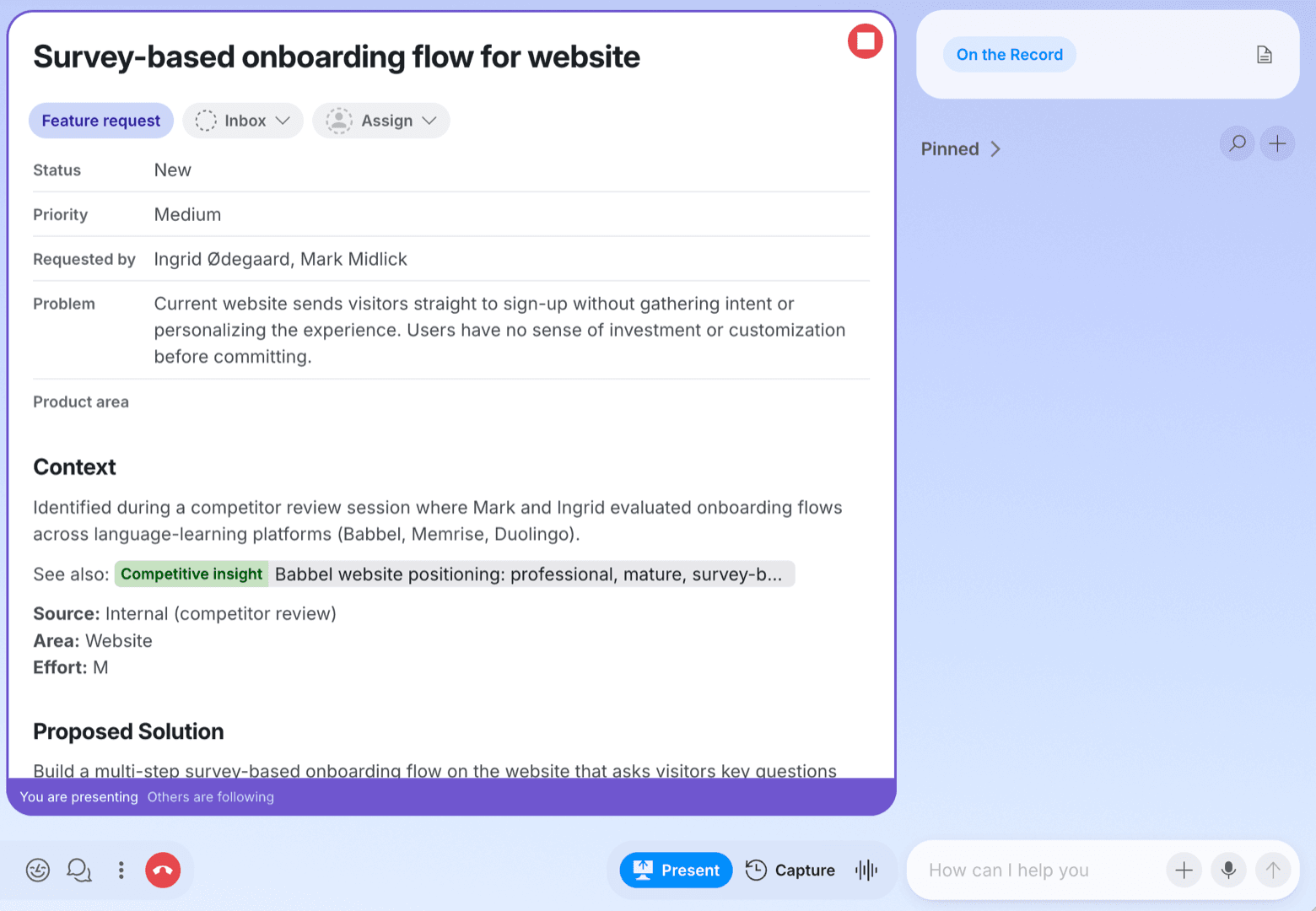
A sidebar you can pin things to
The sidebar is now a flat primary nav with a Pinned section of your own entry points at the bottom. Drop any item onto the sidebar to pin it, drag pins to reorder, drop one onto a section header to file it there, and right-click anywhere to make a new section for related pins. Pins are per-user, so everyone curates their own set. The Library section above it is where all the organization's docs, meetings, tasks, types, chats, agents, people, skills, canvases, and spaces continue to live.
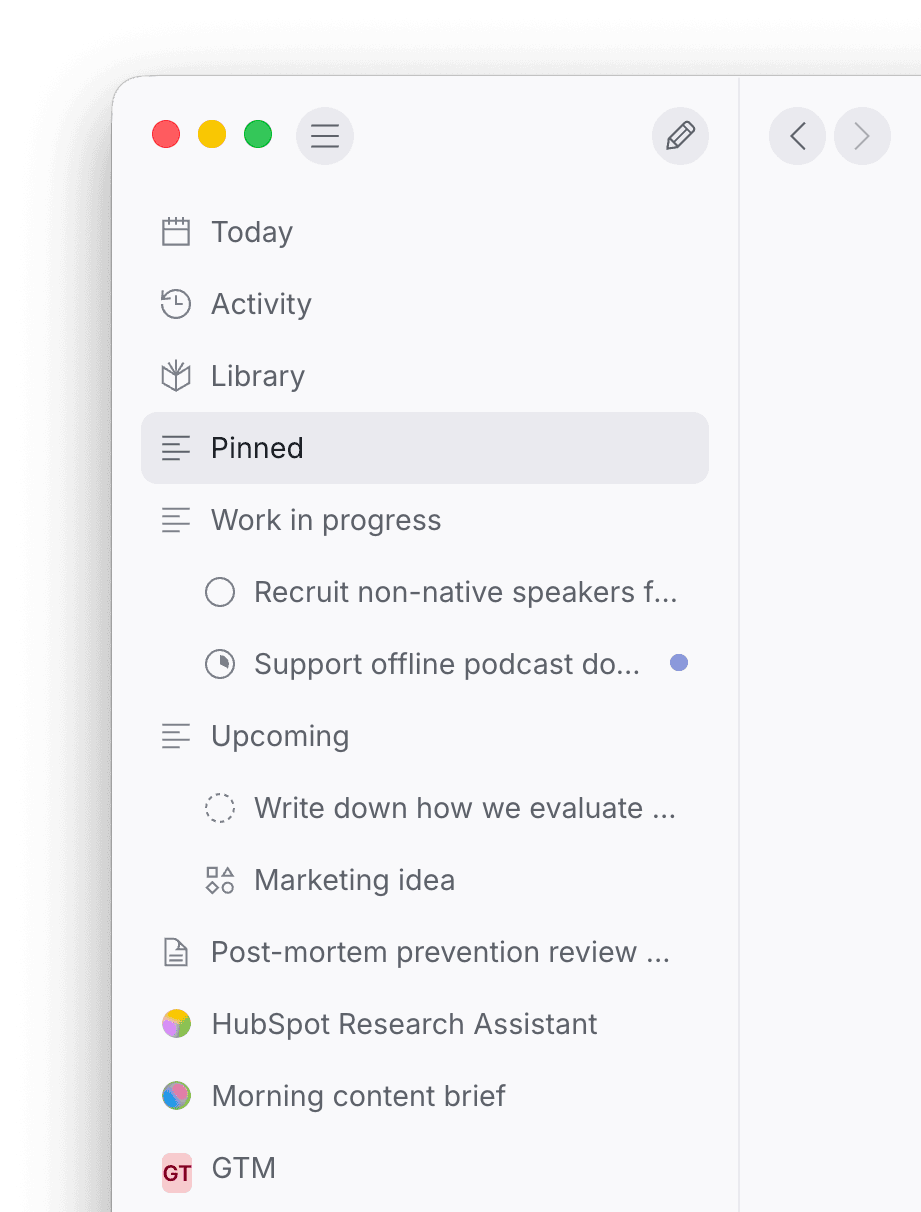
AI jobs, all in one place
The compact digest now has a running list of what the AI is doing right now during the meeting: capture runs from the meeting toolbar, skill runs, and voice-delegated chats each show as a single row with a live progress glyph while streaming, and a settled indicator when they close (N to review when the run produced proposals, Done when it closed clean, or a red X for empty). Click a row to jump into the chat that produced it. During the call the list collapses to the newest row plus two fading teasers so it stays out of the way; outside the call the full list renders plainly. The results themselves still flow into For Review and Outcomes on the surface, so this is the what's-in-flight indicator, not another feed.
Settings, Permissions: recover mic, camera, and screen access in one place
A new Permissions section in Settings shows the current status of the four capture permissions Tana needs, so you don't have to guess whether your browser or the operating system is the one blocking capture: microphone, camera, screen recording, and system audio. Each row shows whether access is granted, denied, or not yet requested, with a per-permission action to recover it: Enable prompts you where the operating system supports an in-app prompt, Open settings deep-links you where the system toggle is the only path, and macOS screen recording asks you to Restart Tana once granted.
Improvements
6- Capture external meetings out of the boxCapturing the meetings you hold in Zoom, Teams, or Google Meet through your computer's audio is now on by default on the desktop app for macOS and Windows, so there is nothing to turn on first. A small window opens just before each scheduled meeting so you can start recording in one click. Meetings
- A quieter live digest during the callThe digest in the collaborative surface has been rebuilt around one live control and one clickable timeline. The transcription toggle is now a single pill that swaps between On the Record and Off the Record; off the record dims the whole digest, and also pauses screen-share capture and external-meeting capture, so it stops all recording, not just words. The section timeline defaults to collapsed, showing the most recent section plus two faded ghost rows; click any ghost row to expand the full list, and click a section title to open the Capture popover scoped to that topic's transcript span. A View transcript button sits at the far right of the same row, and a hover Copy transcript button on each section copies its lines grouped by speaker. Meetings
- Preview your workspace before your first meetingThe last step of onboarding, right before the welcome meeting, now shows the workspace Tana has generated for you: your organization's name, a couple of spaces and the agent Tana picked for your industry as avatar pills, and two or three example items pinned to your welcome meeting as example cards. If the bootstrap is still running when you arrive at the step it shows a skeleton, and it never blocks the meeting on it. Apps
- Richer past-meeting cards on TodayPast events on the Today view now show each outcome and pin card with a type indicator (typed entities render their coloured Type badge, other docs show their doc-type icon and label) and a cover thumbnail when the item has one, instead of a bare title. The meeting's tagline, the short serif line Tana writes for the conversation, sits above the outcome strip. Home, Meetings
- The AI explains why it can't read an eventWhen you ask the AI to open a meeting it can't load, it now says which of three things is going on instead of showing an internal error: this event doesn't exist or has been deleted, you don't have access, or loading it timed out. The same wording is already used for transcripts and other kinds of documents; the event tool was the last gap. AI chat, Meetings
- End the capture, land on the meetingPressing End on the small always-on-top window that runs a system-audio capture of an external meeting now takes you straight to the meeting you just recorded, so the wrap-up notes and outcomes are one click away. Meetings
Fixes
2- System-audio capture records Teams, Zoom, and Meet on WindowsSystem-audio capture on Windows now records the audio from every Teams, Zoom, and Google Meet call, including on the latest Windows 11 builds. If a meeting app switches your output device in the middle of a call, the capture follows the new device instead of dropping the audio. Meetings
- The system-audio capture window no longer pinch-zoomsThe small always-on-top capture window that appears before an external meeting is now zoom-locked, so a two-finger pinch on the trackpad no longer makes it grow or shrink out of layout. Meetings