
Comments on documents
Comment on any part of a document, "Hey Tana" posts to the meeting chat, and video in meetings keeps everyone's shape.
Improvements
16- Video in meetings keeps each person's shapeEach person's video keeps its own shape, so nobody is cut off, and a shared screen is never cropped. In a one-on-one, the other person fills the meeting and your own video floats in a corner you can move. Each video's menu has "Crop video" to fill its space or show the whole picture, and you can minimize your own video into the meeting controls. Meetings
- "Hey Tana" requests post in the meeting chatWhen you say "Hey Tana" or "Hey Claude" in a meeting, a sign in the middle of the meeting shows everyone whose agent is listening. When you stop talking, your words post in the meeting chat as your own message, and the agent answers it like any message you'd typed. You can send early or cancel from the same sign. Meetings
- Choose how strong the background blur isWith background blur on, pick "Mild", "Medium" or "Strong" in the meeting's settings menu. The choice also applies to the preview before you join. Meetings
- Move a meeting to Tana in one clickOn a Zoom, Google Meet or Teams meeting you organize, a frown next to the meeting's link button offers to move it to Tana, on the meeting page, in the Calendar and on Home. Click it to replace the link in the calendar invite with a Tana link. Meetings, Calendar
- A warning when an invite's link goes to another meetingIf the Tana link in a calendar invite opens a different meeting than the one Tana joins you to, the meeting page and Home's next-meeting card say so, so you can fix the invite before people end up in two meetings. Meetings
- Viewers follow your scrolling when you presentWhen you present a document in a meeting, everyone following sees what you scroll to, not only where your cursor is. Meetings, Docs
Show all 16 improvements
- Document popovers have the full toolbarA document opened over the page has the same toolbar and chat as the full page, plus "Open full" and "Close", and shows its side sections when the window is wide. Cmd-click on macOS or Ctrl-click on Windows and Linux on a document in a list opens it in a new tab instead. Docs, Interface
- Keep editing a proposal after you accept itPressing a proposal you already accepted opens it marked "Created" or "Updated", and you can keep editing it there. Discarded proposals and older versions open read-only, with a way to the latest one. Proposals and actions
- Meeting briefs find your prep documentsA meeting's brief draws on documents and earlier meetings about the same subject, including large meetings outside the recurring series, from meetings you were invited to. Meetings
- Desktop windows named after their pageEach desktop window is titled after the page it shows, in the Dock, the taskbar and the window switcher, and the Mac Dock menu has New Window. The tab you're in a meeting in shows a camera icon. Apps
- Download a meeting summary as a PDFIn the desktop app, "Download PDF" in a summary's menu or a document's Send to menu saves it as a PDF with its fields, tables and images, ready to upload to other systems. Apps, Meetings, Docs
- The meeting reminder names the organizationIf you're in several organizations, the desktop app's meeting reminder says which one the meeting is in, and lets you pick which one captures it when it's in more than one. Apps, Meetings
- Split the voices on one mic while capturing"Multiple speakers on this mic" is in the desktop capture window's options, so a captured meeting can give each voice at your microphone its own speaker too. The meeting reminder's join menu also offers to join as a same room meeting. Apps, Meetings
- Screen captures of a web page link to itWhen the desktop app captures a shared browser tab, the capture is titled with a link to the page it showed. Meetings
- Recent documents match across tabs and windowsYour recent documents in search and the @ menu are the same in every tab, desktop window and split pane on your device. Interface
Fixes
7- Suggestions handed to your own Claude no longer end on an errorWhen Tana handed a meeting suggestion to your own Claude and Claude wrote a plan for it, the chat showed an error about plan mode and the plan was lost. Claude's plan now shows as its reply. External agents, Meetings
- Your own Claude answers when your Claude settings turn off AutoIf your Claude settings turn off Auto mode, every message to your own Claude in Tana failed with "Claude could not switch to the mode picked for this message." Tana now runs the message in Manual, which asks before each change, and a line above the answer says why. External agents
- Tasks from what you promised in a meeting are assigned to youWhen you said you'd do something in a meeting, such as "I'll send the deck tomorrow", the task your agent drafted from it could have no one assigned. It is now assigned to you. Meetings, Tasks
- The speaker picker stays open while people keep talkingWhile you picked who "Speaker 1" was during a meeting, new lines pushed the name out of view and closed the picker. The transcript now holds still while you pick, with "Jump to live" to catch up, and on a phone the picker opens from the bottom of the screen. Meetings
- Joining from the meeting reminder uses the meeting's own tabWith more than one Tana window or tab open, Join on the desktop meeting reminder could replace what you were working on in another tab. It now goes to the tab that already has the meeting open, or opens a new one. Apps, Meetings
- No capture prompt during FaceTime callsThe desktop app asked to capture FaceTime calls and iPhone calls answered on your Mac, which are usually private. It no longer asks during those calls; you can still start a capture yourself. Apps, Meetings
Show all 7 fixes
- Times in the Mac app follow your 24-hour settingThe Mac app often showed 12-hour times even with "24-hour time" turned on in System Settings. It now follows your Mac's setting after you restart Tana. Apps

Turn meetings into the most productive part of your day.
Download Tana
14-day free trialNo credit card requiredCancel anytime
Explore further
All updates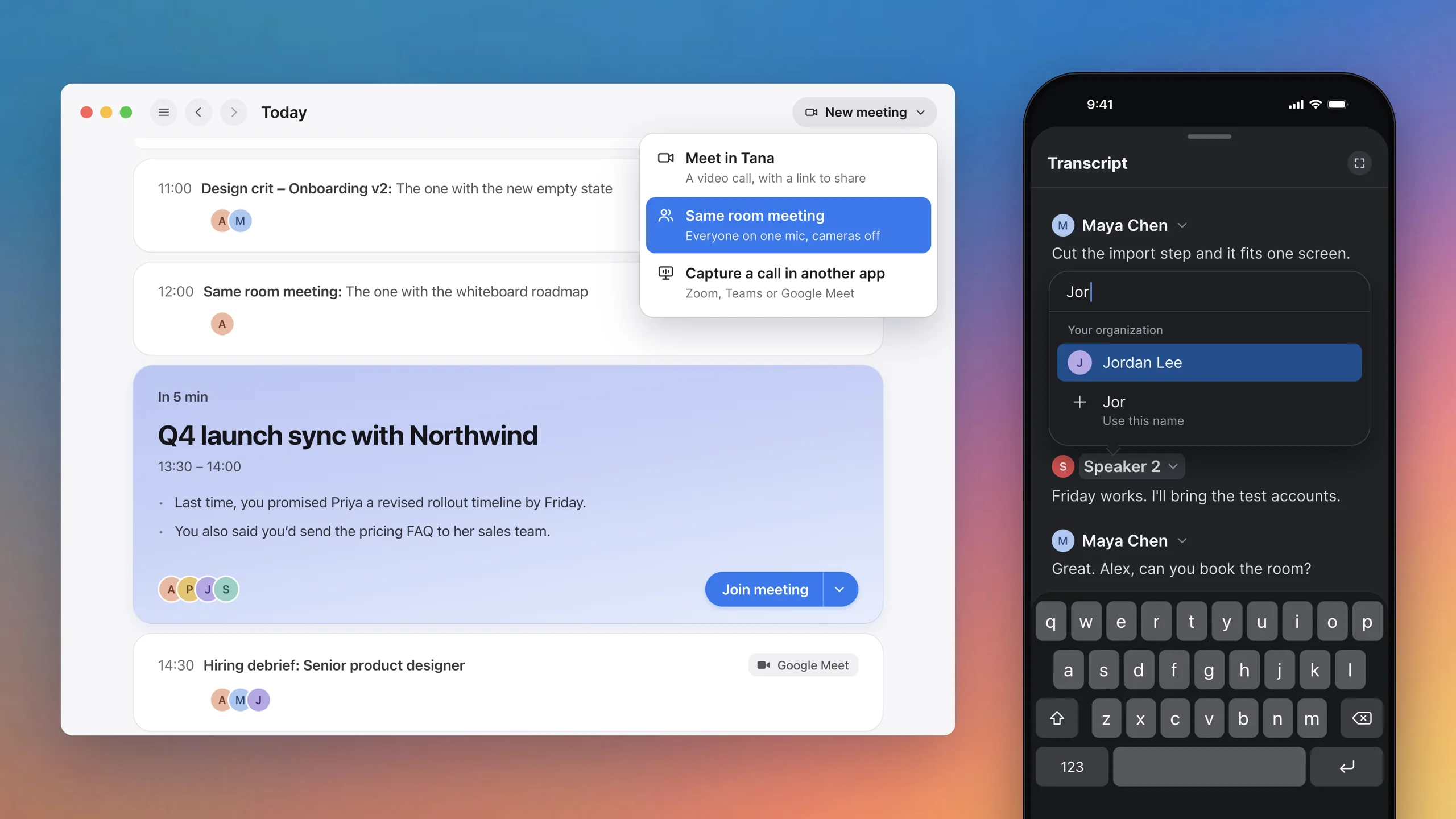
In-person and hybrid meetings, and Lovable and Ari in your meetingsMeet around one laptop with each voice transcribed, say who a speaker is, bring Lovable and Ari into your meetings, and start any kind of meeting from one menu.
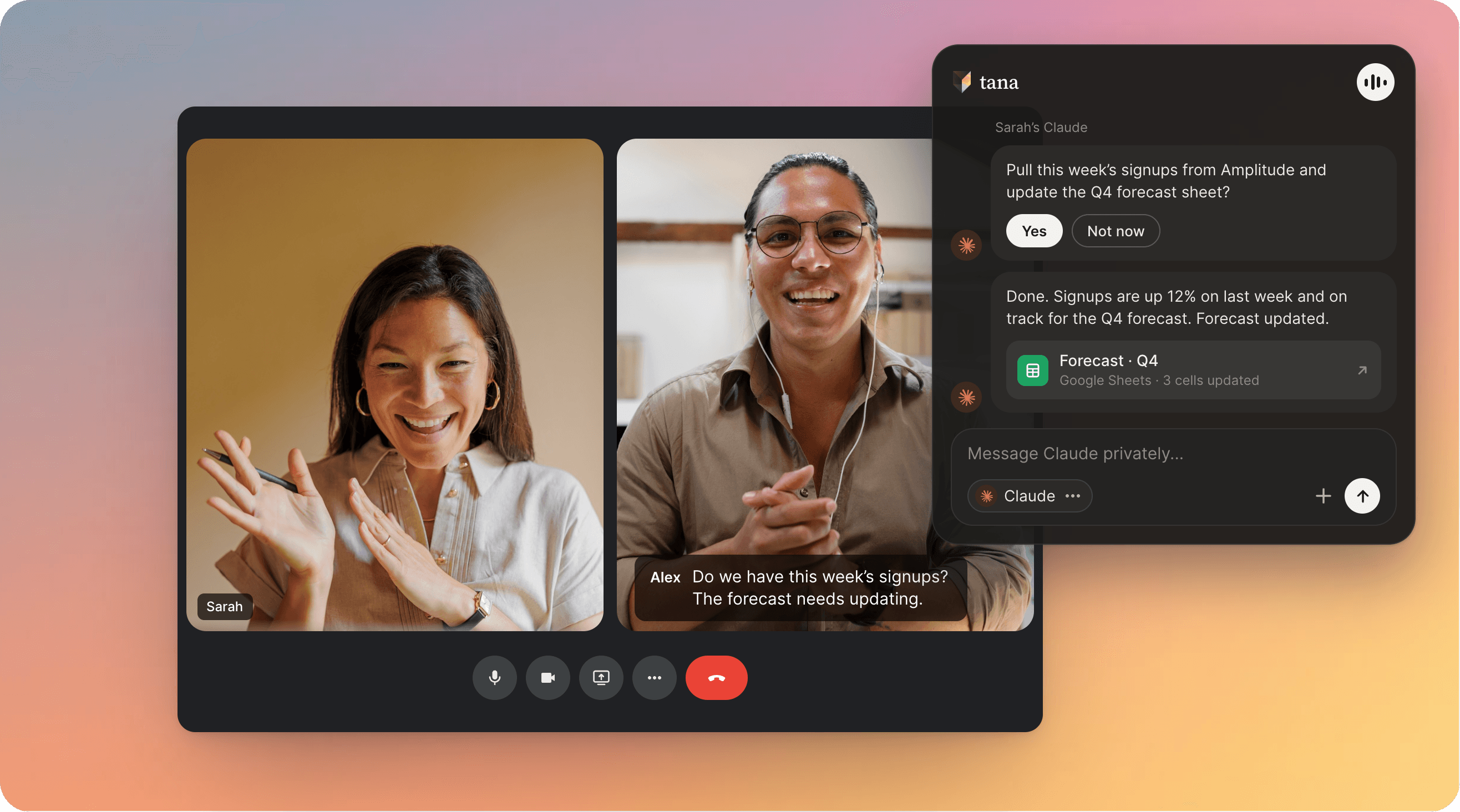
Claude Code and ChatGPT, live in your meetingTana is the first agentic meeting platform for teams. Bring your own Claude Code or ChatGPT into the meeting, with the live transcript, the shared screen and your own connectors, and the work being discussed gets done before the call ends. No bot joins the call.
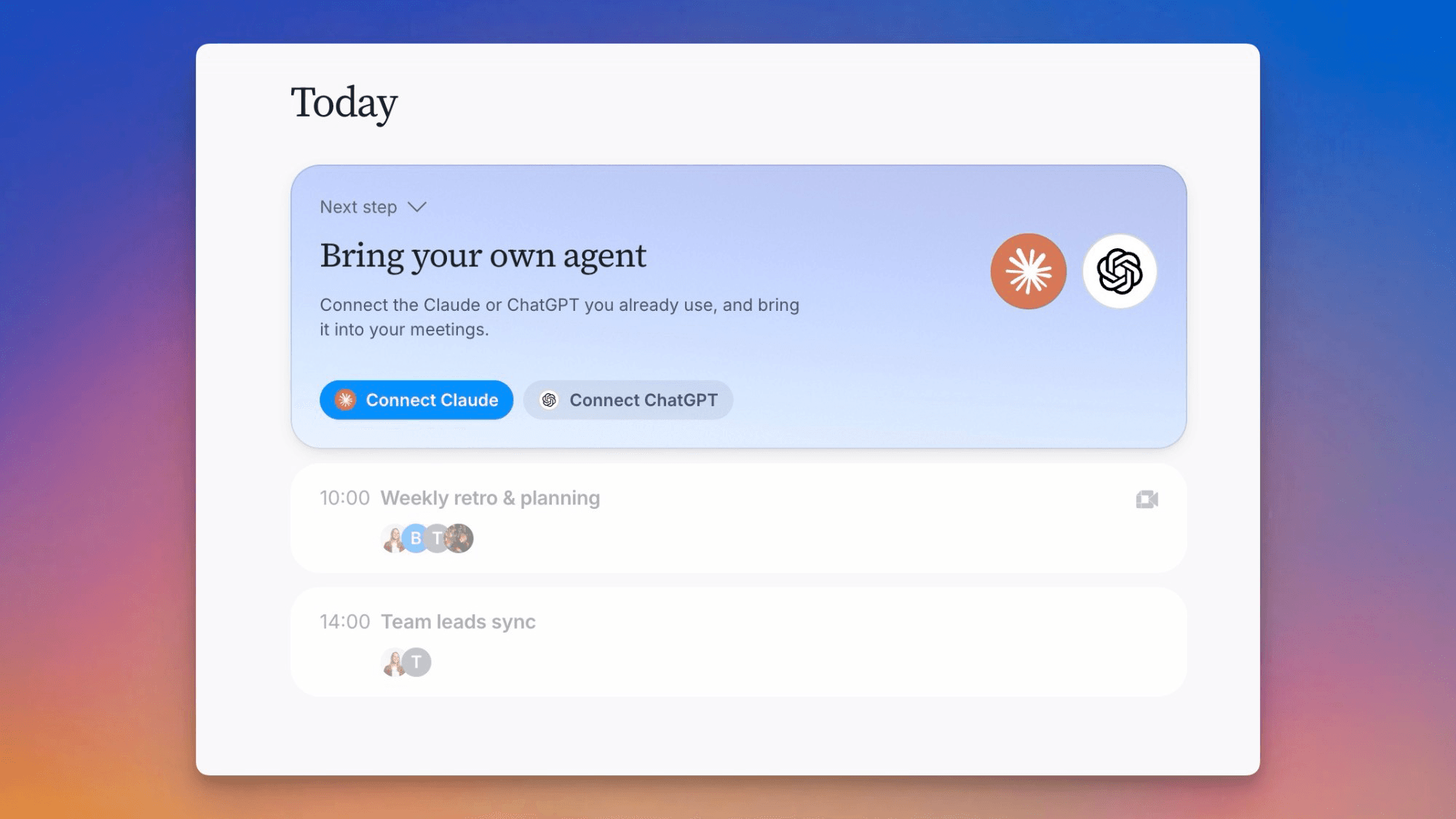
Comment on any part of a document
Select text in a document, a task or a meeting summary you're editing, and press "Comment". The thread sits in the margin beside the words it's about, where others can reply and react, and you can resolve it when it's settled. Anyone who can open the document can read its comments. Mention someone to bring them in: they're notified, and if they can't open the document yet, Tana offers to give them access. Replies and mentions show up under Waiting on you on Work.