




Tana on iPhone and iPad
The Tana app for iOS is out. Join your Tana meetings, talk to your voice agent, and pick up everything that came out of them, all from your iPhone or iPad.

Tana meetings on the go
Take the call from the train, the walk between offices, or the couch (we won't tell). You join the same Tana meeting as everyone else, and Tana keeps working while you talk, capturing the conversation and proposing outcomes just like on desktop.
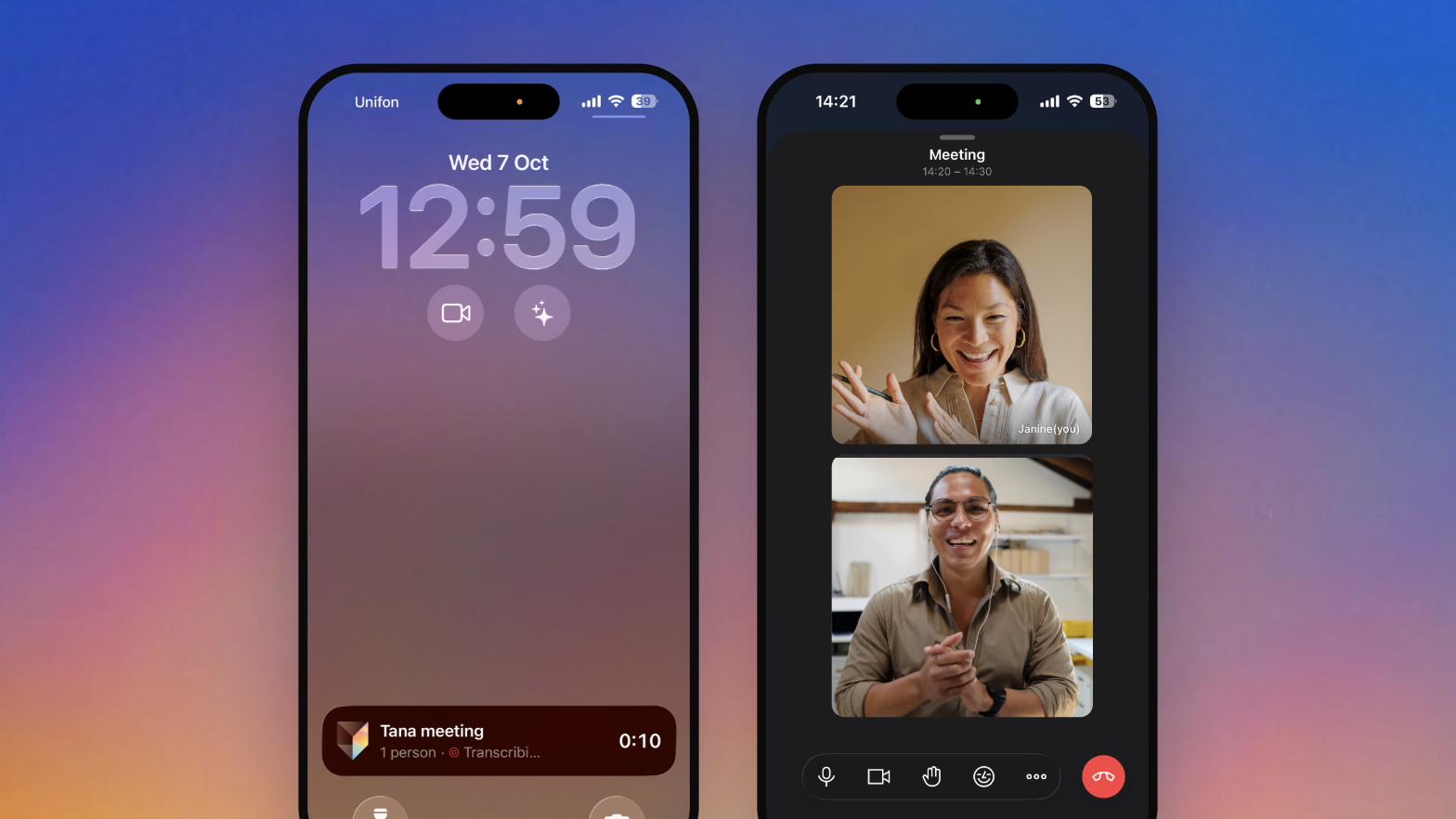
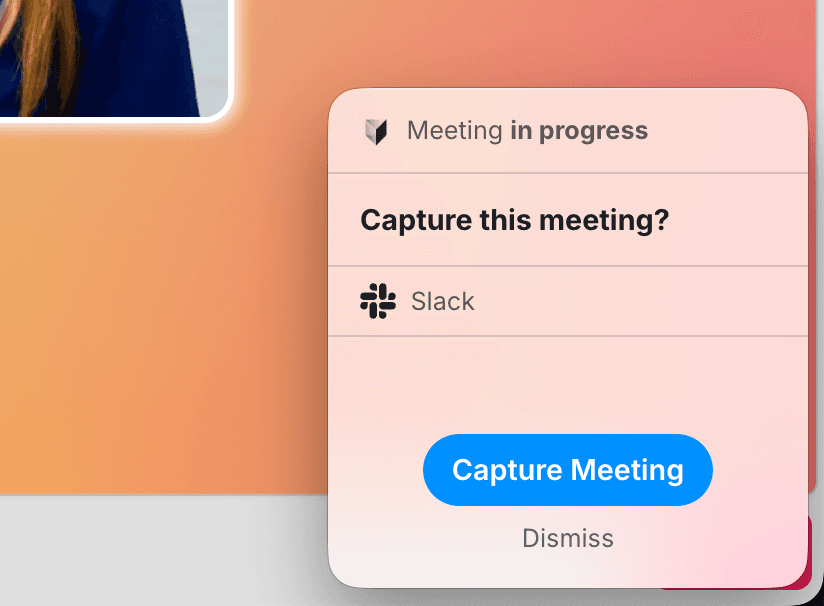
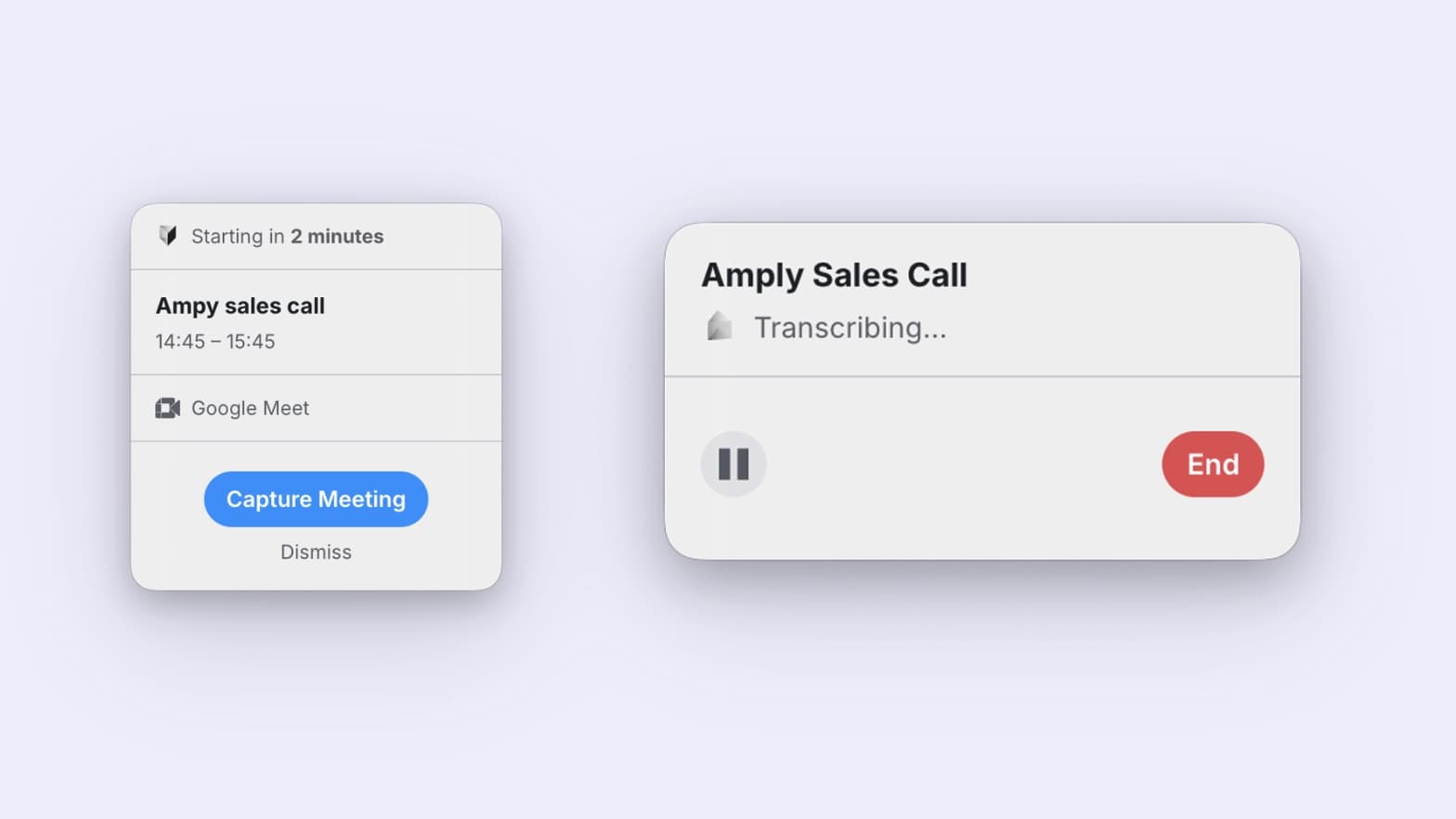
Same call. Same Tana. Smaller screen. And when you lock your iPhone mid-call, the meeting stays right there on the Lock Screen and in the Dynamic Island: how long you've been talking, who's in the call, and whether Tana is transcribing or you're off the record. Tana can't capture meetings on other platforms from your phone yet, but you can join a Zoom, Google Meet, or Teams link right from your Tana calendar, and it opens in that app.
You can bring something to show, too. Tap Present to put a Tana doc on the shared stage for everyone in the call, or share your iPhone or iPad screen to walk people through an app, a website, or anything else on your device. See presenting and screen sharing for how it works.
Start a meeting from your Lock Screen
Add the Start Meeting and Talk to Tana widgets to your Lock Screen or Control Center, and your next meeting is one tap away. Hands full? Say "Hey Siri, start a Tana meeting" or "Hey Siri, talk to Tana".
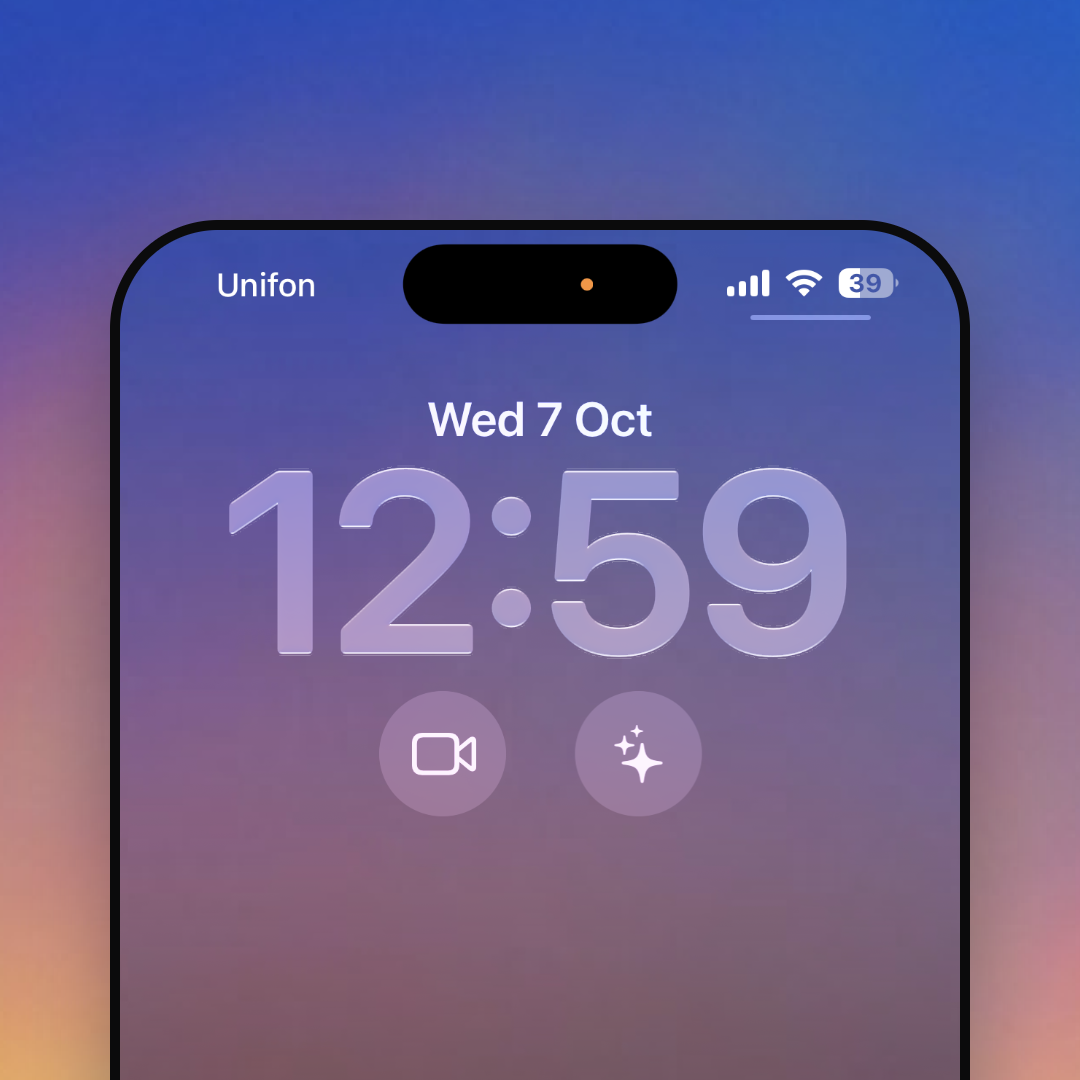
You'll also find both in Spotlight and the Shortcuts app, and on iPhone you can put either one on the Action button.
How to set it up
Get Tana Meetings from the App Store and sign in with your Tana account. Then put the controls wherever suits you:
- Lock Screen. Touch and hold the Lock Screen, tap Customize, then choose the Lock Screen. Tap Add Widgets, scroll to Tana, and tap Start Meeting or Talk to Tana. Tap Done to save. Apple's guide covers creating a custom Lock Screen in more detail.
- Control Center. Open Control Center, tap the + in the top corner, then Add a Control and search for Tana. See Apple's guide to customizing Control Center.
- Action button. On an iPhone with an Action button, go to Settings, then Action Button, swipe to Shortcut, and pick a Tana action. See running shortcuts with the Action button.
- Siri. The Tana phrases work as soon as the app is installed, as long as Siri is listening. In Settings, tap Siri (or Apple Intelligence and Siri), then turn on Talk to Siri. Apple explains how to turn on and activate Siri.
Talk to Tana on your way in
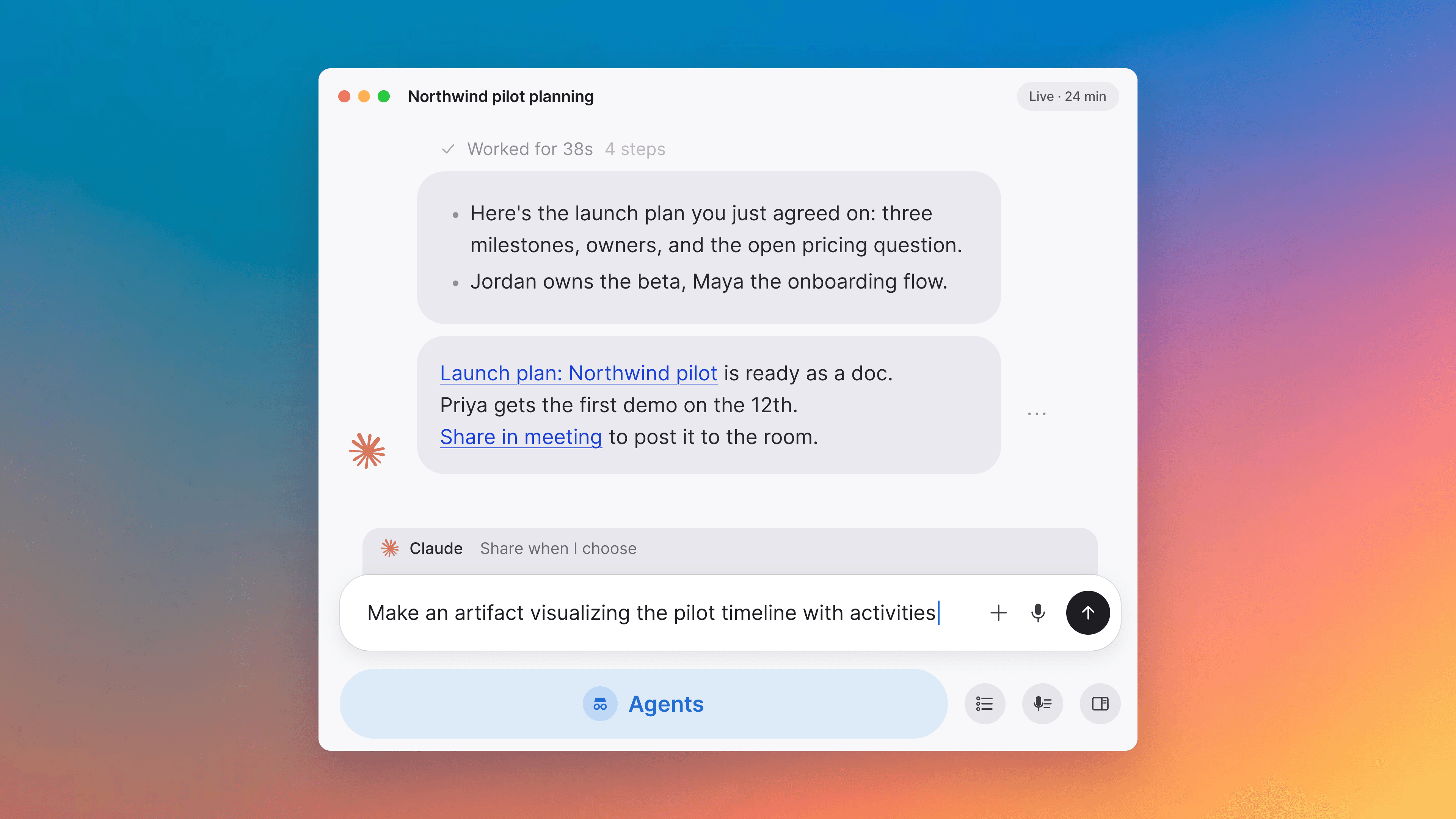
Talk to Tana starts a meeting with just you and Tana's voice agent, ready to listen. It's the fastest way to prep for what's next: ask what's on your calendar this afternoon, who's in your two o'clock, or what you decided with them last time. You can also start it from the Meet menu on Home, which lets you meet with someone, share your screen, copy a meeting link without joining, or schedule a meeting.
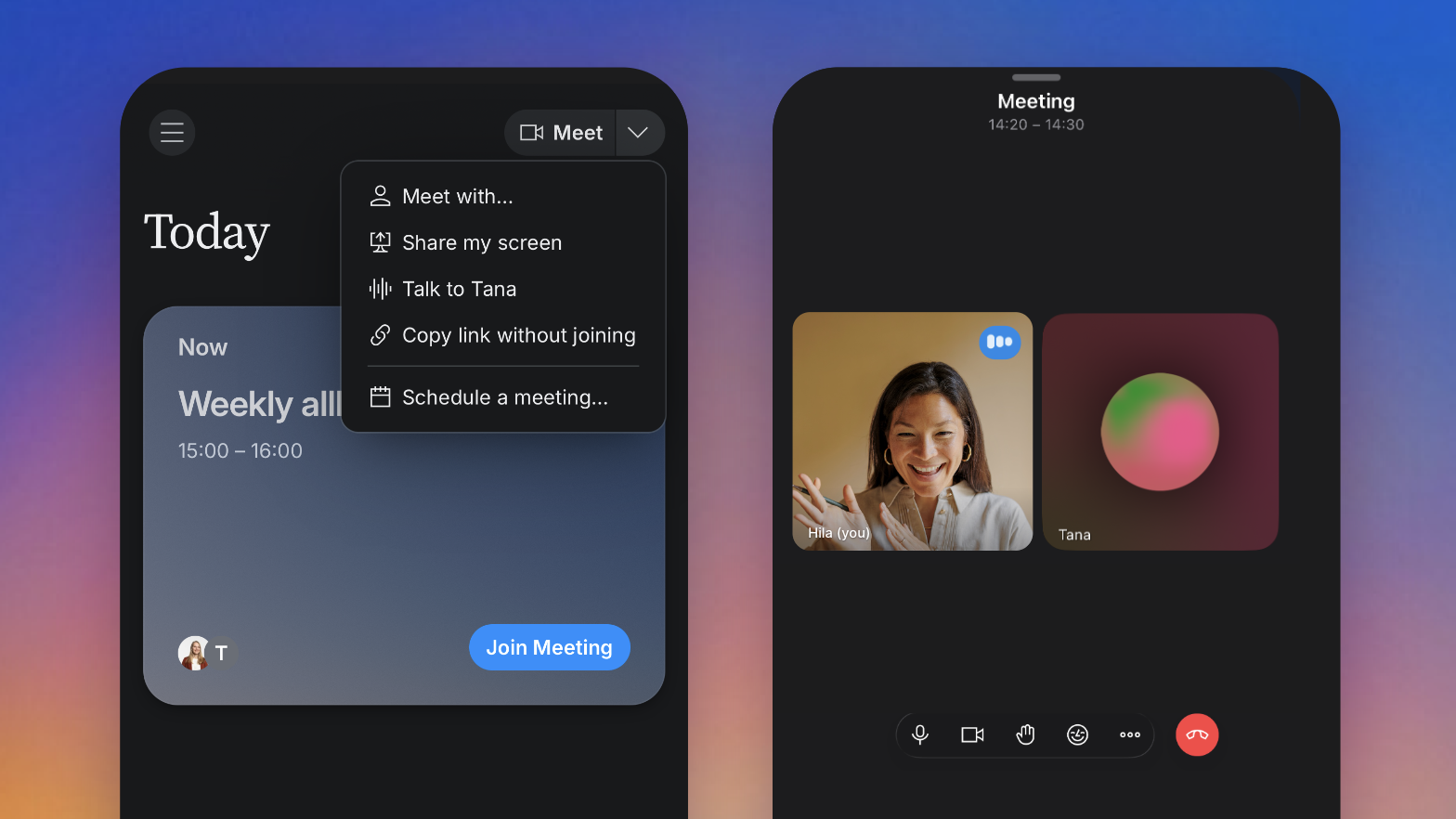
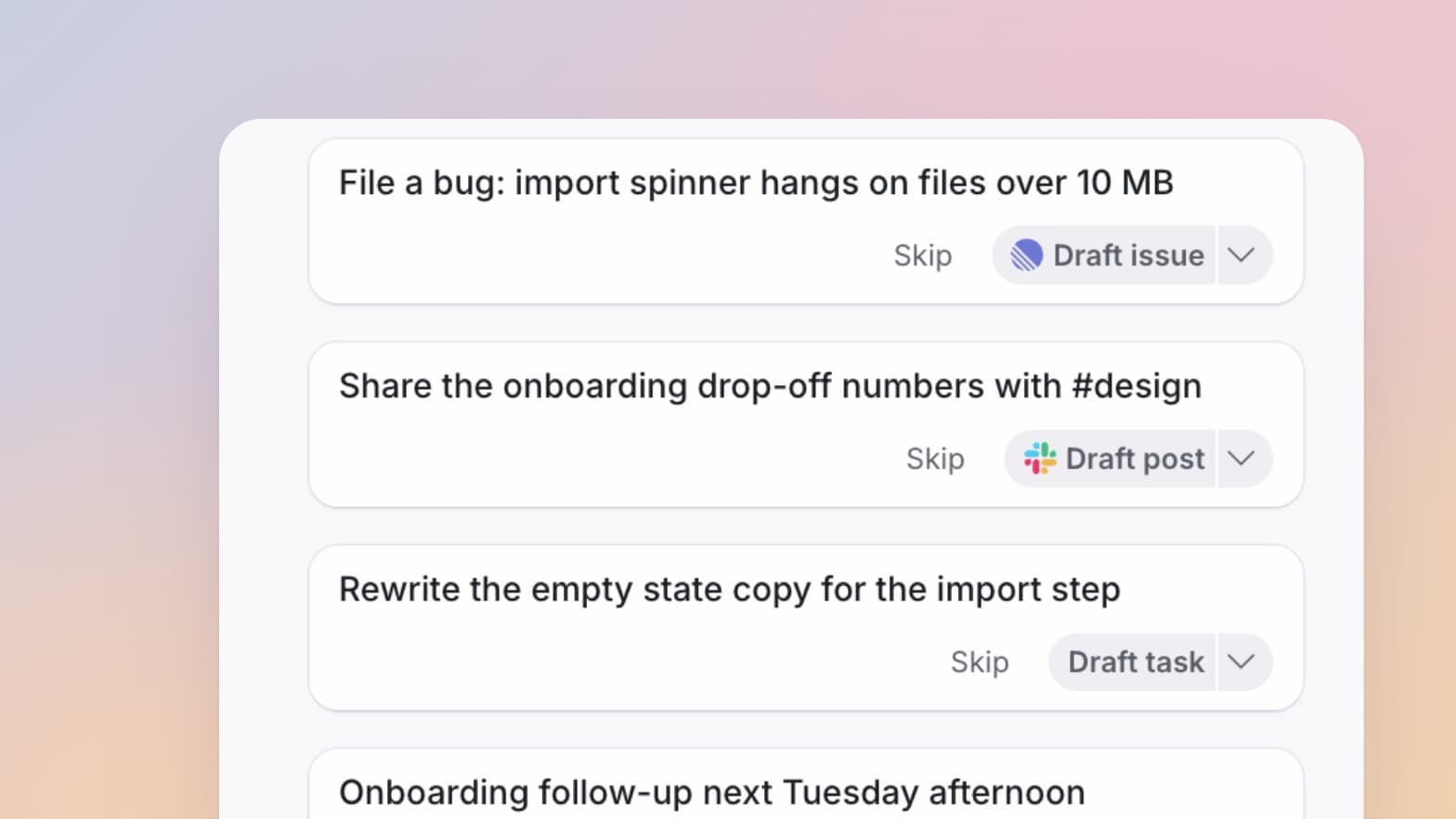
Ask for work and it gets going in the background while you keep talking: finding the right docs and pinning them to your next meeting, drafting a follow-up, researching a company on the web, or acting in your connected tools. Anything it creates comes back for you to review, so nothing lands without your OK.
Catch up on any meeting
Everything in Tana comes with you. Scroll back through the timeline on Home, or search for any meeting, to read its summary, decisions, and outcomes. Five minutes before a follow-up is all it takes to get up to speed.
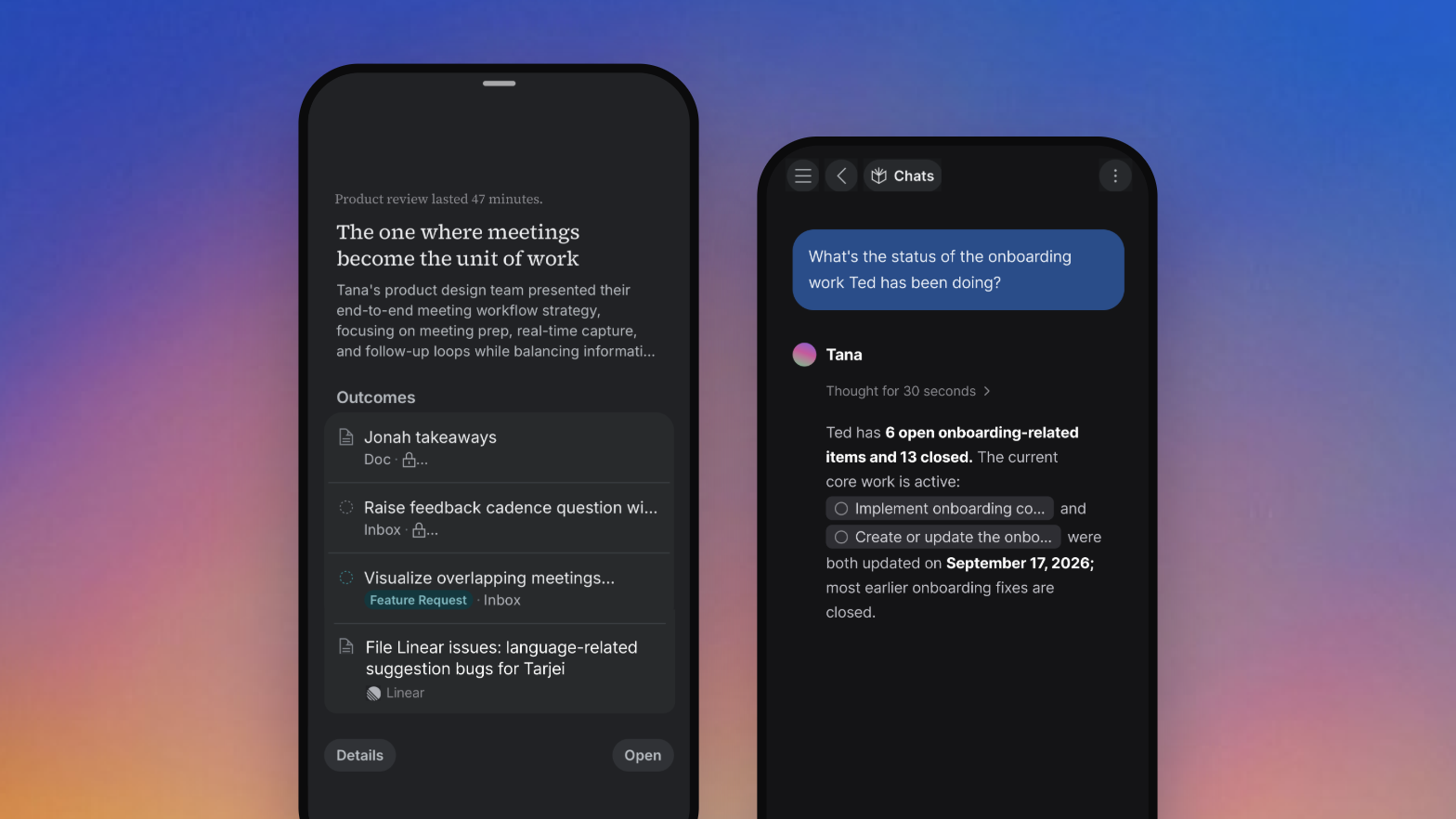
Want an answer rather than a summary? Open a chat and ask: "What did we agree on pricing?" or "Which action items from Monday's review are still open?" Tana answers from your meetings and docs.
Pick up the work on iPad
On iPad, the same app gives you more room for the work your meetings create. Open a doc, an issue, or a project, see where it came from, and pick up where the meeting left off.
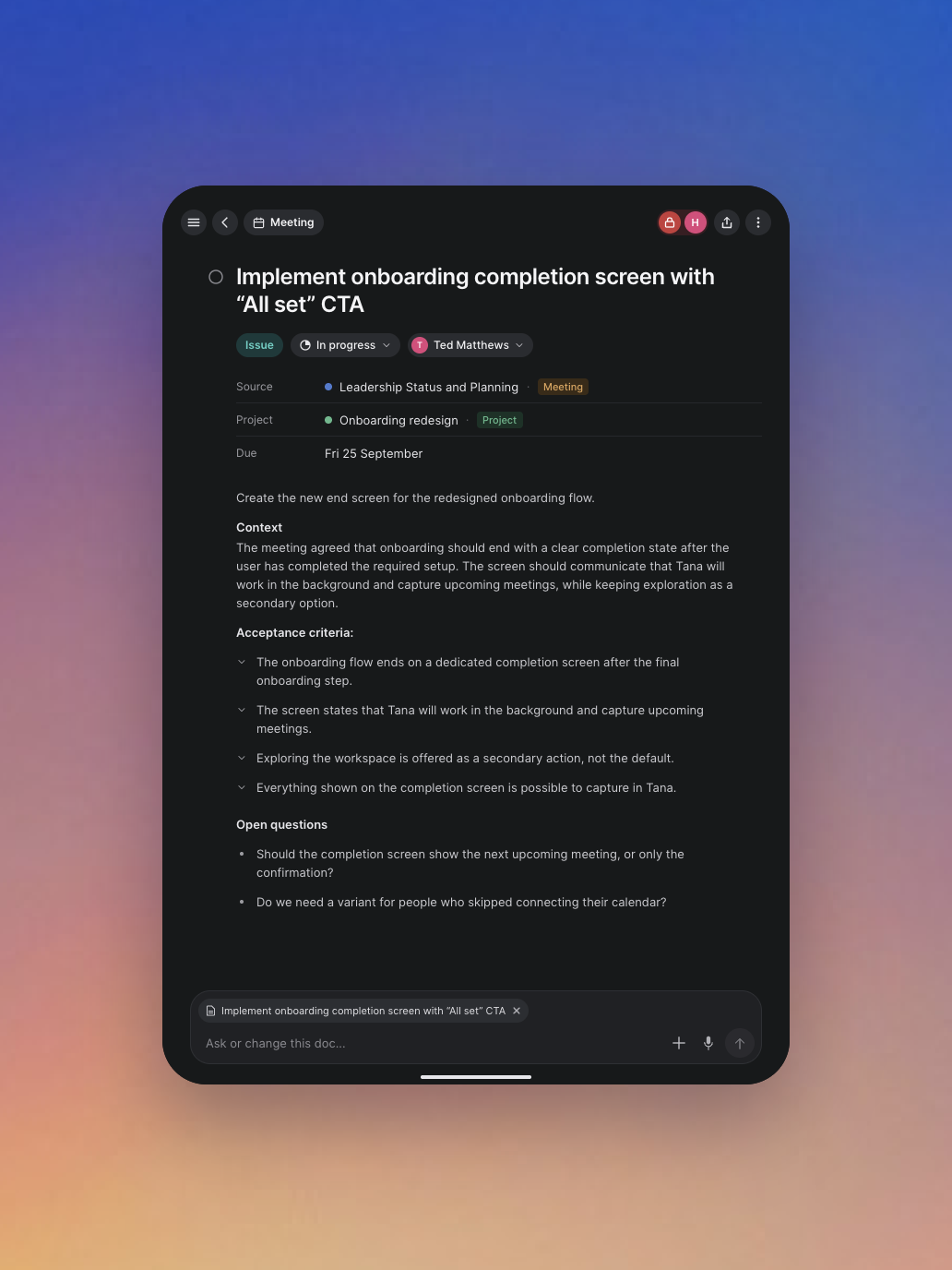
Anything created in a meeting keeps a link back to it, so the context travels with the work, whichever device you pick up.
On Android?
An Android app is on our roadmap too. We don't have a date to share yet, but we'll let you know as soon as it's ready.
Try this
Talk to Tana is the quickest way to prepare for a meeting. Before your next one, open a chat and drop in this prompt, or say it out loud to Tana from your Lock Screen:
Get the app
Tana for iOS is free to download and works with your existing Tana account. Sign in, and your meetings, docs, and chats are already there.
The Tana Team

Turn meetings into the most productive part of your day.
Explore further
All updates