






Claude and Tana, both directions
Connect Claude to your Tana workspace over MCP, then ask it to pull up your notes, draft from them, and write changes back as proposals you approve. Connect from Claude Code, Claude Desktop, or claude.ai. Tana also hands the current document or chat to Claude Code as a ready-to-run prompt in a project folder you choose.
Connect Claude to your Tana workspace over MCP
What you can do with Claude
Pull context in
Bring your notes into Claude
- Search notes, docs, and meeting transcripts across your spaces
- Pull the context for an answer without leaving the chat
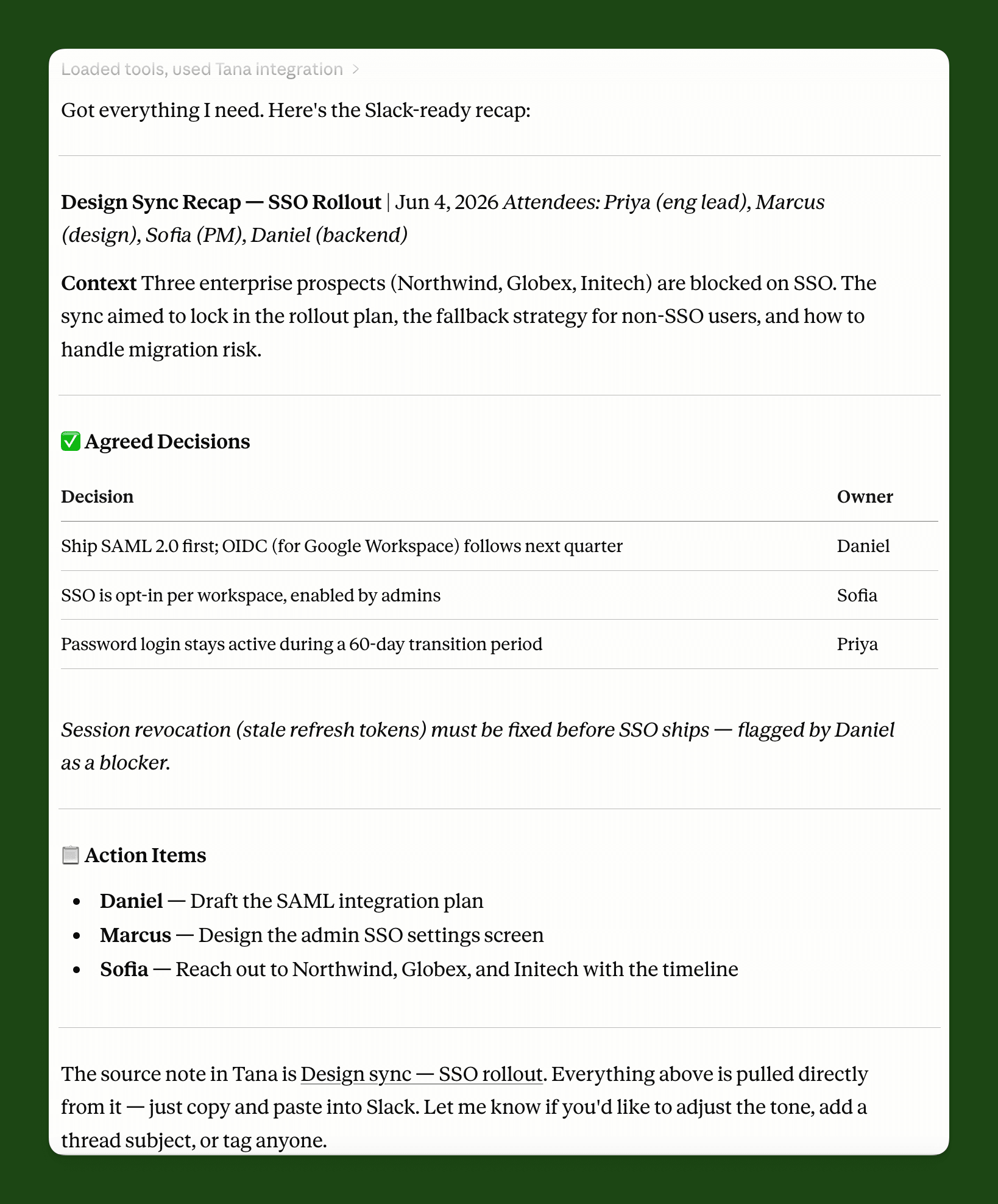
- Turn a meeting note into a recap ready to paste into Slack
Summarize the SSO rollout sync as a Slack-ready recap
Reason over it
Draft from what you've captured
- Gather source documents from across the workspace
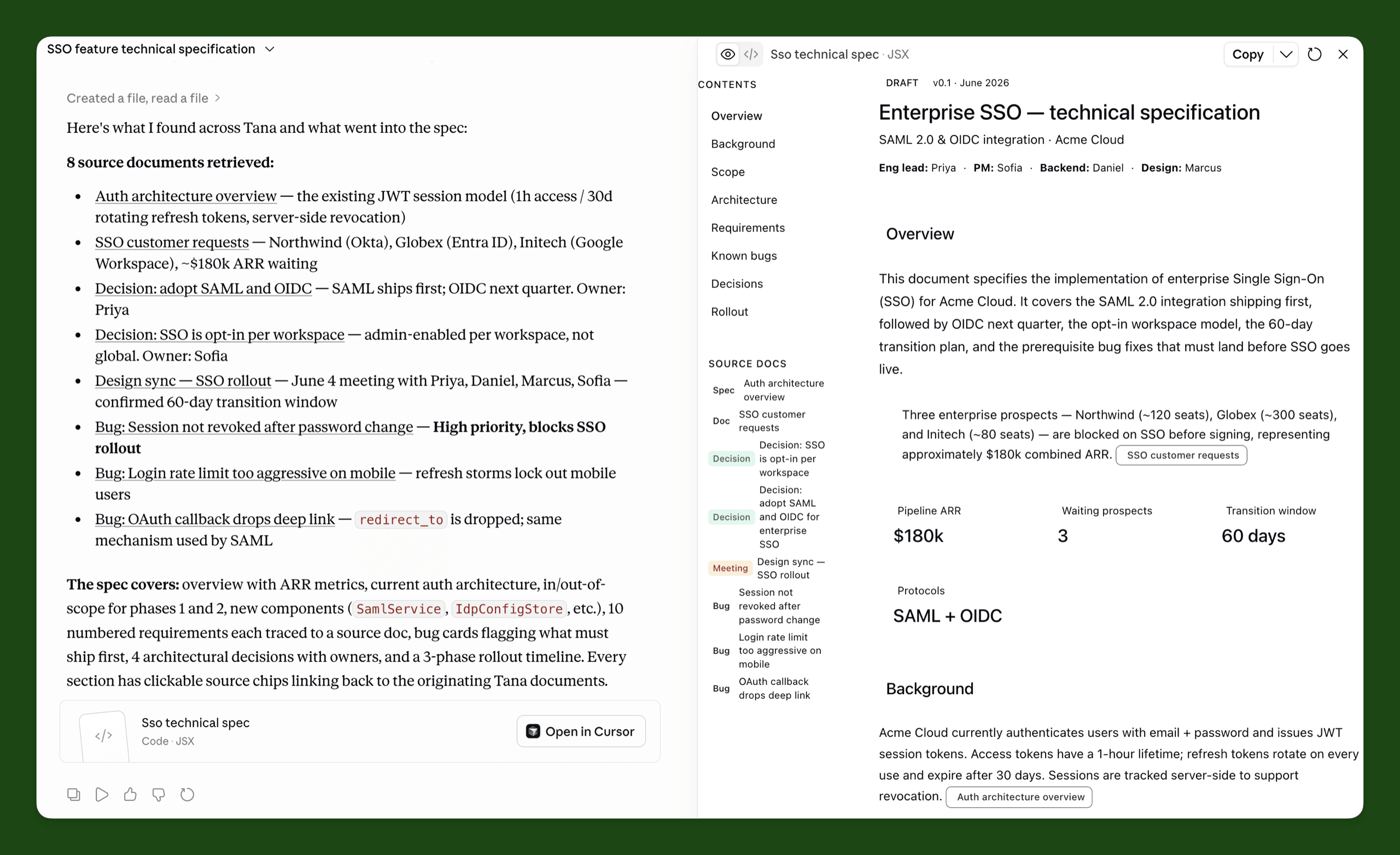
- Draft a spec, brief, or plan from your own notes
- Ground the work in what you've captured, not guesses
Draft the enterprise SSO spec from everything we've discussed
Write it back
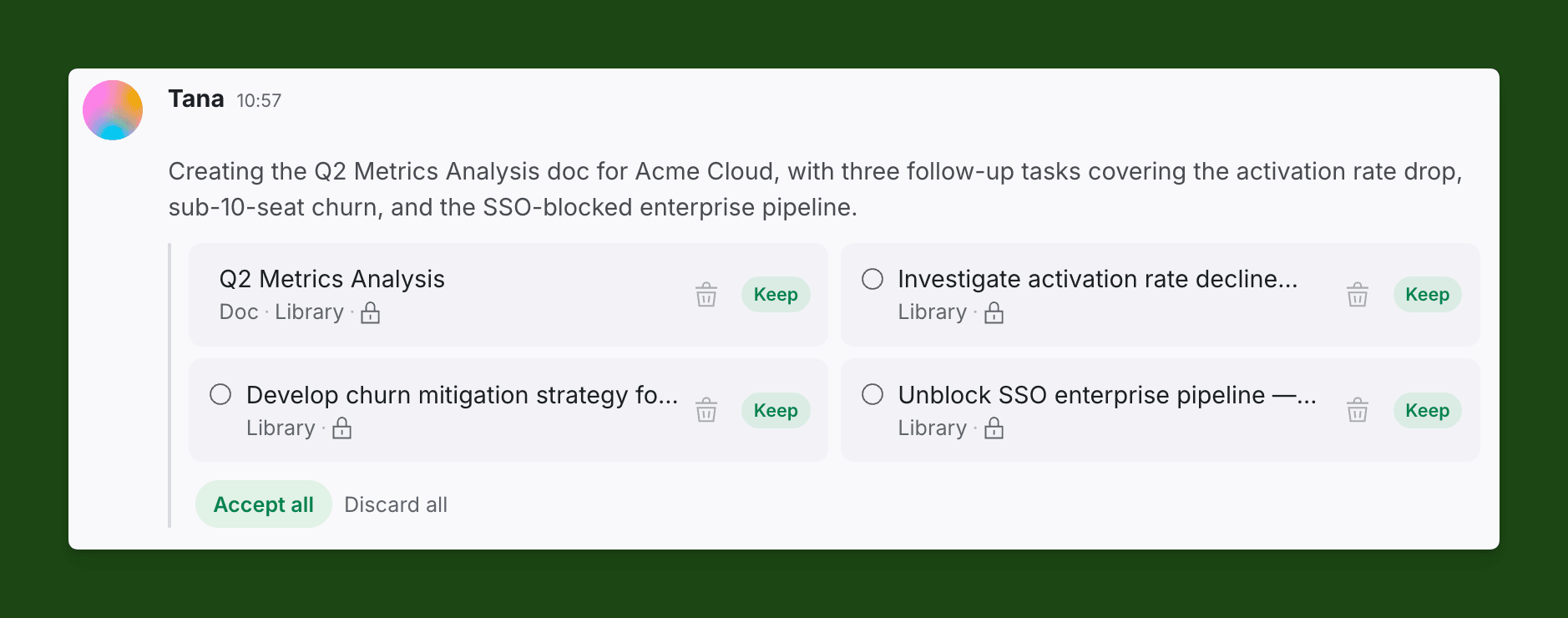
Changes arrive as proposals
- Create documents, tasks, and typed entries from chat
- Update existing content in place
- Review every change before it lands, then accept or discard
Create the Q2 metrics doc with the three follow-up tasks
How to connect Claude
Claude Code
Add the Tana plugin, then authorize Tana under /mcp.
claude plugin marketplace add tanainc/tana-plugin && claude plugin install tana@tanaWorks in any Claude Code install.
Claude Desktop and claude.ai
Add the Tana plugin from Claude's directory, even if you already connected Tana as a connector.
- Open Customize, then Plugins, then Discover.
- Search for Tana and click Add.
- Open the plugin's Connectors tab, click Connect, then authorize access to your workspace.
No Plugins page (Free plan)? Open Customize, then Connectors, search for Tana and click Connect.

Frequently asked questions
- Does Tana work with Claude Code?
- Yes, both ways. Claude Code can connect to Tana over MCP to search your workspace, draft from your notes, and write changes back as proposals you approve. And Tana can hand the current document or chat to Claude Code as a self-contained prompt launched in a project folder you choose.
- Does the Tana connection work in Claude Desktop and claude.ai?
- Yes. Tana works in Claude Code, Claude Desktop, and claude.ai through the same MCP server. In Desktop and claude.ai you add the Tana plugin from Customize, Plugins; in Claude Code you install the same plugin with two commands in the terminal. The plugin brings the connector plus Tana's skills for meetings. Without plugins, on Claude's Free plan, connect Tana from Customize, Connectors instead.
- Where do Claude's changes show up in Tana?
- Each connection runs as its own chat in your Library, and Claude's writes arrive there as proposals. Nothing changes in your workspace until you accept it, so you can review, edit, or discard each change the same way you review Tana's built-in chat.
Related integrations
- Cursor
Send a meeting to Cursor as a ready-to-run prompt
- Hand off context
- Open in Cursor
- Codex
Hand work to OpenAI's Codex coding agent
- Hand off context
- Open in Codex
- GitHub Copilot
Hand a meeting to Copilot, opens in VS Code
- Hand off context
- Opens in VS Code
- Lovable
Send an idea to Lovable's app builder
- Hand off context
- App builder



Do the work in the meeting
Connect Claude and let Tana’s AI act on it while you talk. No more notes to write up afterward.
Get Tana